



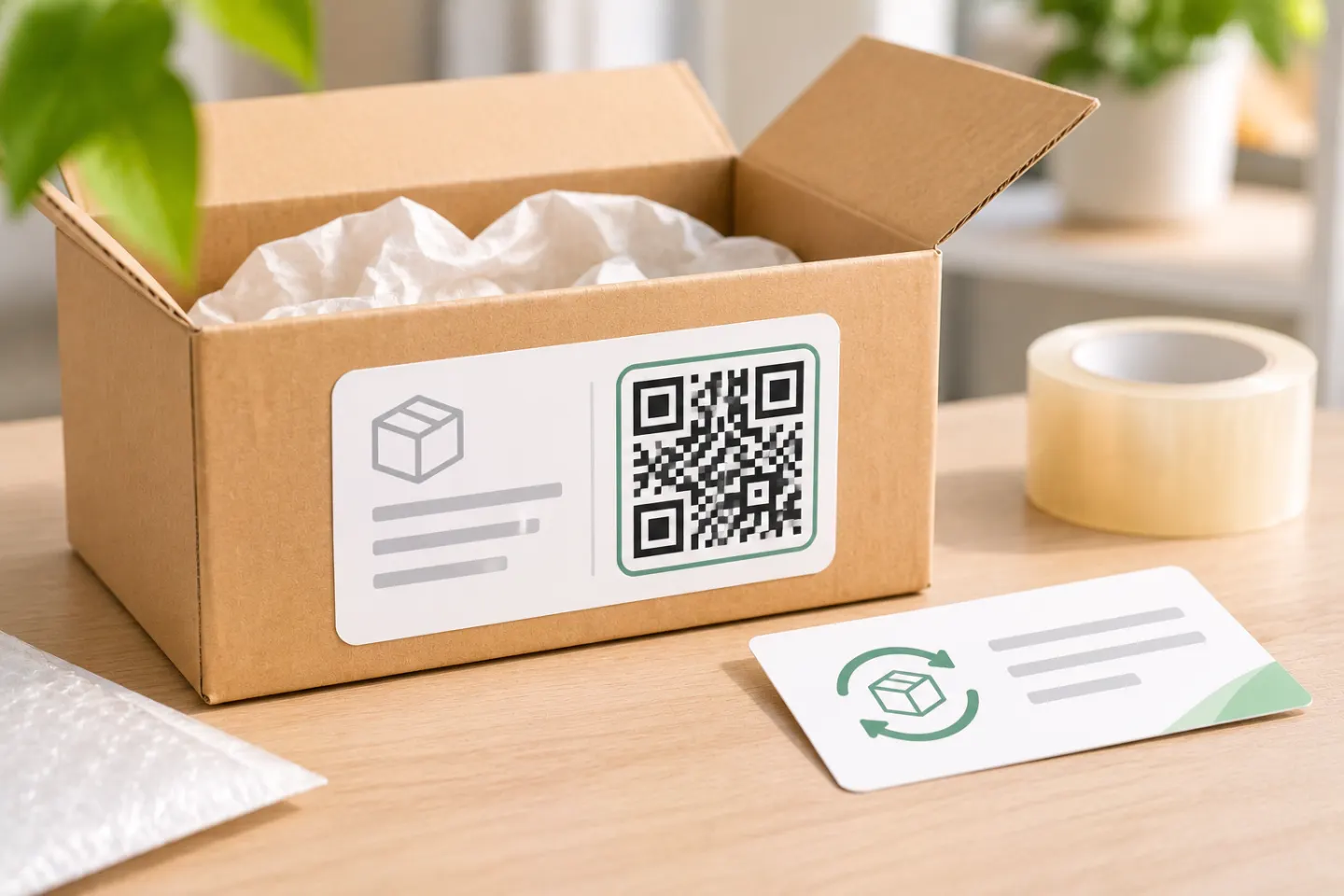
Start with what you received
| What you have | What to do |
|---|---|
| USPS Label Broker QR code or ID | Bring either one to a participating Post Office. If you have the ID and access to a printer, you can also download the label from USPS and print it yourself. [1][2] |
| A printable shipping-label PDF | Print and attach the label, then follow the drop-off instructions. If you need in-store printing, ask the label provider whether it offers a Label Broker ID for that shipment. Eligible Click-N-Ship labels have a USPS option to request one. [1][2] |
| An order number, tracking number, or link to a return page | Open your original shipping or return instructions and look for the label or the Label Broker ID. If you still can’t find either, ask the label provider to resend the code or provide the ID. [2] |
The issuer stores the shipping label and sends you the code or ID used to retrieve it. Turning a return-page link into a QR code gives someone a shortcut to the page. It won’t create a Label Broker credential for the Post Office. [2][3]
Print the label and drop off your package
- Find a location that offers the service you need. Open the USPS location finder at https://tools.usps.com/locations/ and enter your city and state or ZIP Code. In the filters, under Mailing Services, look for Label Broker Retail for counter service or Label Broker Self-Service for a supported kiosk. [2]
- Bring the package and open the code on your phone. Save the code before leaving and keep the ID handy. For USPS Label Broker, bring the parcel sealed and ready to ship. If the return instructions specify a different service or say to bring the item without a box, follow that program’s directions. [1][3]
- Print and hand over the package. At the counter, give the clerk your package and show the code or ID so they can print and attach the label. At a supported kiosk, follow the on-screen prompts to scan or enter your ID. Attach the printed label and use the drop-off option indicated at that location. If you need proof of drop-off, ask about a receipt before leaving. [1][2]
To print at home instead, open the Label Broker tool at https://tools.usps.com/label-broker.htm. Enter the Label Broker ID and the five-digit ZIP Code for the return (from) address, then select Download Label. Print the PDF, attach it, and follow your shipment’s drop-off instructions. [1]
Can USPS print my label without the QR code?
Yes, if you have the Label Broker ID. Reopen the original email or return page if your screenshot cuts off the ID. For a Click-N-Ship label, check Shipping History → Label Details. If you chose to print it yourself, look for Print at the Post Office under More Actions for an eligible label. When buying an eligible label, you can select Print later at Post Office on the payment confirmation page. [2]
If the ID is missing or the location can’t retrieve the label, go back to the sender, retailer, or shipping platform that issued it. Ask for the ID or a fresh label and confirm the ship-by or return deadline in your original instructions. For a return, use the replacement provided for that order to keep the parcel tied to the right return.
Check the carrier on your eBay or FedEx instructions
Selling on eBay? In Orders, choose Print shipping label, select a service that offers a QR code, and choose QR code as the label format before purchasing. eBay lets you download the code and also sends it by email. Use a participating drop-off location for the carrier you selected. [4]
Returning an online purchase with a FedEx QR code? Check your return email for participating FedEx drop-off locations. Pack the item and take it to one of those locations so staff can print the label and accept your return. [5]
What to tell customers sending a USPS return
If your store offers USPS Label Broker, give customers the code and the readable ID alongside the packaging instructions and return deadline. You can adapt this wording for a boxed return. [3]
Seal your return in a box and take it to a Post Office that offers USPS Label Broker. Show the QR code on your phone so the clerk can print the label. If the code won’t scan, show the Label Broker ID below it. Hand your labeled package to the clerk.
When the return service changes, update the return portal and confirmation email together so customers get the same carrier, packaging, and drop-off directions in both places.
References
[1] USPS. “Label Broker & Label Delivery Service.” https://www.usps.com/ship/label-broker.htm
[2] USPS. “Label Broker® Feature.” https://faq.usps.com/articles/Knowledge/Label-Broker
[3] USPS. “Label Broker.” https://www.usps.com/business/label-broker.htm
[4] eBay. “Printing and canceling shipping labels.” https://www.ebay.com/help/selling/shipping-items/printing-shipping-labels-ebay?id=4157
[5] FedEx. “How do I use a QR code to make a return for an online purchase?” https://www.fedex.com/en-us/customer-support/faqs/returning/returns/use-qr-code-return.html




