



Choose the route that matches your QR code
| Where the QR code is | Try this first | What to expect |
|---|---|---|
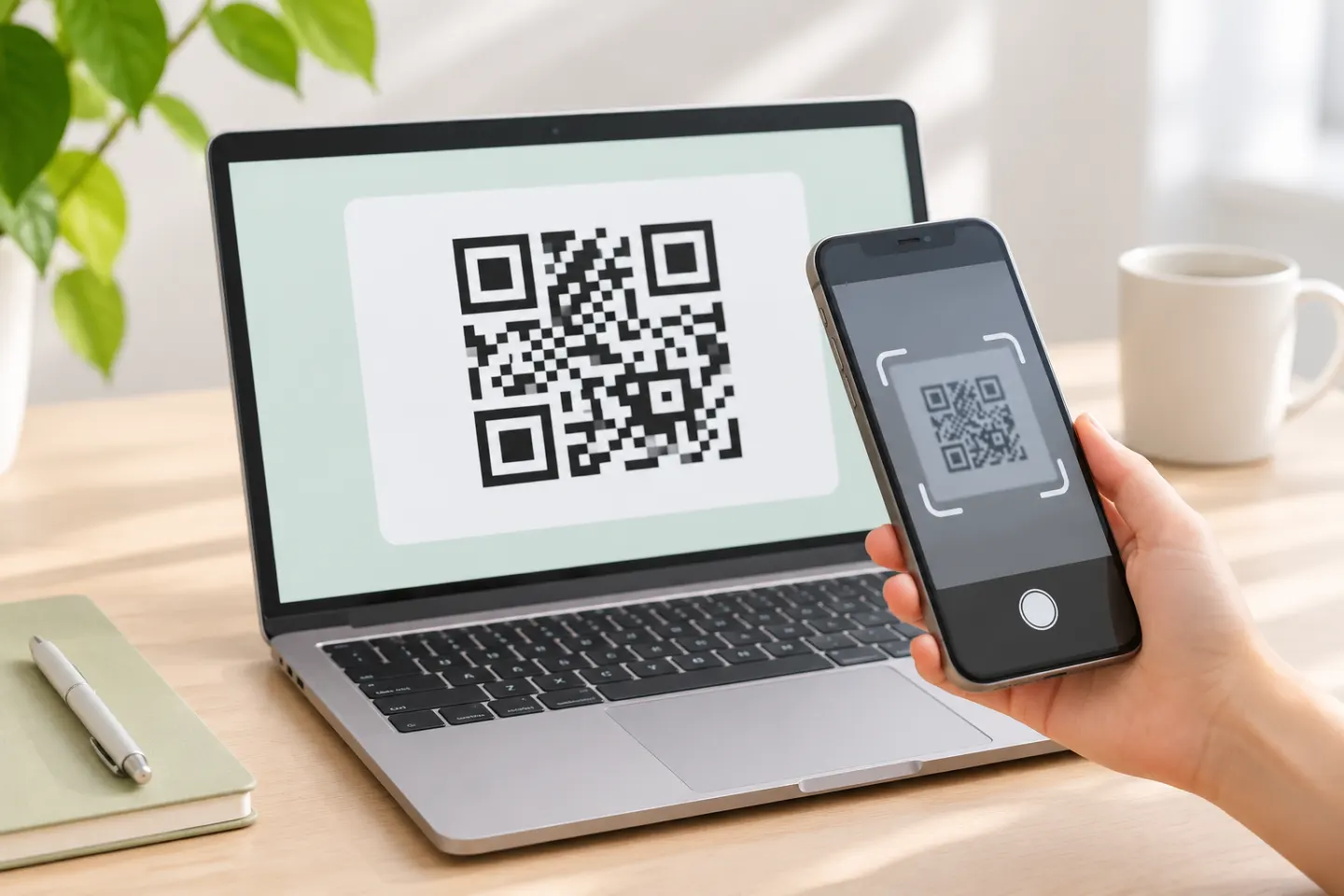
| On a webpage or another computer screen | Scan it with your phone camera | No computer QR app is needed |
| Printed or displayed in front of a Windows webcam | Use the Barcode mode in Windows Camera | The code needs to be in focus in the camera view |
| Saved as a screenshot or image on the computer | Open it with a tool that supports image input, or show it on another screen and scan it with a phone | A live-camera scanner may not read a file on its own |
| On a Mac screen or saved on a Mac | Use a phone or an image reader that explicitly supports QR images | I could not verify a general built-in macOS QR scanning workflow in Apple’s current guidance |
Scan a QR code from your computer screen with your phone
This is usually the quickest route for a code displayed on a laptop, monitor, or tablet:
- Open the QR code on the computer and make it large enough to see clearly.
- Keep the whole square visible, including its clear border. Avoid glare or reflections on the display.
- Open the camera or QR scanner on your phone and point it at the screen. On Pixel phones, Google says to keep the entire code in view; the Camera app can show a link when it recognizes the code. [2]
- Review the link or action before opening it. If the code came from an unexpected message or unfamiliar source, verify the destination first.
You can use this method for a code in a browser, PDF, slide, or photo as long as it is visibly displayed on the computer. If the code is inside a small preview, zoom in without cropping any part of the square.
Scan a QR code with a Windows laptop camera
On supported Windows devices, the built-in Camera app can scan a code held in front of the camera:
- Open Camera from the Start menu.
- Select the Barcode button.
- Hold the QR code in front of the camera and adjust the distance until it is in focus.
- When Camera recognizes a QR code, it shows the website link at the bottom of the app. Select the link only after checking that it is the destination you expect. [1]
Microsoft documents this as a live-camera workflow. It is for a code the webcam can see, such as a printed code or a code shown on a separate display. It does not establish that Camera can open a QR image file already saved on the same computer. If you do not see the Barcode control, make sure the Camera app is available and updated, then check the app’s current controls for your Windows version.
Read a QR code saved as an image on your computer
A QR code in a screenshot or downloaded image is a different task from scanning a code with a live webcam. The practical options are:
- Use a phone as the reader: Open the image on the computer and scan the screen with your phone.
- Use a QR reader that explicitly imports images: Check the tool’s supported file types and privacy terms before choosing a file. Avoid sending a screenshot with private information to an unfamiliar online service.
If the QR code is on a Mac screen, display it clearly and scan it with a phone. Apple’s published instructions cover QR scanning with iPhone or iPad Camera or Code Scanner; for an image file, use a reader that explicitly supports image input. [3]
If the code will not scan
First identify which step fails: the camera does not recognize the pattern, the scanner recognizes it but shows no useful action, or a link appears but does not load.
If the camera does not recognize the code:
- Show the entire QR square and move closer or farther away until it looks sharp.
- Hold the phone steady and improve the lighting; avoid glare on a monitor or glossy print.
- On a Pixel phone, check that Camera scan suggestions is turned on, clean the lens, and keep the full code visible. [2]
- Try another phone or scanner. If one device reads the code and another does not, check the second device’s scanner settings or supported features.
If the code is recognized but the link will not open, check your internet connection and try the address in a browser. If it still fails, contact the person or organization that provided the QR code; the destination may need attention. Repeatedly rescanning will not fix an unavailable webpage.
Check the destination before opening it
A QR code can lead to a page that looks like a familiar service without being legitimate. Inspect the URL preview for misspellings or an unexpected domain. The Federal Trade Commission advises people to inspect QR links before opening them and to verify unexpected messages through a contact method they already know. [4]
References
[1] Microsoft Support. How to use the Windows Camera app. https://support.microsoft.com/en-us/windows/hardware/camera/how-to-use-the-windows-camera-app
[2] Google Pixel Phone Help. Scan QR codes with your Pixel phone. https://support.google.com/pixelphone/answer/16561572?hl=en
[3] Apple Support. Scan a QR code with your iPhone or iPad. https://support.apple.com/en-us/102680
[4] Federal Trade Commission. Scammers hide harmful links in QR codes to steal your information. https://consumer.ftc.gov/consumer-alerts/2023/12/scammers-hide-harmful-links-qr-codes-steal-your-information




