



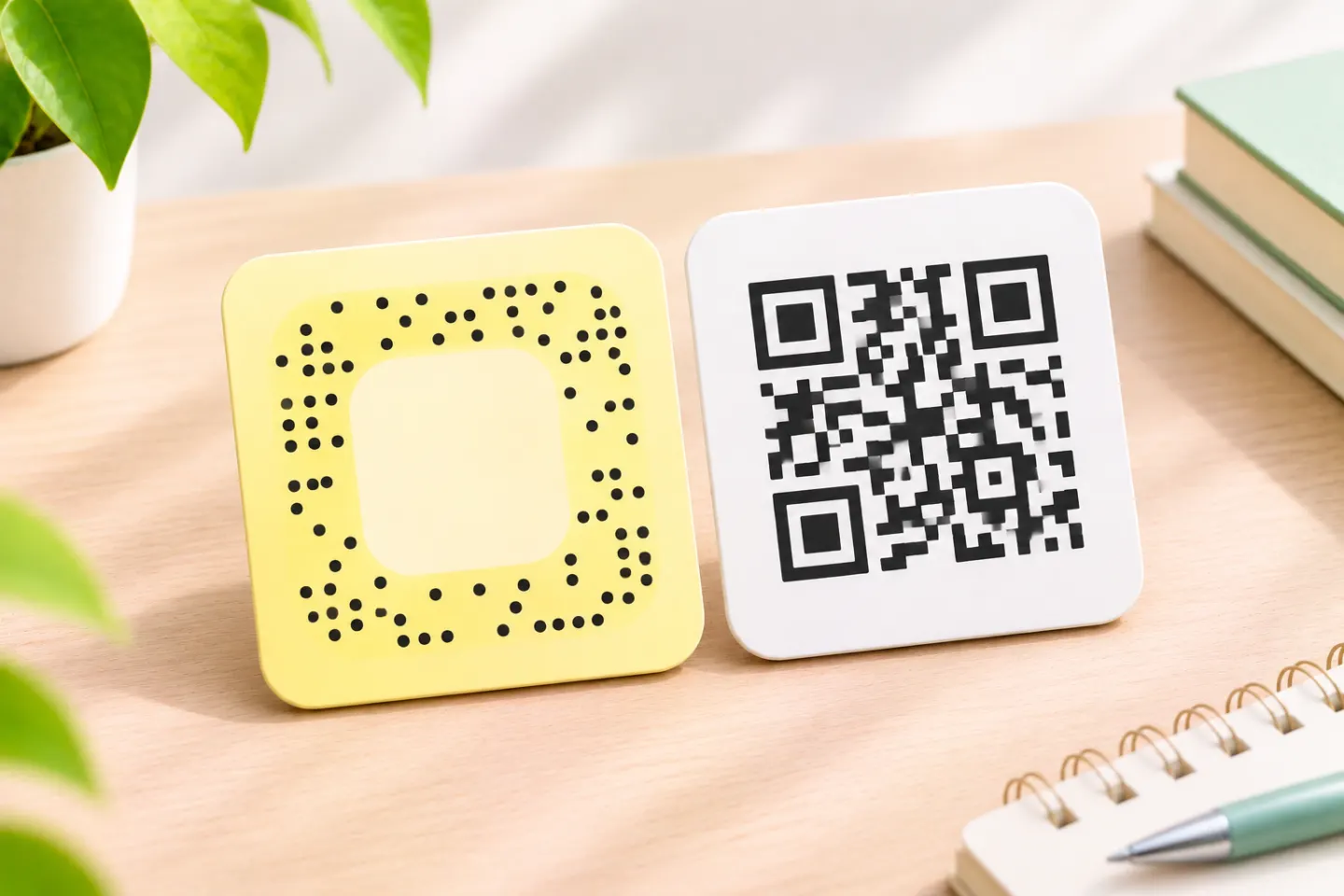
To scan someone else’s code, use the Snapchat Camera. Snapchat documents automatic detection and a press-and-hold method for adding friends; the steps below explain both. These are documentation-based instructions, not results from hands-on device testing. [2]
How Snapcodes work
A Snapcode is a special scannable image used with Snapchat. Depending on the code, it can add a friend, unlock a Filter or Lens, open a website, or connect to other content. A personal profile code and a Lens code therefore do not necessarily lead to the same kind of action. [3]
Snapchat’s profile sharing help calls the personal Snapcode your “QR code.” The Snapchat Camera also recognizes ordinary QR codes, but that does not mean every code it scans is a personal profile Snapcode. [1]
How to find and share your Snapcode
- Open Snapchat.
- Tap your Profile icon.
- Find the code next to your display name and username.
- Tap it to enlarge it for someone nearby to scan.
- To send it elsewhere, use the available sharing option or save it to your Camera Roll. [1]
You do not need a separate code generator for this workflow: Snapchat supplies the personal code and its save/share options. [1]
How to share an existing friend’s Snapcode
Snapchat documents a separate route for an existing friend:
- Swipe right to open Chat.
- Press and hold the friend’s name.
- Tap More.
- Tap Share Snapcode.
The same help page says you can instead share the friend’s username or a profile URL. [4]
Keep private sharing separate from public reuse. Although Snapchat documents this friend-sharing feature, its usage guidelines also say not to use or distribute other people’s Snapcodes. Do not treat the sharing menu as blanket permission to put someone else’s code on promotional materials. This is a conservative editorial reading of the two documents, not a clarification issued by Snapchat. [4]
How to scan a Snapcode
Use automatic detection
- Open the Snapchat Camera.
- Point it at the Snapcode so the code is visible in the camera view.
- Look for a banner at the top of the screen.
- Read the offered action, then tap the banner if you want to continue.
Snapchat says this detection process works for Snapcodes and QR codes. The action may be adding a friend, opening a Lens, or accessing a website. [2]
To add a friend, try press and hold
Snapchat’s friend-adding instructions provide another documented method:
- Have your friend open their Profile to display their Snapcode.
- Point your Snapchat Camera at it.
- Press and hold on the Snapcode to scan it.
- Tap Add Friend. [5]
On some older devices, Snapchat says you must first take a Snap of the code before it is detected. Its help page does not identify particular models or operating-system versions. [2]
What if the Snapcode will not scan?
Start with these checks rather than assuming there is an account problem:
- Check the image. Keep the frame and ghost outline intact; do not stretch, skew, invert, or obscure the code.
- Reduce reflections. Snapchat advises against glossy printing because reflections interfere with scanning.
- Use a better source image. Snapchat’s guidelines link to a high-resolution personal Snapcode download.
- Test the final placement. Check the code before posting, and test packaging before mass production. [6]
If automatic detection does not work when adding a friend, try the documented press-and-hold method. For an older device, try taking a Snap first. These are troubleshooting options, not guarantees of recognition. [5]
What if the image is saved on the same phone?
The scanning instructions above describe pointing the camera at a visible code; they do not establish a current Camera Roll import menu. A practical workaround—not tested for this article—is to display the image on another screen and scan that display. For connecting with a friend, a shared username or profile link is another documented option. [2]
Before publishing or printing your code
Preserve the original proportions and keep the frame, dots, and ghost outline darker than the lighter code layer. Add an instruction such as “Scan with Snapchat,” and test the finished design. Snapchat also requires express permission to sell Snapcode merchandise such as stickers or apparel. [6]
For a Lens, use its own distribution assets rather than assuming your personal profile code will open it. Lens Studio documentation says each Lens has its own Snapcode and also supports Lens Links, which let you share the Lens without supplying a code image. [7]
References
[1] Snapchat Support — How to Share My QR Code on Snapchat — https://help.snapchat.com/hc/en-us/articles/7012378618388-How-to-Share-My-QR-Code-on-Snapchat
[2] Snapchat Support — What can I scan with the Snapchat Camera? — https://help.snapchat.com/hc/en-us/articles/7012376161556-What-can-I-scan-with-the-Snapchat-Camera
[3] Snapchat Support — What is a Snapcode? — https://help.snapchat.com/hc/en-us/articles/7012342798612-What-is-a-Snapcode
[4] Snapchat Support — How to View and Share a Friend’s Snapcode — https://help.snapchat.com/hc/en-us/articles/7012410433684-How-to-View-and-Share-a-Friend-s-Snapcode
[5] Snapchat Support — How to Add Friends on Snapchat — https://help.snapchat.com/hc/en-us/articles/7012328615828-How-to-Add-Friends-on-Snapchat
[6] Snapchat Support — Snapcode Usage Guidelines — https://help.snapchat.com/hc/en-us/articles/7012293046420-Snapcode-Usage-Guidelines
[7] Lens Studio Docs — Snapcodes — https://docs.lensstudio.com/publish/distribution-and-discovery/snapcodes




