



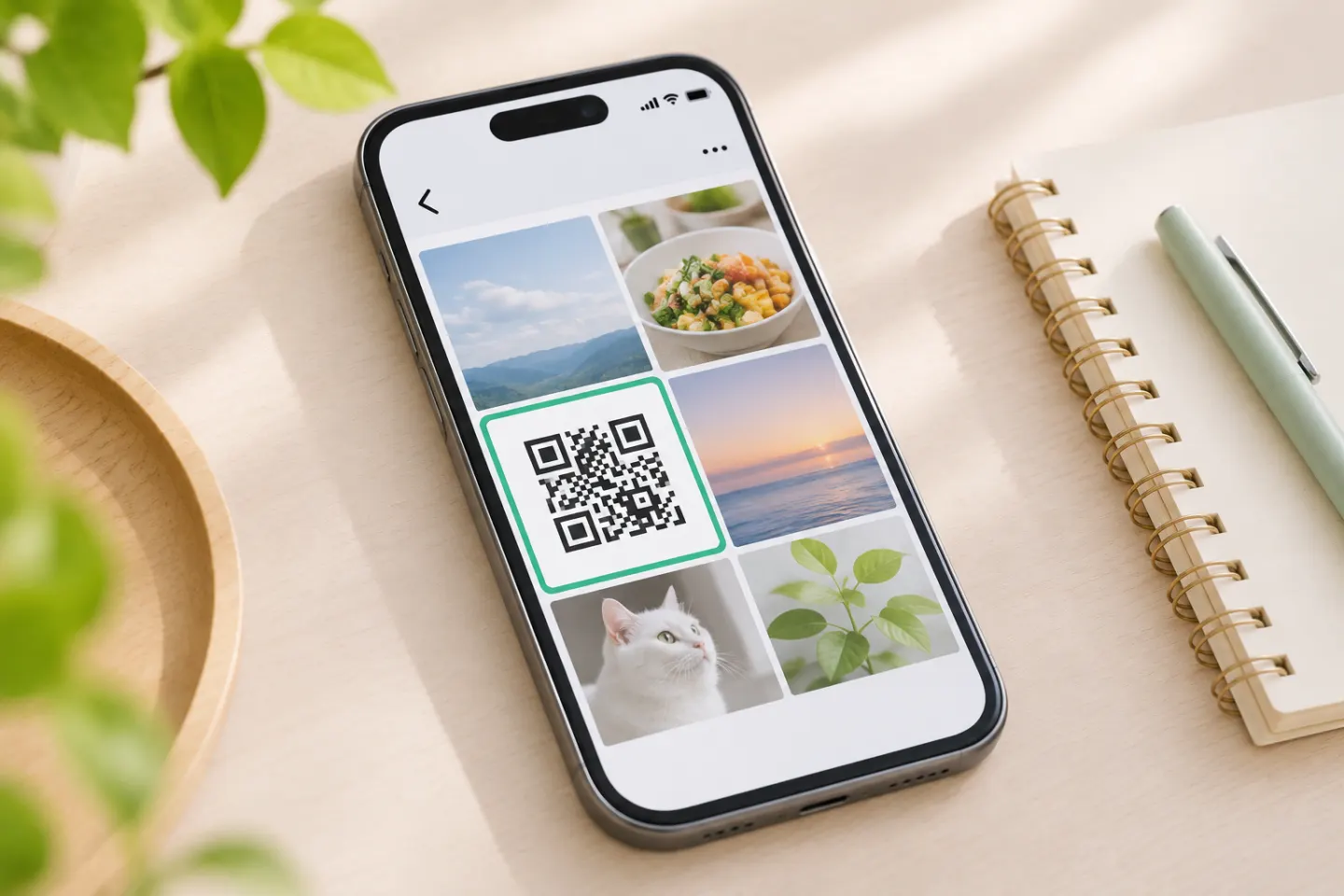
A QR code inside a screenshot is still an image, so you do not need to point your phone at its own screen. Use a tool that can read an existing image, or move the image to a second display. Before opening a detected link, review its address and confirm that it matches what you expected. [4]
Pick a method based on where the image is
| Where the QR code is saved or shown | Try this first | If it does not work |
|---|---|---|
| Android phone or tablet | Google Photos → open the image → More → Google Lens | Try Lens from the Google app if available, or show the image on another screen and scan it |
| iPhone or iPad | Open the image in Photos and check for an available QR or link action | Display the image on another screen and scan it with Camera |
| Computer image or screenshot | Open the image full size and scan the screen with your phone | Use an image-import reader you trust; upload only if you are comfortable sharing that image with the service |
| Link appears but will not load | Check the address and your connection | Try the original source or contact the person or organization that shared it |
Scan a saved QR code on Android
Google Photos lets you select an image and open More → Google Lens. Lens can analyze images and offer actions; what it recognizes depends on the image and the feature available on your device. [1]
- Open Google Photos and select the screenshot or photo.
- Tap More (the three-dot menu), then Google Lens.
- Review the result. If Lens identifies a link, check the address before opening it.
If Lens is not in the menu, try the Google app’s Lens control, if your phone has it. You can also open the image on a computer or another phone and scan it with your camera. This second-screen method avoids uploading the image to a third-party reader.
Do not assume every Android QR shortcut can import an image from Gallery. A scanner may work only with the live camera, and controls vary by manufacturer. If the scanner offers no image or Gallery option, use Lens or a second screen instead.
Scan a saved QR code on iPhone or iPad
Open the image in Photos and look for an action associated with the QR code or link. If iOS shows a link, inspect the address before choosing what to do. Apple documents Live Text and actions for text found in images, but that guidance does not promise that every QR code in Photos will be recognized as a scannable link. The exact behavior can depend on the image and software. [2]
If no QR action appears, use a dependable workaround:
- Open the photo or screenshot on a computer, tablet, or another phone.
- Make the QR code large enough to see clearly, with the entire square visible.
- On the iPhone or iPad, open Camera and point it at the code on the other screen.
- When a link appears, review it before tapping. Apple’s camera instructions describe scanning a QR code in the camera frame. [3]
If you only have one device, you can try a reputable QR reader app that explicitly supports importing images. Check the app’s developer, permissions, and privacy information before selecting a private screenshot. Skip the app if you would rather not grant access to your photos; the second-screen route remains an option.
Read a QR code from an image on a computer
If the QR code is displayed in a computer image or screenshot, the simplest route is usually to scan the screen with your phone. Open the image, zoom until the entire code is clear, and hold the phone steady while keeping the code inside the camera frame.
If you need to read the code on that same computer, use a desktop QR reader that can import image files, or an online reader only if you are comfortable with its data handling. An online reader requires you to send the selected image to that service. Crop the file to the QR code first, and do not upload a screenshot containing messages, account details, documents, or other private information. Check the service’s privacy terms before uploading; a link preview is not a privacy guarantee.
If the QR code is not detected
Try these checks in order:
- Use the original image. Reopen the full-resolution photo or screenshot instead of a small preview or a copy sent through a messaging app.
- Show the complete code. Make sure the square and its surrounding clear margin are not cropped or covered.
- Make it large enough. Zoom in or resize the image so the code is easy to see, without enlarging it so much that it becomes blocky.
- Try another supported route. On Android, use Google Photos and Lens. On iPhone, try the available Photos action or display the image on another screen and scan it with Camera.
- Check whether the image itself is damaged. Blur, glare captured in the photo, compression, folds, or a sticker over the code can make details hard to read. Ask the sender for the original image or a fresh copy.
- Separate detection from loading. If a URL appears, the code was read. If the page then fails to load, check the address and your internet connection or contact the site owner; rescanning may not fix a broken destination.
If the code is clear but multiple compatible methods still do not recognize it, ask the sender for a direct link or a new image. Do not keep uploading a private screenshot to unfamiliar services just to try another decoder.
Check the link before opening it
A scanner can reveal a destination without proving it is trustworthy. Read the URL preview, especially the domain, and stop if it is misspelled, unexpected, or unrelated to the source. The Federal Trade Commission recommends inspecting a QR link before opening it and warns that scammers may place a fake QR code over a legitimate one. [4]
If the QR code came from an unexpected message, verify it with the sender using a contact method you already trust. Be especially careful if the page asks for a password, payment, or personal information you were not expecting. Close the page and go to the organization’s known website or app directly if you are unsure.
Frequently asked questions
Can I scan a QR code from a screenshot without another phone?
Often, yes. On Android, try Google Photos and Google Lens. On iPhone, check whether Photos offers an action for the code; if it does not, you may need a second screen or an image-import QR reader. Support varies by device and image, so the second-screen method is the practical fallback.
Why does my phone camera not scan a QR code in a photo?
A regular camera is designed to scan a code it can see through the viewfinder; it may not offer a way to open a saved image. Use an image-aware option such as Google Lens on Android, or display the photo on another screen and scan that screen with the camera.
Is it safe to upload a QR code screenshot to an online scanner?
Only upload an image if you are comfortable sending that file to the service. A screenshot may include private content beyond the QR code. Crop it to the code, review the service’s privacy information, and inspect the decoded link before opening it. If the image is sensitive, use a device feature or a trusted local app instead.
References
[1] Google Photos Help. “Get info about your photos & surroundings.” https://support.google.com/photos/answer/7539151/?co=GENIE.Platform%3DAndroid&hl=en
[2] Apple iPhone User Guide. “Interact with text in a photo or video on iPhone.” https://support.apple.com/en-us/guide/iphone/iph37fdd714b/ios
[3] Apple Support. “Scan a QR code with your iPhone or iPad.” https://support.apple.com/en-us/102680
[4] Federal Trade Commission. “See a QR code parked somewhere? Don’t scan it…yet!” https://consumer.ftc.gov/consumer-alerts/2026/09/see-qr-code-parked-somewhere-dont-scan-ityet




