



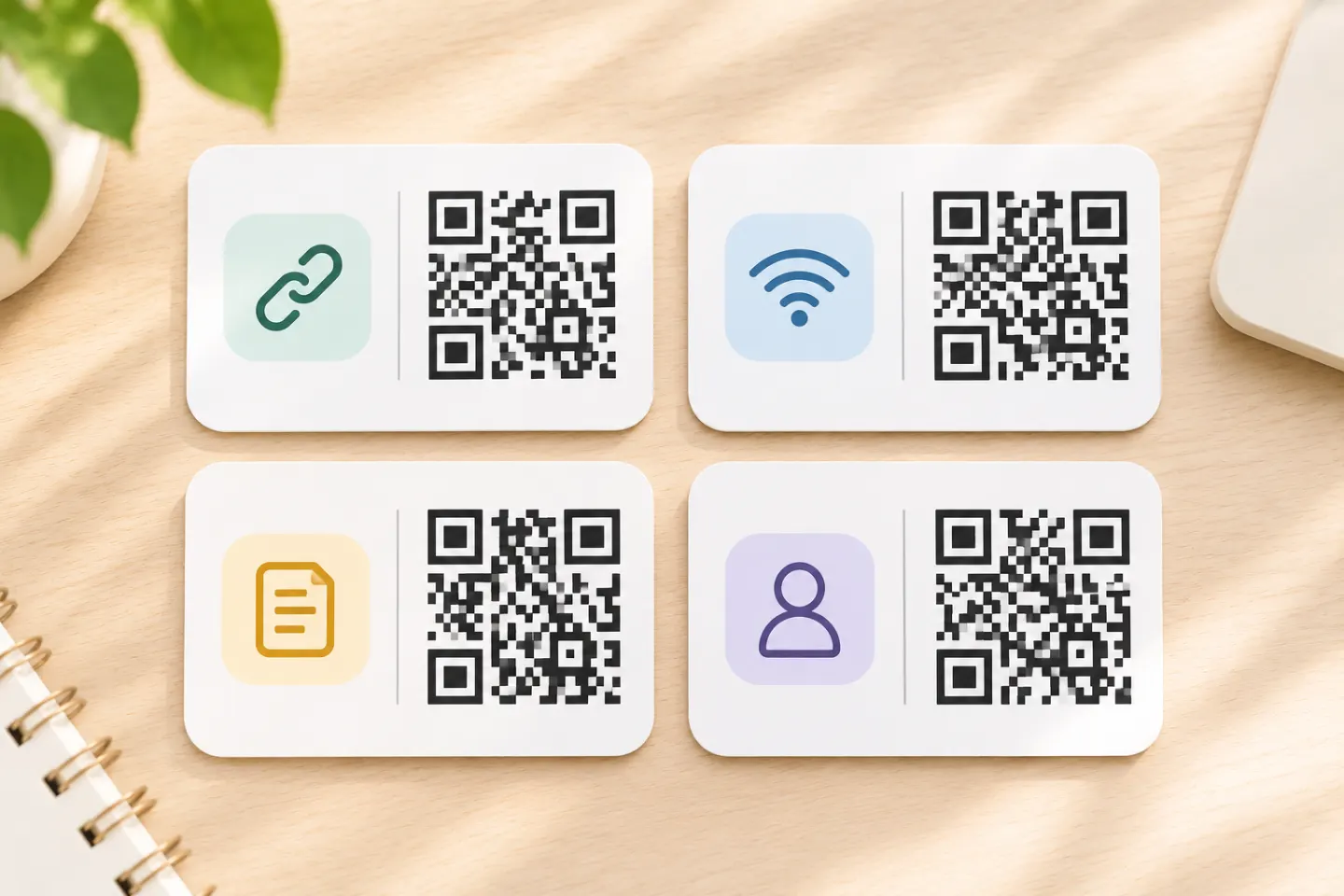
To test a code, display its image on a screen and scan it with a second device. Compare the result with the expected behavior below. If you are testing an image-import feature, save the PNG and select it from the scanner’s gallery or file picker instead. Do not enter real passwords or personal contact details into a sample.
1. Test a web link
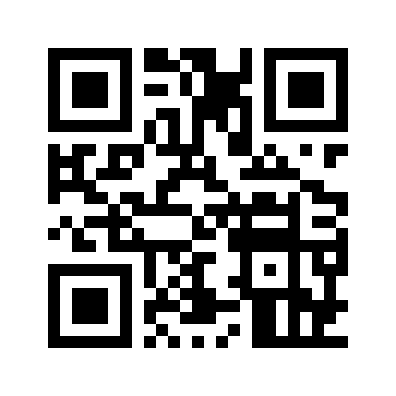
Payload: https://example.com/
Expected result: A reader that recognizes web URLs should identify the address and may offer a link or URL preview. [1] Review the domain before opening it. example.com is reserved for documentation examples, not for a production service. [2]
This checks whether the scanner recognizes a URL payload and whether the device offers a browser action. It does not test your own site, redirects, analytics, or QR code tracking. The QR image contains the address directly; it is a static code.
2. Test plain text
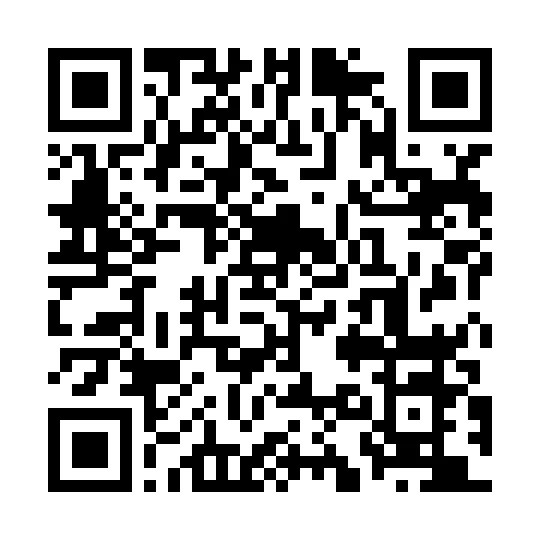
Payload: Test-only plain-text payload. No website or network action should open.
Expected result: A reader that displays text payloads should show the message, with no website or Wi-Fi connection encoded. [1]
This helps distinguish decoding from opening a link. If the app displays the message but does not show a browser button, that is expected for this sample.
3. Test a Wi-Fi payload safely
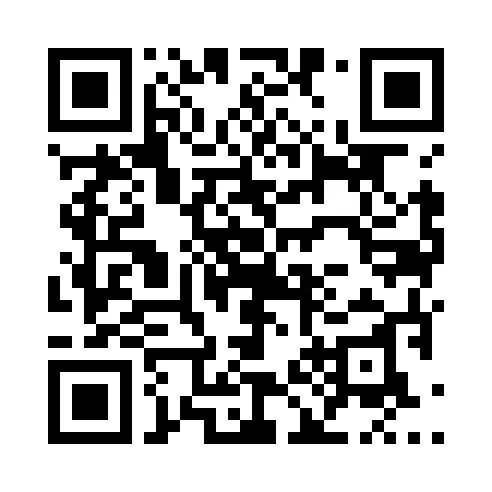
Payload: WIFI:T:WPA;S:QR-Test-Only;P:NOT-A-REAL-PASSWORD;H:false;;
Expected result: A compatible scanner may recognize Wi-Fi setup data and show a network prompt. Other readers may display the payload as text or not interpret it. The WIFI: text format is used by QR readers, but it is not a universal promise that every device will offer the same action. [1]
The SSID and password above are deliberately fake. There is no matching network, and you should not try to join it. If you need to test the join flow, use a separate test or guest network with temporary credentials you control. Do not encode a home, office, or production network password in a sample you plan to share.
4. Test a contact payload
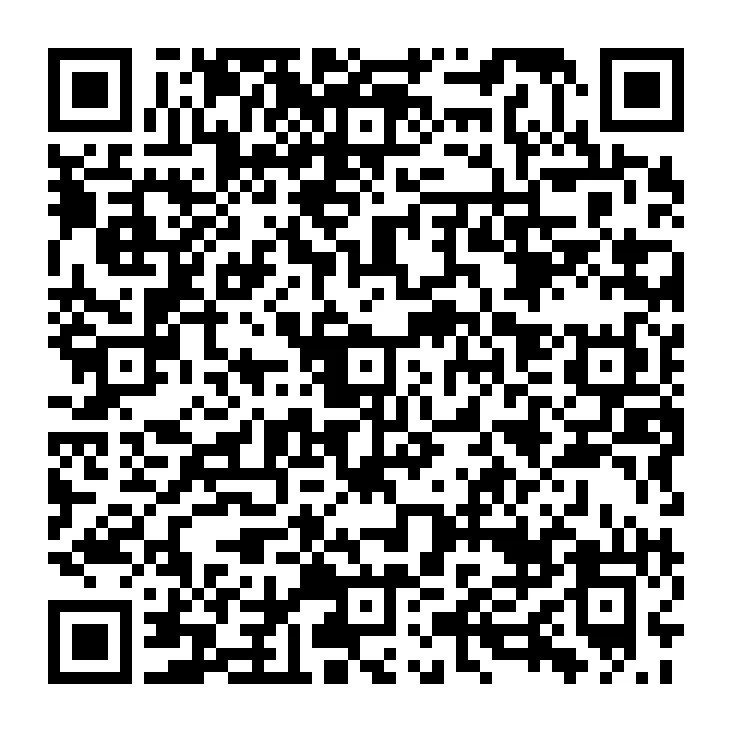
Payload:
BEGIN:VCARD
VERSION:3.0
N:Contact;Example;;;
FN:Example Test Contact
ORG:Example Testing
EMAIL;TYPE=INTERNET:test@example.com
URL:https://example.com/
END:VCARD
Expected result: A reader that recognizes vCard data may show a contact preview or offer to create a contact. Another reader may show the encoded text instead. The name and address are placeholders; do not email or contact them. Reader support for contact formats varies. [1]
Use the preview to check which fields your device recognizes. Cancel instead of saving the contact if you do not want a test entry in your address book.
What a QR scan does—and does not—confirm
A scanner can decode the data in a QR image and then offer an action for that data. Seeing a decoded URL confirms that the scanner read the address; it does not confirm that the website works. If the page fails, check the address and network connection separately. [1]
Likewise, a Wi-Fi or contact payload can be decoded without the phone completing the next action. Whether the device offers a join or save prompt depends on the scanner and its support for that payload. QR readers can understand different payload formats, and format support is not the same as the QR symbol itself being readable. [1]
These four sample codes are static: each image encodes the payload shown above. The sample files are not connected to a scan dashboard or destination-editing account. The link sample still points to example.com, which a user may choose to open. A successful on-screen scan also does not prove that a printed version will work at the size, distance, lighting, or material you plan to use.
Record what you tested
Use this table when comparing devices or scanner apps. Record the result you observed rather than assuming every phone will behave the same way.
| Date | Device and OS version | Scanner/app and version | Sample type | Input method (camera or image import) | Expected result | Observed result | Pass / follow-up |
|---|---|---|---|---|---|---|---|
| URL | URL preview | ||||||
| Plain text | Message appears | ||||||
| Wi-Fi | Compatible reader shows test network prompt | ||||||
| Contact | Contact preview or encoded text |
If you are testing a real deployment, add the QR image version, display or print conditions, and whether the destination loaded. Keep any real Wi-Fi credentials and contact details out of a shared test record.
If a sample does not scan
- Check the input method. If you are scanning an image saved on the same phone, the camera may not be able to read the file directly. Use an image-import option or show the image on another screen.
- Show the whole code. Keep the square and its clear border visible. Avoid cropping, reflections, or a tiny on-screen image.
- Try another scanner. A reader may decode URLs and text but not recognize Wi-Fi or vCard actions. Compare the decoded text with the payload above.
- Separate scan and destination issues. If a URL appears, the QR data was read. A page that does not load may have a separate network or destination problem.
- For print, test the actual print. Scan a proof made with the intended printer, paper or material, size, and viewing distance. A screen preview is not a substitute for checking the physical copy.
QR codes include error correction, but that does not make every damaged, distorted, or poorly displayed code readable. Increasing the correction level also increases the amount of QR data and can make the symbol larger; it is not a replacement for testing the actual code and conditions. [3]
Frequently asked questions
Does scanning these samples track my scans?
No. These locally generated images encode the payloads shown above and are not connected to a scan dashboard. The link sample points directly to example.com; the other samples contain text, fake Wi-Fi fields, or a placeholder contact card.
Why does my phone show text instead of a Wi-Fi or contact action?
The QR image may still have decoded correctly. Your scanner may not interpret that payload as a Wi-Fi setup or vCard action. Compare the text with the sample payload, then try a reader that supports the format. Do not treat a missing action prompt by itself as proof that the QR image is unreadable.
References
[1] ZXing Project Wiki. “Barcode Contents.” https://github.com/zxing/zxing/wiki/Barcode-Contents
[2] IANA. “Example Domains.” https://www.iana.org/help/example-domains
[3] DENSO WAVE. “Error Correction Feature.” https://www.qrcode.com/en/about/error_correction.html




