



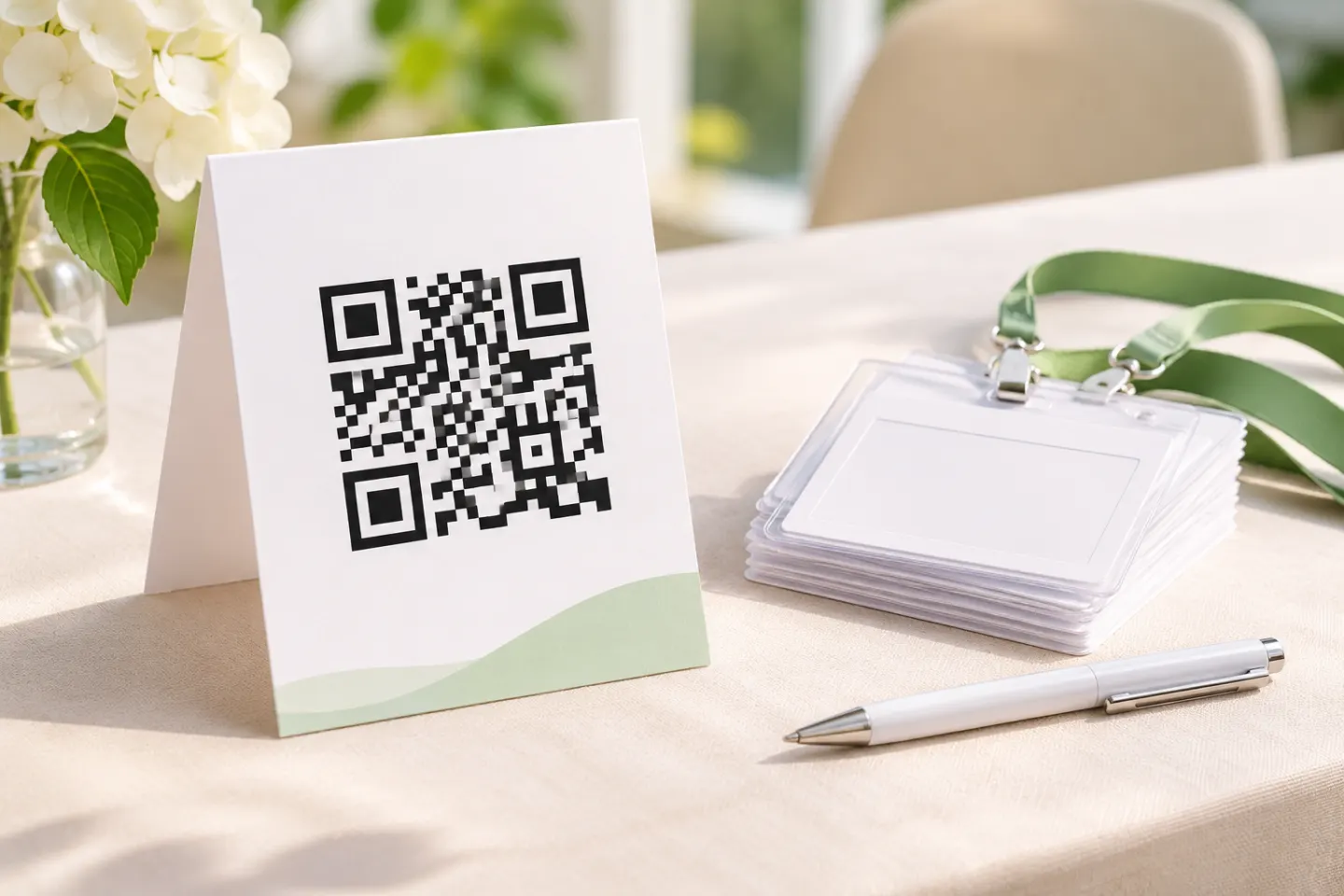
Build your workflow around that distinction, then add accessible registration, clear ticket-delivery instructions, and a backup entry process.
Registration QR code vs. ticket QR code
Use this planning distinction when preparing your materials:
| Purpose | Recommended setup | Who scans it? |
|---|---|---|
| Open registration | A shared QR code linking to the event’s registration page | The prospective attendee |
| Validate admission | A ticket code issued and recognized by the ticketing system | Authorized event staff using the compatible scanner |
| Handle missing tickets | An attendee lookup or controlled manual check-in process | Event staff |
A generic QR image is not a substitute for admission software. In a documented ticketing workflow, the scanner can distinguish a successful check-in from an already-used or unrecognized ticket. Ticket Tailor also supports finding tickets through its doorlist rather than scanning. These are platform capabilities—not guarantees supplied by the QR image itself. [2]
Practical rule: Use a registration link for public promotion. For controlled admission, use the ticket identifiers and scanning tools your registration or ticketing system supports.
Set up the attendee journey
1. Make the registration page accessible
For US organizers covered by the ADA, accessibility is more than a convenience. DOJ guidance identifies inaccessible event registration forms as a potential barrier to a public accommodation’s services. It recommends labeled fields, keyboard access, clear instructions, and understandable error messages. [3]
Before publishing, ask someone to complete registration using only a keyboard. Review field labels and error handling with a screen reader, and check whether text remains usable when enlarged. DOJ recommends combining manual review with automated accessibility checks rather than treating a clean automated report as proof of accessibility. [3]
If a state or local government runs the event, check the DOJ’s Title II requirements for its website and mobile app. The rules depend on the organizer and the content it provides. [4]
2. Give people a direct registration alternative
Label promotional codes with their purpose, such as “Scan to register.” Put a readable registration address beside printed codes and an ordinary clickable link beside codes in emails or web pages. For digital QR images, provide purpose-based alternative text. GSA’s guidance recommends these alternatives so access does not depend on scanning. Its Section 508 discussion concerns federal electronic content; it is not a blanket legal requirement for every private event or printed flyer. [5]
3. Explain ticket delivery and entry requirements
In the confirmation message, tell attendees:
- Where to find their ticket.
- Which ticket formats your event accepts.
- Whether an account or app is required.
- Which entrance or time slot to use.
- How to request help if they cannot access the ticket.
Only advertise Apple Wallet support if your issuer provides it. Apple supports eligible tickets and passes and directs users to the issuer when an “Add to Apple Wallet” option is unavailable. Wallet support does not establish that every ticket uses a QR code. [6]
Prepare codes that staff can read
For a standard QR Code, preserve a clear quiet zone four modules wide on every side. A module is one small square in the code. DENSO WAVE specifies this margin; do not crop it away or fill it with a border, label, or decoration. [7]
Use a sharp, high-contrast image and check the actual display or printed material. Small size, poor print resolution, low lighting, and screen glare can interfere with scanning. There is no single size recommendation in this guide: validate your layout with the scanner, distance, and conditions you intend to use. [5]
When a ticketing platform supplies the ticket, keep its code intact rather than recreating it from the public registration URL.
Plan check-in and exceptions
Use this recommended staff procedure:
- Prepare devices: Charge them, authorize staff access, and select the correct event and admission list.
- Scan the attendee’s ticket: Read the result rather than assuming that detecting a code means admission succeeded.
- Handle exceptions separately: Assign someone to investigate missing tickets, duplicate warnings, and order questions.
- Record the outcome: Avoid admitting an exception without documenting the decision.
As a documented example, Ticket Tailor displays different results for successful check-in, already-used tickets, and unrecognized codes. Its guide notes that an unrecognized code can also reflect a ticket purchased after the device last synchronized. Treat a warning as something to investigate, not automatic proof of misconduct. [2]
Offline check-in needs a separate plan
Poor connectivity does not automatically rule out QR check-in. Some systems support offline validation—but preparation and synchronization matter. Ticket Tailor requires the doorlist to be downloaded beforehand and an online connection to synchronize data. [8]
Offline scanning is not the same as synchronized duplicate protection. Ticket Tailor warns that disconnected devices can both accept the same ticket. pretix likewise documents a period of duplicate-entry risk across offline devices before successful synchronization. [1][9]
Before event day, decide:
- When staff will download or refresh attendee data.
- How newly issued tickets will be handled during an outage.
- Whether to limit entry to one device or divide attendees into nonoverlapping lists while disconnected.
- Who will approve exceptions and reconcile records afterward.
Those are operational recommendations, not a promise that every platform supports the same setup.
Keep a manual fallback as well. Ticket Tailor documents computer-based check-in and printable doorlists, for example. If using paper, designate who controls each list, mark admissions consistently, and reconcile them with digital records afterward. [10]
Rehearse before opening the doors
Use this recommended acceptance checklist—not as a claim that these tests have already been performed:
- Complete registration through both the QR code and the direct link.
- Verify ticket delivery and the formats you promise to accept.
- Scan a valid ticket and repeat the scan to inspect duplicate handling.
- Check the wrong-event and missing-ticket procedures.
- Rehearse an outage using the platform’s documented offline process.
- Test representative attendee screens, staff scanners, and any accepted printouts.
- Review registration and its alternatives with assistive technology, as GSA recommends. [5]
The goal is not simply a scannable image. It is a clear path from registration to an admission decision—with a usable alternative when scanning is unavailable.
References
[1] pretix documentation, “pretixSCAN (Android)” — https://docs.pretix.eu/guides/pretixscan/android/
[2] Ticket Tailor Help Centre, “How to check in your attendees with the Check-in app at your event” — https://help.tickettailor.com/en/articles/5151698-how-to-check-in-your-attendees-with-the-check-in-app-at-your-event
[3] US Department of Justice, “Guidance on Web Accessibility and the ADA” — https://www.ada.gov/resources/web-guidance/
[4] US Department of Justice, “Fact Sheet: New Rule on the Accessibility of Web Content and Mobile Apps Provided by State and Local Governments” — https://www.ada.gov/resources/2024-03-08-web-rule/
[5] GSA Section508.gov, “Accessibility Bytes No. 8: Accessible QR Code Implementation” — https://www.section508.gov/blog/accessibility-bytes/qr-codes/
[6] Apple Support, “Add, use, and share tickets and passes in Apple Wallet” — https://support.apple.com/en-us/111112
[7] DENSO WAVE, “Point for determining the code area” — https://www.qrcode.com/en/howto/code.html
[8] Ticket Tailor Help Centre, “When does my Check-in app sync?” — https://help.tickettailor.com/en/articles/9330194-when-does-my-check-in-app-sync
[9] Ticket Tailor Help Centre, “How to see your check-in data” — https://help.tickettailor.com/en/articles/5028380-how-to-see-your-check-in-data
[10] Ticket Tailor Help Centre, “How to check in attendees without using the Ticket Tailor Check-in App” — https://help.tickettailor.com/en/articles/10588947-how-to-check-in-attendees-without-using-the-ticket-tailor-check-in-app




