



The project has two separate checks: can the recipient scan the printed code, and can they access what it opens? Use the ideas and workflow below to handle both.
Birthday, Christmas, and gift-tag ideas
Treat these as project suggestions, not features that every QR generator provides.
| Occasion | Suggested destination | Wording beside the code |
|---|---|---|
| Birthday card | A short video greeting from family or friends | “Scan to watch your birthday message.” |
| Milestone birthday | A collection of favorite photos and memories | “Scan for a trip down memory lane.” |
| Christmas or holiday card | A family year-in-review page | “Scan for this year’s highlights.” |
| Holiday dinner gift | A playlist selected for the evening | “Scan for tonight’s soundtrack.” |
| Handmade gift | Your care instructions or making-of story | “Scan to see how your gift was made.” |
| Surprise gift enclosure | A personal reveal page | “Open after dinner, then scan.” |
For a Christmas QR code, keep the seasonal decoration around the code rather than inside its pattern. GS1 explains that altered module shapes, distorted grids, and inserted images can reduce barcode performance. [2]
Keep the handwritten greeting on the card, too. The digital extra should feel optional—not like homework required to receive your good wishes.
How to make a QR code for a card or gift
1. Prepare the destination first
Upload your video, assemble your album, or finish the page before generating the code. Copy the link intended for sharing, then check it from a signed-out browser or an account with the recipient’s access level.
Do not assume a shared link is private. Google Photos, for example, says shared album links can be forwarded, and people with the original link can retain access while link sharing remains enabled. Choose sharing settings appropriate to the photos, especially when children or personal details are involved. [3]
If you choose restricted sharing, tell the recipient which account they need to use. Do not remove privacy protections simply to eliminate a sign-in step.
2. Decide whether the link needs to change later
A static QR code keeps the same encoded address. A dynamic setup lets you change the destination reached after scanning; it does not redraw the printed pattern. Adobe distinguishes these two options, while GS1 explains how redirects can change the endpoint without changing a barcode. [1][4]
For a one-time greeting, consider a direct link you expect to maintain. If using a redirect service, check its ongoing availability and any account or payment conditions before printing. Alternatively, update the content at a web address you control rather than replacing that address.
3. Generate the code and add it to the layout
Use a URL-capable QR generator, enter the intended address, and download the code. No particular generator or QRHyper interface is assumed here.
Preserve the code’s square proportions. Start with black on white, and keep artwork outside the pattern and its clear border. High contrast and an undistorted grid are basic barcode design principles. [2]
4. Add a specific instruction and a fallback
Write what the recipient will get: “Scan to watch your birthday video” is clearer than “Scan me.” Adobe likewise recommends a specific call to action and a direct, mobile-friendly destination. [5]
Consider printing a readable web address you maintain, or add “Trouble opening it? Text me.” Keep essential information—such as the party date—on the card rather than only behind the code.
Print size, clear space, and placement
How big should the code be?
There is no single size that guarantees scanning for every card. DENSO WAVE explains that physical size depends on module size and recommends making symbols as large as the available area allows. More encoded data can require more modules; at the same overall width, those modules become smaller. [6]
Reserve a generous square in the layout instead of shrinking the code to fit leftover space. If a gift tag is too small, use an enclosure card. Approve the size only after testing a physical sample.
Preserve the four-module quiet zone
A standard QR Code needs a clear margin at least four modules wide on every side. A module is one small square in the pattern—not a fixed number of millimeters. Keep lettering, borders, snowflakes, ribbon, and trim lines outside that margin. [7]
Choose a flat, unobstructed spot
Suggested layouts:
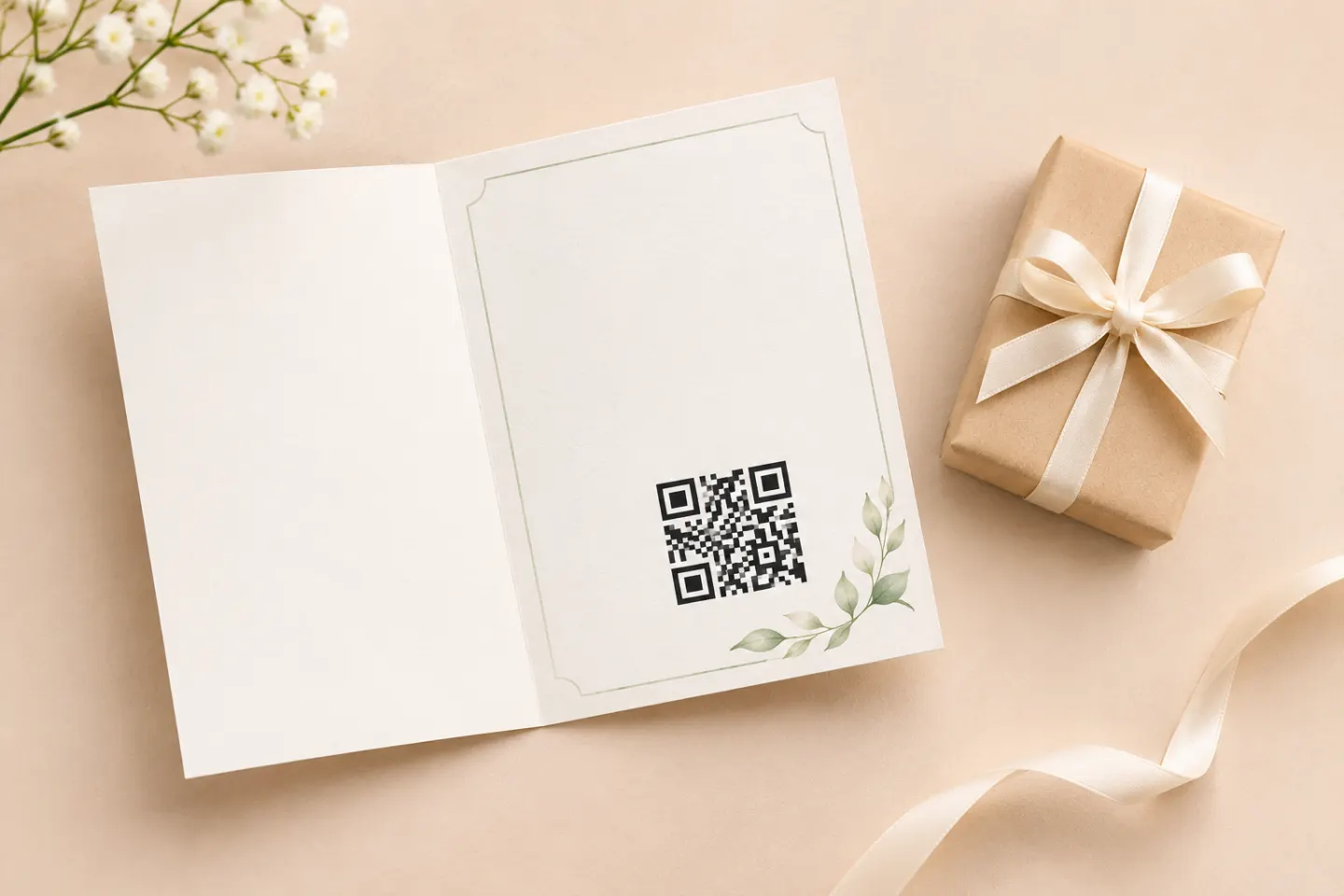
- Folded card: Put the code on an inside panel, away from the crease.
- Photo holiday card: Reserve a plain panel on the back.
- Gift tag: Keep the code away from the punched hole and string.
- Wrapped gift: Use a flat insert instead of running the code across wrapping-paper folds.
These are layout recommendations, not tested templates. Avoid folds, seams, distortion, and reflective finishes around the code; Adobe recommends checking the actual printed material and placement. [5]
Before you mail the cards or wrap the gift
Use this preflight checklist:
- Print one sample at the intended final size.
- Cut, fold, and assemble it as the recipient will receive it.
- Scan it with more than one phone if available, ideally including iPhone and Android.
- Try ordinary indoor lighting and a comfortable handheld distance.
- Continue past the scan: play the video, open the album, or check the page.
- Check recipient permissions, not just access from your own signed-in account.
- Repeat the check after changing the design or destination.
Physical proofs and end-to-end checks matter because resizing, printing, and finishing can affect a code that worked on screen. This is a recommended test procedure; no device or print testing was performed for this article. [5]
For keepsake cards, plan to maintain the destination. For example, Google Photos warns that resetting an album’s sharing link stops the old link from working—so a printed code containing that old link would need attention. [3]
The best finishing touch is simple: one personal destination, one clear instruction, enough room to scan, and a paper greeting that still stands on its own.
References
[1] Adobe Express, “Free QR code generator” — creation workflow and static/dynamic distinction — https://www.adobe.com/express/feature/image/qr-code-generator
[2] GS1, “2D Barcodes at Retail Point-of-Sale Implementation Guideline,” Release 1.1.0 — https://ref.gs1.org/guidelines/2d-in-retail/
[3] Google Photos Help, “How shared album controls give your photos more privacy.” — https://support.google.com/photos/answer/9789702?hl=en
[4] GS1. Redirection: from scan to content. https://ref.gs1.org/docs/2024/redirection-from-scan-to-content
[5] Adobe Express, “QR Code Best Practices to Create QR Codes That Work.” — https://www.adobe.com/express/discover/tips/qr-code/design-best-practices
[6] DENSO WAVE, “Point for setting the module size.” — https://www.qrcode.com/en/howto/cell.html
[7] DENSO WAVE, “Point for determining the code area.” — https://www.qrcode.com/en/howto/code.html




