



Start with the symptom
| What happens | Check first | Next step |
|---|---|---|
| Nothing appears when you point the camera | Focus, full code visibility, lighting, and scan settings | Try the same code with another phone |
| Your phone recognizes other codes, but not this one | The QR image, display, print, or physical condition | Ask for a fresh copy or direct link |
| This code works on another phone, but not yours | Your camera app, scan setting, or device | Try the built-in QR scanner or another supported app |
| A link appears, but the page will not open | Connection, URL, or destination | Open the address in a browser or contact the provider |
| The wrong page or action appears | The encoded destination or source of the code | Verify it with whoever supplied the code before proceeding |
If your camera does not recognize the QR code
Try the simplest image and camera checks first:
- Show the complete code. Keep the whole square in the camera frame. Do not crop a corner or cover the code with a finger.
- Hold steady and adjust distance. Move a little closer or farther away until the pattern is sharp. On Pixel phones, Google recommends keeping the entire code visible, holding steady, and adjusting distance if needed. [1]
- Improve the light. Avoid shadows and glare. If the code is on a screen, raise its brightness and tilt the screen to reduce reflections.
- Clean the lens. A smudged camera can make a clear code difficult to focus on.
- Check the scan control. Some phones have a QR scan setting or separate scanner button. On Pixel, confirm Camera scan suggestions is enabled, or try the QR scanner in Quick Settings. Controls vary by device. [1]
- Try a second device. Scan the same code with another phone, then scan a different known-working code with your phone. These two comparisons help identify which side to investigate next.
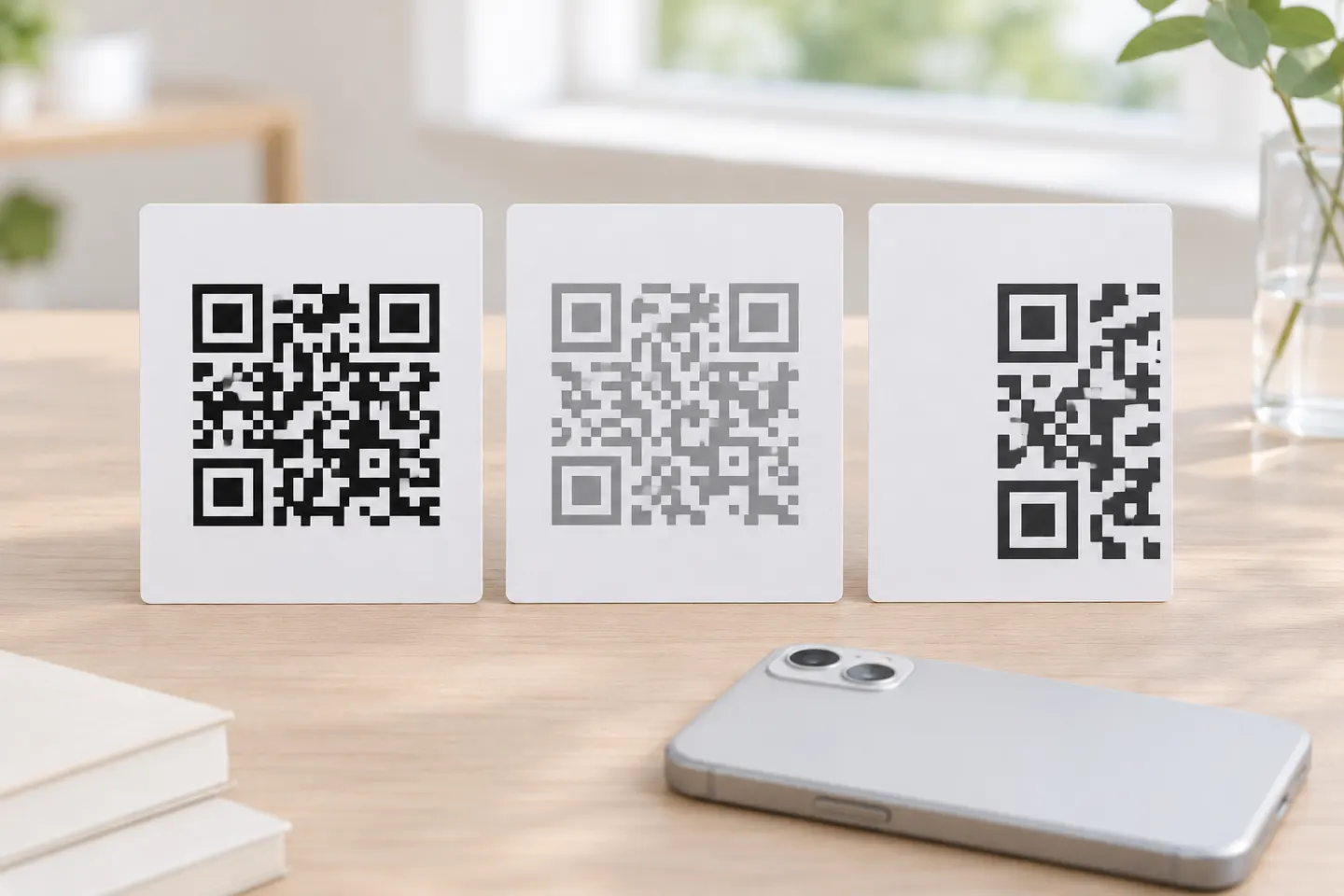
If the QR code is blurry, partly covered, or physically damaged, request a clean copy or direct URL from the person or organization that provided it. Avoid spending time changing your phone settings when another phone also cannot read the same image.
If the code is detected but nothing useful happens
A scanner may detect a QR code without offering the action you expected. The code may contain a URL, text, contact information, Wi-Fi details, or another type of data, and available actions depend on the scanner and device. If your phone shows a preview or decoded text, check what it actually contains. If it should open a webpage but no link appears, try another built-in scanner or ask the code provider to confirm what the code is intended to do.
Do not install an unfamiliar scanner app just because one code fails. First test another code and use the device’s built-in camera or QR control where available.
If a link appears but will not open
Once a link appears, the code has been recognized. Focus on the link or the connection rather than repeatedly aiming the camera:
- Check that Wi-Fi or mobile data is working by opening a familiar website.
- Review the displayed URL. If it looks unexpected, misspelled, or unrelated to the place where you found the code, do not continue.
- If it looks legitimate, try opening the address in your browser. A browser error can help distinguish a loading or destination problem from a scan problem.
- If the same page fails on another device or network, contact the site owner or the organization that supplied the code.
A failed page does not by itself show whether a QR code was deactivated, whether a redirect service has an issue, or whether the destination is temporarily unavailable. If you own the code, check the service or account where it was created. For an unfamiliar code, ask its provider for a verified direct link.
If the wrong page or action opens
Do not enter information just because the page opened. Check whether the URL and page match the source and the reason you scanned the code. If they do not, close the page and contact the provider through a website, phone number, or app you already trust. The FTC warns that scammers can place harmful links in QR codes and recommends inspecting the destination before opening it. [2]
For a QR code you created, scan the final image yourself and compare the resulting destination with the one you intended. Check the original file or QR management account if the code leads somewhere unexpected.
Quick retest: code or phone?
Use these two comparisons:
- Same code, another phone: If another phone reads it, look at the first phone’s camera, scanner setting, or app. If neither phone recognizes it, ask for a cleaner code image or investigate the code itself.
- Different known-working code, same phone: If that code also fails, check your phone’s QR scanning feature or camera. If it works, concentrate on the original code or its destination.
These checks narrow down the likely cause; they do not prove the code is valid or that a destination is safe. Verify important links with the person or organization that supplied them.
References
[1] Google Pixel Phone Help. Scan QR codes with your Pixel phone. https://support.google.com/pixelphone/answer/16561572?hl=en
[2] Federal Trade Commission. Scammers hide harmful links in QR codes to steal your information. https://consumer.ftc.gov/consumer-alerts/2023/12/scammers-hide-harmful-links-qr-codes-steal-your-information




