



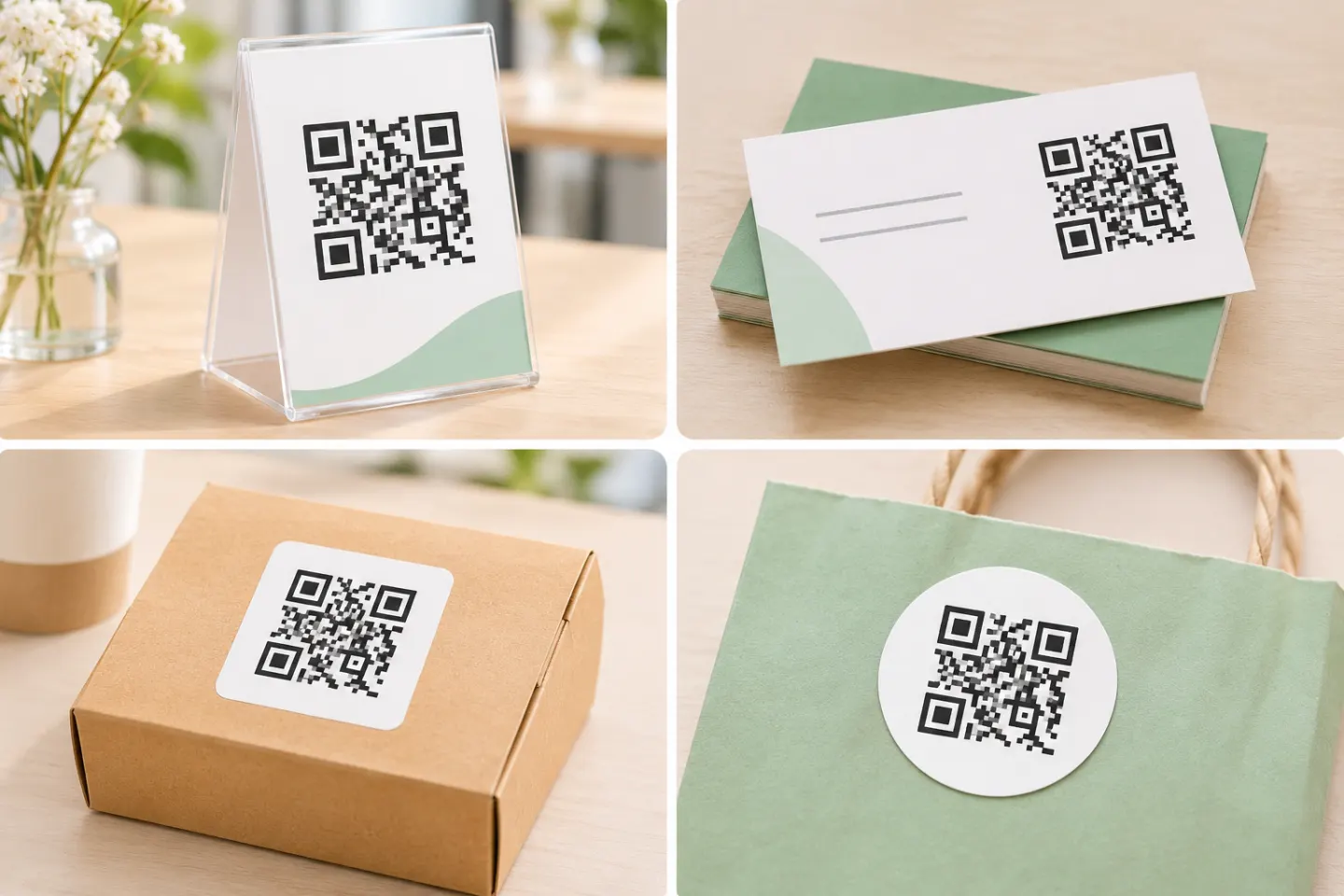
There are documented uses behind these ideas. Google Business Profile supports review-request links and QR codes for receipts and store displays. Shopify documents product QR codes for packaging, repeat purchases, and mobile checkout. Check whether customers complete your intended action at each placement. [1][2]
Choose an idea that matches the customer’s next step
Use this table as a planning menu, not a list of campaigns to launch simultaneously. The examples below are editorial suggestions, not reported business results.
| Goal | Suggested placement | Destination | Suggested call to action |
|---|---|---|---|
| Request honest reviews | Receipt or thank-you card | Direct review-request page | “Share your experience on Google” |
| Collect private feedback | Receipt or service-completion card | Short feedback form | “Tell our team how we did” |
| Encourage reorders | Packaging insert | Specific product or reorder page | “Order this blend again” |
| Get another appointment | Checkout card or care instructions | Relevant booking page | “Book your next appointment” |
| Enroll loyalty members | Counter sign | Program details and enrollment | “See rewards and join” |
| Help after-hours shoppers | Store window | Relevant collection or ordering page | “Shop this window display” |
1. Request honest reviews on receipts and thank-you cards
Google explicitly suggests sharing a review link or QR code on receipts, in thank-you emails, and in your store. Link to the review-request destination rather than asking customers to find your listing themselves. [1]
For Google Business Profile, the official instructions checked on November 17, 2026, are:
- Open your Business Profile in a computer browser.
- Select Read Reviews, then Get more reviews.
- Copy the review link, or right-click the displayed QR code and select Save image as.
Google currently says its review QR codes can be generated in a computer browser, not on mobile devices. These are documentation-based steps, not a report of hands-on account testing. [1]
Use neutral wording such as “Share your experience.” Do not ask specifically for five stars, pressure customers to post while staff wait, or request prescribed review content. Google permits requests for genuine reviews without incentives or attempts to influence the rating or content. [3]
Keep review requests separate from rewards
For Google reviews, do not offer a discount, free item, loyalty points, or another incentive in exchange for a review—even an honest one. Google’s policy prohibits incentives for posting reviews and for changing or removing negative reviews. [3]
2. Collect private feedback without filtering public reviews
A private feedback QR code is a useful option when your goal is service improvement. Suggested form fields are the visit date, what happened, and an optional contact method for follow-up.
Keep this channel separate from public-review solicitation. Do not show a public review link only to people who select a high satisfaction score while routing everyone else exclusively to a private form. That pattern selectively solicits positive reviews, which Google prohibits. [3]
A practical layout is to offer two clearly labeled choices—“Send private feedback” and “Leave a public review”—without changing access based on the customer’s answer. Explain who receives the private message, and request contact details only when needed for a reply.
3. Put a reorder QR code inside packaging
For repeatable purchases, try a code on a bag insert, product sleeve, or care card. Send customers to the specific item rather than a broad homepage.
Shopify’s Shopcodes documentation provides a concrete platform-specific example: a code can open a product page or a checkout with the selected product in the cart. Shopify also describes packaging codes for repeat purchases and optional checkout discounts. Those capabilities belong to that documented setup; do not assume every QR code service includes them. [2]
Suggested approach:
- Identify the exact product and variant.
- Use a clear label such as “Reorder this coffee.”
- Check that price, availability, and delivery choices are clear before payment.
- If you offer a repeat-purchase discount, state its terms and expiration separately from any review request.
4. Send customers straight to their next appointment
For a salon, repair shop, tutor, or other appointment business, consider a booking code on a checkout card or aftercare sheet.
Point it to the relevant service or booking page when your booking system supports that link. Before printing, check whether a new customer can understand the service, price, location, and cancellation terms without staff help.
Suggested copy: “Ready for your next visit? View appointments.” Avoid promising instant booking if the destination only submits a request for staff approval.
5. Make loyalty enrollment a clear choice
Try a loyalty QR code at checkout or pickup. Let customers read the program terms before joining: how rewards are earned, what they can redeem, and whether rewards expire.
Keep enrollment distinct from review requests. For a Google-review campaign, never make points or membership benefits contingent on posting a review. [3]
If enrollment includes promotional messages, make that purpose clear rather than treating a scan as permission to receive every type of marketing.
6. Turn a window display into an after-hours shopping entry point
A window code can point to the products on display or an online ordering page. Shopify specifically documents window QR codes that direct shoppers to an online store when the physical shop is closed. [2]
Label the action precisely: “Shop these gifts online” is more informative than “Scan me.” If orders are pickup-only, state that before customers begin checkout.
For email follow-ups, make a normal clickable link or button the primary action. A QR code can be optional; do not make scanning the only route to the destination.
Launch one campaign with these checks
Check the destination and printed code
- Choose one goal and placement. Start with a manageable batch of receipts, inserts, or counter cards.
- Verify the full journey. Check the destination, sign-in requirements, form submission, booking confirmation, or checkout—not just whether the camera recognizes the code.
- Preserve the clear border. DENSO WAVE specifies a four-module quiet zone on every side of a standard QR Code. A module is one small square in the symbol. Keep text and graphics out of that border. [4]
- Test the actual output. Before a larger run, try the final printed size, material, lighting, and expected scanning distance on more than one phone. This is a recommended prelaunch task; no device or print testing was performed for this article.
- Provide a fallback. Add a readable web address or another way to complete the action.
- Assign an owner. Schedule checks for broken destinations, expired offers, and damaged signs.
Inspect public-facing signs for replacement stickers, too. The FTC has documented scammers covering legitimate QR codes with their own. Adding recognizable business identification and checking signs regularly are sensible precautions in response to that risk. [5]
Measure the action, not just interest
For a destination on a website you measure with Google Analytics, campaign parameters can identify referred traffic. Google documents utm_source, utm_medium, and utm_campaign, plus utm_content for distinguishing creative variations. A suggested convention is source receipt, medium qr, campaign reorder, and content insert_a. These are example labels, not preset Analytics categories. [6]
Define success before launch: completed orders, confirmed appointments, or completed enrollments. Keep visits and outcomes as separate figures. Do not report every visit as a unique scanner or every visit to a third-party review page as a published review.
Start with the shortest useful journey
Choose one idea that fits an existing customer moment. Pair a clear invitation with a relevant destination, test the complete path, and review the outcome before expanding. Keep public-review requests neutral and unrewarded, and keep reorder or loyalty offers separate from them.
References
[1] Google Business Profile Help, “Create a Google link or QR code to request reviews” — https://support.google.com/business/answer/16816815?hl=en
[2] Shopify Help Center, “Creating QR codes with Shopcodes” — https://help.shopify.com/en/manual/promoting-marketing/create-marketing/shopcode
[3] Google Maps User Generated Content Policy, “Prohibited & restricted content” — https://support.google.com/contributionpolicy/answer/7400114?hl=en
[4] DENSO WAVE, “Point for determining the code area” — https://www.qrcode.com/en/howto/code.html
[5] FTC Consumer Advice, “Scammers hide harmful links in QR codes to steal your information” — https://consumer.ftc.gov/consumer-alerts/2023/12/scammers-hide-harmful-links-qr-codes-steal-your-information
[6] Google Analytics Help, “URL builders: Collect campaign data with custom URLs” — https://support.google.com/analytics/answer/10917952?hl=en




