



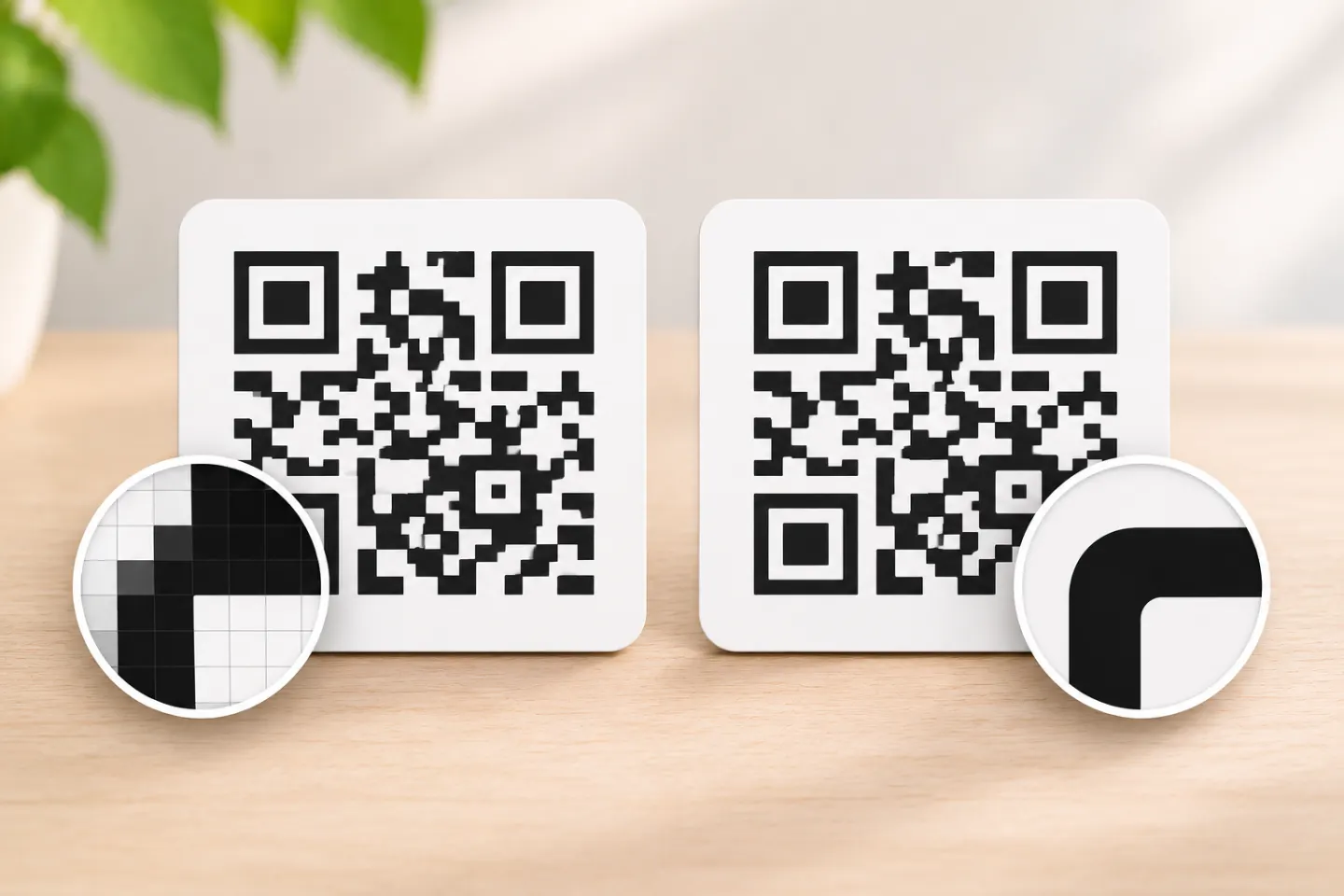
PNG and SVG describe different kinds of image data
PNG stores an image as a grid of pixels. Its compression preserves the pixel data, and the format supports transparency. That makes PNG convenient to place in a website, slide, email, or design file. But “lossless” does not mean “infinitely enlargeable”: when a raster image is enlarged or resampled, the output may look soft or develop uneven edges.[1]
SVG describes two-dimensional graphics with markup. Vector shapes can be rendered at different sizes without the pixel-grid enlargement associated with a raster image. An SVG may also contain raster images, however, so the .svg extension by itself does not prove that every part of the file is editable vector artwork.[2]
For a QR code, the practical question is not which format is universally superior. It is whether the file you have can be placed, exported, and reproduced clearly at the size and in the workflow you need.
Choose the format that fits the next step
| Your next step | A sensible starting point | Check before you commit |
|---|---|---|
| Add a code to a web page, email, slide, or social post | PNG | Confirm it stays clear at its displayed size and against its background. |
| Place a code in a layout that may be resized | SVG, if the file is genuine vector artwork and your software accepts it | Open the file in the target app; inspect the code after export. |
| Send artwork to a commercial printer | Ask the printer which formats and color settings it accepts; SVG may be suitable | Some workflows request a print-ready PDF, EPS, or another format. Follow the printer’s specification instead of converting blindly. |
| Use an existing PNG in a small, fixed-size print | The PNG may be sufficient | Check its pixel dimensions at the final printed size, then proof the actual print. |
| Edit the QR pattern or change its destination | Neither extension answers this by itself | Preserve a clean original and use a QR workflow that supports the specific change you need. A file conversion does not rewrite the encoded destination. |
Treat this as a decision guide, not a print standard. The receiving platform, designer, or print provider may have requirements that take priority.
When PNG is a good fit
PNG is often the simpler choice when the image will remain at a known size and the tool or platform accepts it. It is broadly supported, can preserve transparency, and is easy to insert into common digital layouts.[1]
For example, QRHyper Web currently provides a PNG download for a static code. If you need a quick fixed-size digital asset or a print placement whose final size the PNG can support, that may fit; if the project or print provider requires native vector SVG, this Web export does not meet that requirement. Confirm the current export options before starting, and test the final output.
Before using a PNG in print, check its pixel dimensions against the final physical size. Enlarging a small image gives the layout more inches, not more original image detail. Avoid repeatedly exporting, resizing, or taking screenshots of the code; keep the original downloaded file and place it directly into the design when possible.
For a digital display, preview the code at the size people will actually see. For a printed piece, make a proof at the intended size and on the intended stock. A file that looks crisp when zoomed in on a monitor has not yet demonstrated that it scans from the finished material.
When SVG is a good fit—and what to verify
SVG is useful when a design needs to scale across sizes or be adjusted in vector-capable software. Vector paths can be rendered at different resolutions, which avoids enlarging a fixed pixel grid.[2] This can make SVG a practical source file for layouts that will be resized, including print artwork.
Still, check the actual file and workflow:
- Open it in the software that will place or prepare the artwork. Confirm that the code appears complete and that the application does not substitute, rasterize, or clip content unexpectedly.
- Ask the printer or platform what it accepts. A scalable source file is not automatically the correct production handoff. The provider may require a PDF or another format, color setup, or a particular export process.
- Inspect the exported output. Zoom in on the final PDF or image and look for broken edges, missing modules, unwanted backgrounds, or clipping.
- Scan a proof of the final output. Test the version that will actually be displayed or printed, not only the source file on your screen.
If the SVG contains a raster QR image, enlarging the outer SVG canvas will not restore detail that was absent from that embedded image.[2] When you need scalable QR artwork, get a source that was generated as vector artwork rather than assuming a converted file has become a clean vector.
Keep the QR code itself ready to scan
Format is one part of the result. Preserve a clear, high-contrast code and its quiet zone—the blank margin around the symbol. DENSO WAVE’s QR Code guidance specifies a four-module quiet zone on each side.[3] Do not place text, borders, or decorative elements in that space.
After placing the code, test the version a person will encounter:
- Export or print at the final size and on the intended background or material.
- Scan it with a phone from the expected viewing distance and angle, in the likely lighting.
- Confirm that the scan opens the intended destination—not merely that the camera recognizes a QR pattern.
- If it fails, return to the original source, check the quiet zone and contrast, and review any resizing or export step. Re-export and test again.
This is a practical proofing process, not a claim that we tested a particular device, file, or printer. If the code is too small or the placement is hard to scan, use a larger placement or revise the layout before producing the full run.
A quick decision rule
- Fixed-size digital placement: start with PNG.
- A layout that needs resizing: request genuine vector artwork such as SVG, if the receiving software supports it.
- Commercial printing: ask the print provider for its file requirements before choosing or converting a format.
- Any important placement: proof and scan the final exported or printed version under realistic conditions.
If your generator only provides PNG, that does not automatically make the file unusable. Keep it at a size its pixel dimensions can support, avoid unnecessary resampling, and test the final output. If the project requires scalable artwork or a printer-specific format, obtain a suitable source file rather than relabeling or casually converting the PNG.
Frequently asked questions
Is SVG always better than PNG for a printed QR code?
No. SVG can scale well when it contains actual vector artwork and the print workflow supports it. A high-enough-resolution PNG may also suit a fixed-size placement. The printer’s requirements and a proof of the final output matter more than a blanket format rule.
Does converting a PNG to SVG make it a vector QR code?
Not necessarily. A conversion can wrap or trace raster content, but it does not guarantee clean, editable vector modules. Check the artwork in a vector editor or obtain a QR code generated directly as vector artwork.
Can I make a QR code scan by changing its file format?
Not by format alone. The source, quiet zone, contrast, size, export, print, and destination all matter. Test the finished version and confirm the destination opens correctly.
References
[1] W3C. Portable Network Graphics (PNG) Specification (Third Edition). https://www.w3.org/TR/png-3/
[2] W3C. Scalable Vector Graphics (SVG) 2. https://www.w3.org/TR/SVG2/Overview.html
[3] DENSO WAVE. Point for determining the code area. https://www.qrcode.com/en/howto/code.html




