



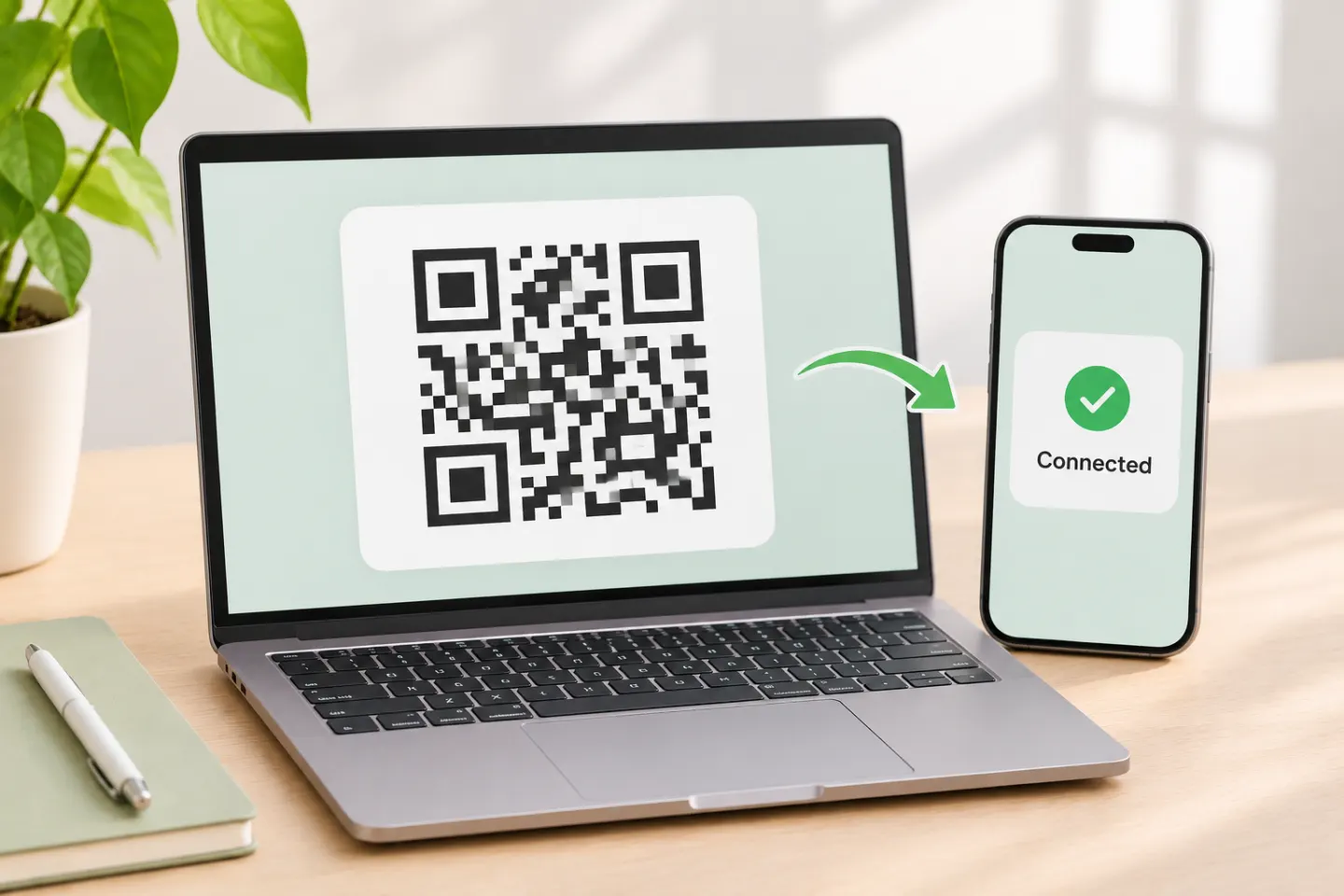
How to scan the WhatsApp Web QR code
1. Open WhatsApp Web on your computer
Open https://web.whatsapp.com/ yourself. WhatsApp identifies this as its official web linking destination. For troubleshooting, its support guidance recommends the latest Chrome, Firefox, Microsoft Edge, Opera, or Safari. [3][4]
2. Open the linking scanner on your phone
- Android: Open WhatsApp, tap More options—the three-dot menu—then Linked devices > Link a device. [1]
- iPhone: Open WhatsApp, tap Settings or your profile picture, then Linked devices > Link device. [2]
3. Authenticate and scan
Complete any identity check, then point your primary phone at the computer’s QR code. Approve only the session for the computer you chose to link. [1][2]
Fix linking problems by symptom
The page or QR code will not load
Refresh WhatsApp Web first. Update your browser or try another supported browser. WhatsApp recommends current browser versions; its separate compatibility page also lists minimum versions, so “supported” does not mean only the newest release can work. [4][5]
The QR code is visible but will not scan
First confirm that you opened the scanner through Linked devices, following the steps above. Refresh the computer page and retry. Refreshing is an official connection-troubleshooting step, not proof that every failed scan was caused by an expired code. [1][2][4]
As basic camera checks—not device-tested fixes—try cleaning the lens, reducing screen glare, and changing the phone-to-screen distance. If scanning remains impractical, use the phone-number option below rather than changing phones or moving your account.
Scanning works, but linking does not finish
Try these connection checks:
- Confirm the computer has internet access.
- Restart the affected device.
- Try another permitted Wi-Fi network or hotspot.
- Clear browser cache and cookies, using your browser’s support instructions, then retry linking.
WhatsApp also recommends logging out and back in when troubleshooting an existing session. [4]
If the problem occurs only on office or campus Wi-Fi, ask the administrator to review access to web.whatsapp.com and .whatsapp.net. Do not bypass your organization’s network rules. [4]
Code Verify says it cannot validate the page
The specific “Network timed out. Unable to validate this page” warning belongs to the optional Code Verify browser extension. It is not a general diagnosis for every linking failure. WhatsApp recommends reloading, trying another network, or pausing other extensions and checking again. If the warning persists, consider logging out and using WhatsApp on your phone rather than ignoring it. [6]
Link with your phone number instead of scanning
WhatsApp Web supports linking with your primary account phone number and an eight-character code. This avoids scanning, but it still requires authorization on your primary phone. [7]
- On WhatsApp Web, select Link with phone number or Log in with phone number.
- Choose your country, enter your WhatsApp account number, and click Next.
- Keep the displayed eight-character code visible.
- On your primary phone, open Linked devices > Link a device or Link device > Link with phone number instead.
- Authenticate if prompted and enter the computer’s code on your phone. [7]
Only enter a linking code for a device you chose to connect. If WhatsApp presents a confirmation for an unrecognized device, decline it unless it is yours. [7]
If WhatsApp Web logged out unexpectedly
If a linked device signs out, open WhatsApp on your primary phone and check the linked-device list before reconnecting. [3]
To restart an existing connection, open Linked devices on your phone, select the affected device, and tap Log out. Then repeat the linking steps. Remove unfamiliar sessions too. [8]
Keep account linking on official WhatsApp surfaces
For browser access, use the official WhatsApp Web address. WhatsApp warns that unofficial apps and websites can compromise accounts. Review your linked-device list regularly and log out of devices you no longer trust. [3]
References
[1] WhatsApp Help Center, “How to link a device”—Android — https://faq.whatsapp.com/1317564962315842/?cms_platform=android&helpref=platform_switcher
[2] WhatsApp Help Center, “How to link a device”—iPhone — https://faq.whatsapp.com/1317564962315842/?cms_platform=iphone&helpref=platform_switcher
[3] WhatsApp Help Center, “About linked devices” — https://faq.whatsapp.com/378279804439436/?cms_platform=web
[4] WhatsApp Help Center, “How to fix connection issues”—Web — https://faq.whatsapp.com/852892549070029/?cms_platform=web
[5] WhatsApp Help Center, “About supported browsers” — https://faq.whatsapp.com/803865374003522/?helpref=hc_fnav&cms_platform=web
[6] WhatsApp Help Center, “Can’t connect to WhatsApp due to a network timeout error” — https://faq.whatsapp.com/632962034990027/?cms_platform=web
[7] WhatsApp Help Center, “How to link a device with phone number” — https://faq.whatsapp.com/1324084875126592/?cms_platform=web
[8] WhatsApp Help Center, “How to unlink a device” — https://faq.whatsapp.com/834124628020911/?helpref=faq_content&cms_platform=android




