



Key takeaways
- For a code in front of you, start with your phone’s built-in Camera app. Apple also offers a Control Center scanner, and Pixel phones have a Quick Settings option on supported devices. [1][2]
- For a code on the same Android phone, try Google Lens from the saved image; if it does not recognize the code, display it on another screen and scan it. [3]
- On iPhone, do not assume Live Text will decode every QR code saved in a photo; use another screen if no relevant action appears. [4]
- Check the destination before opening a link, especially for unexpected or altered codes. [5][6]
Before opening a link, check that the preview shows the site you expected. A QR code can open a website or prompt another action; scanning it does not verify that the destination is safe.[6]
Scan a QR code with your phone camera
- Open the built-in Camera app. On some phones, a dedicated QR scanner is also available in quick settings or Control Center.
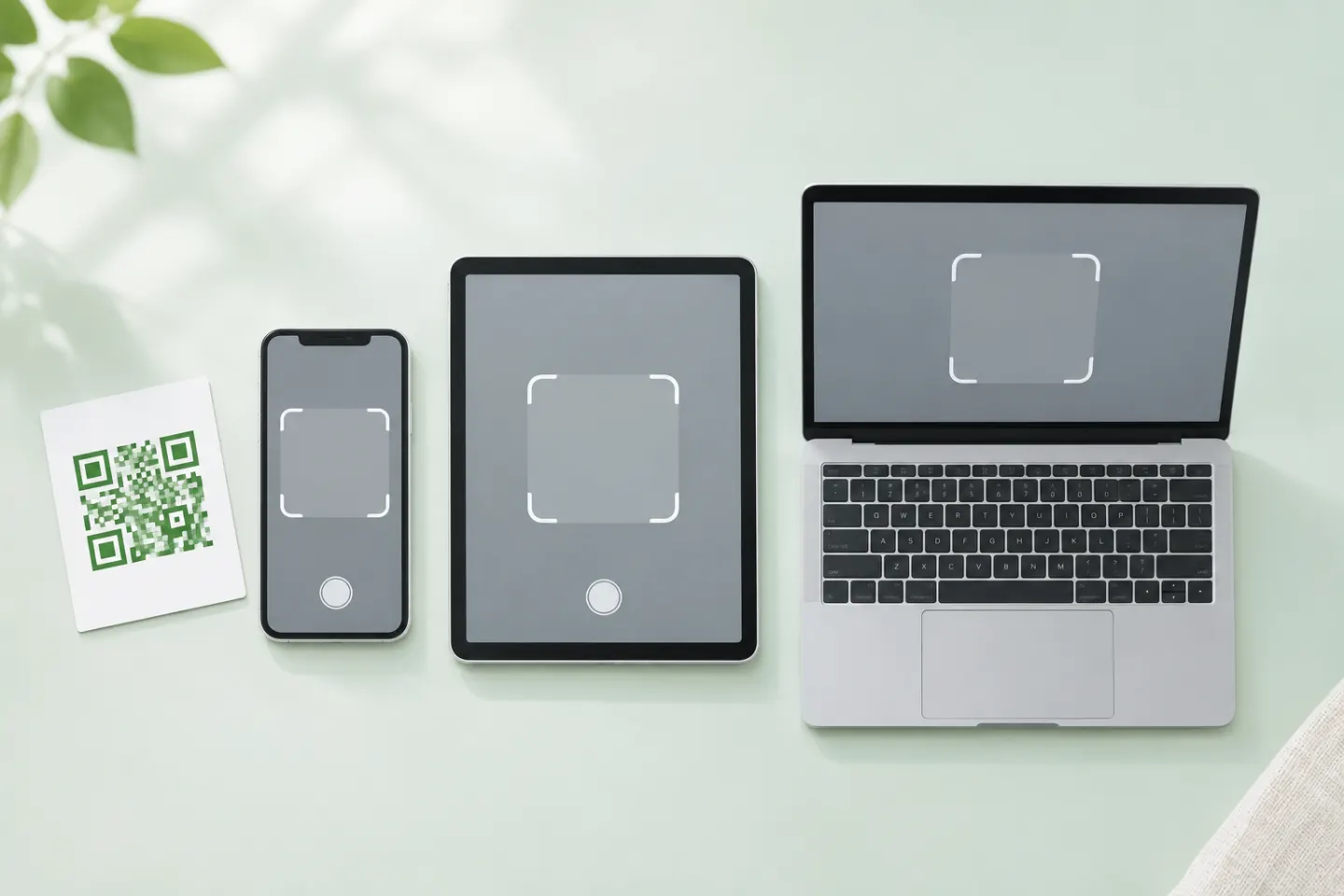
- Hold the phone steady and point it at the code. Keep the entire square inside the viewfinder, with enough light to see its edges.
- Wait for a banner, link, or action to appear. You generally do not need to press the shutter button.
- Check the preview. If it is a link, read the domain before opening it. Tap only if you trust the source and destination.
If the phone shows no response, first try the troubleshooting checks below. Phone settings and menu names differ, so use the device-specific route that matches yours.
Scan with an iPhone or iPad
Open Camera, choose Photo mode, and place the QR code inside the frame. When the link appears, tap it. Apple also provides a Scan Code control in Control Center; if it is missing, add it from the Control Center controls gallery. Apple’s iPhone and iPad QR scanning guide describes the Camera and Control Center routes.[1]
A dedicated scanner can be useful when you want a scanning view rather than the regular camera. The Control Center option may be named Scan Code. Its availability and exact controls depend on the software version.
Scan with an Android phone
On many Android phones, open the Camera app and aim at the code. If a link or action appears, review it before tapping. Android camera features differ by manufacturer and model. On Pixel phones, Google’s instructions say to keep the whole code visible and note that Camera scan suggestions may need to be turned on. Pixel also offers a Scan QR code button in Quick Settings on supported devices. See Google’s Pixel QR scanning instructions.[2]
If the camera does not recognize the code, try the phone’s QR scanner in Quick Settings, or open Google Lens. Do not assume every Android camera has identical menus.
Scan a QR code saved as a photo or shown on your phone
Your phone camera cannot point at a code displayed on that same phone. Choose a method based on where the image is:
- On another screen: Open the code on a computer or another device, then scan it with your phone’s camera. Make the code large enough to fit clearly in the viewfinder and reduce screen glare.
- In a photo on Android: Open the image in Google Photos and try Google Lens from the photo’s More menu. Google Photos Help documents Lens for taking actions on images;[3] button availability and what Lens recognizes can vary. If it does not identify the code, use another display or a QR reader that can import an image.
- In a photo on iPhone: Open the photo and check whether iOS offers a relevant detected link or action. Apple documents Live Text for recognizing and acting on text in photos, but its public instructions do not promise QR decoding in every saved image.[4] If no action appears, show the code on another screen and scan it, or use a trusted scanner with image-import support.
Avoid uploading a private screenshot to an unknown online QR reader. The image may contain more than the code, such as messages, account details, or personal information.
Scan a QR code displayed on a computer
The simplest option is to use your phone’s camera to scan the code on the computer screen. If you need to scan it on the computer itself, use a camera or image-reading feature already available in your operating system or a QR tool you trust. The steps vary by computer and browser; avoid uploading confidential images to a service you have not vetted.
If you are using a computer without a camera, the exact options depend on its operating system and browser. Scanning the screen with your phone is the simplest general route.
If the QR code will not scan
Try these checks in order:
- Fit the whole code in view. Move the phone until the full square and its clear border are visible. If the code is tiny, move closer while keeping the whole code in frame.
- Hold still and refocus. Pause so the camera can focus. Wipe a smudged lens with a soft cloth.
- Improve the light. Move out of a shadow and avoid glare or reflections. Use the flashlight if needed, but check that it does not wash out the code.
- Try another built-in route. Use the QR scanner in your phone’s quick settings, Control Center, or Google Lens, if available. On a Pixel, check whether Camera scan suggestions are enabled.
- Check the image or print. A screenshot may be blurry or cropped; a printed code may be folded, scratched, covered, or too small to resolve. Try the original image or a clean copy.
- Confirm that it is a QR code. A barcode or decorative square may look similar but behave differently. Ask the person or business that provided it for the correct link if you are unsure.
If one QR code fails across more than one scanning method, the image itself or its destination may be the problem. Contact the source for a fresh code or a direct link. For a fuller symptom-by-symptom checklist, use the troubleshooting guidance from the device maker or the business that supplied the code.
Check the destination before you continue
A QR reader reveals or acts on information encoded in the code; it does not certify the person who placed it or the website it opens. The Federal Trade Commission advises checking the link preview for misspellings and keeping your phone and apps updated.[5] The FBI’s QR code safety notice also recommends checking the destination and inspecting physical codes for tampering, such as a sticker placed over the original.[6]
Before you proceed:
- Look at the full web address, especially the domain. Close the page if it is misspelled or unrelated to the business or service you intended to visit.
- Be cautious with unexpected codes in texts, emails, packages, parking meters, or payment requests. Verify the request through a contact method you already trust.
- Do not enter passwords or payment details just because a QR code opened a page. Confirm you are on the real service’s website or app first.
- If a code appears altered or pasted over another one, do not scan it. Ask staff or the owner for the correct destination.
Quick method picker
| Where the code is | Start here | If that does not work |
|---|---|---|
| Printed page, sign, or another screen | Your phone’s Camera app | Built-in QR scanner or Google Lens, if available |
| iPhone or iPad | Camera, or Scan Code in Control Center | Check focus, light, framing, then retry |
| Android phone | Camera app | Quick Settings scanner or Google Lens, if available |
| Photo on Android | Google Photos → More → Google Lens | Use another screen or an image-import scanner you trust |
| Photo on iPhone | Check the photo for a detected link/action | Display it elsewhere and scan, or use a trusted image-import scanner |
| Computer screen | Scan it with your phone | Use a trusted computer camera or image-reading tool |
The fastest route is usually the built-in camera for a code in front of you. For a code inside an image, use an image-aware tool or move the code to another screen. In every case, check the destination before opening it.
References
[1] Apple Support. Scan a QR code with your iPhone or iPad. https://support.apple.com/en-us/102680
[2] Google Pixel Phone Help. Scan QR codes with your Pixel phone. https://support.google.com/pixelphone/answer/16561572?hl=en
[3] Google Photos Help. Get info about your photos & surroundings. https://support.google.com/photos/answer/7539151/?co=GENIE.Platform%3DAndroid&hl=en
[4] Apple Support. Use Live Text to interact with content in a photo or video on iPhone. https://support.apple.com/en-gb/guide/iphone/iph37fdd714b/26/ios/26
[5] Federal Trade Commission. See a QR code parked somewhere? Don’t scan it…yet! https://consumer.ftc.gov/consumer-alerts/2026/09/see-qr-code-parked-somewhere-dont-scan-ityet
[6] FBI Internet Crime Complaint Center. Cybercriminals Tampering with QR Codes to Steal Victim Funds. https://www.ic3.gov/PSA/2022/PSA220118




