



If the QR code is already on your phone, use Google Photos with Lens or, on a supported device, Circle to Search. You do not need a second phone for every on-screen code. Before opening a link, inspect its address; scanning shows what the code contains but does not prove the destination is trustworthy. [1]
The fastest method for a QR code in front of you
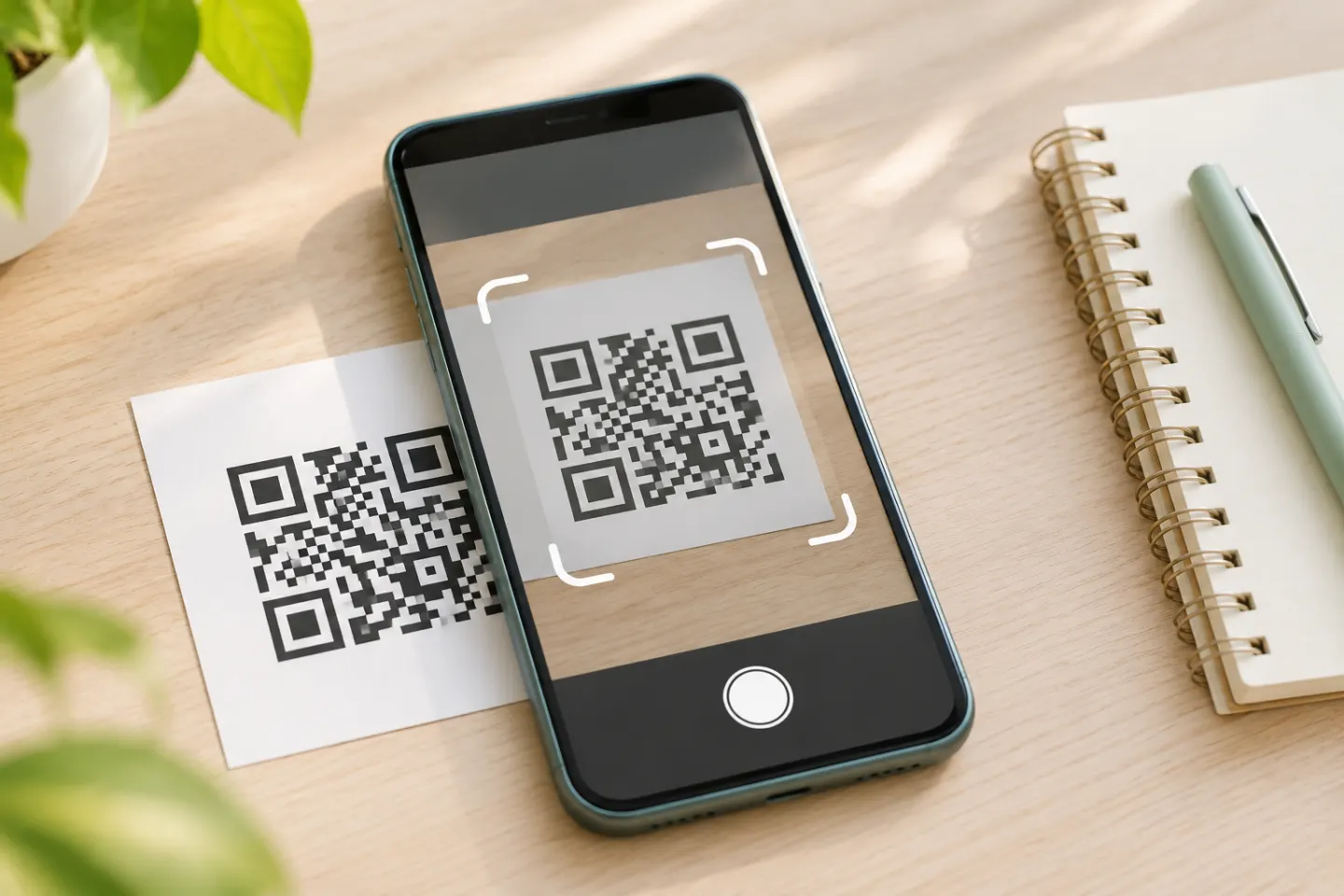
- Open the Camera app and use its regular Photo mode.
- Hold the phone so the full QR code is visible, then keep it steady for a moment. You do not need to take a photo.
- When a link, banner, or action appears, check what it is before tapping.
Most Android phones have a camera-based route, but Android does not use one identical camera app across every brand. If your camera does not react, use one of the built-in alternatives below instead of assuming you need to install a scanner app.
Use the Camera app on a Pixel
On a Pixel, open Camera and frame the whole code. If no suggestion appears, check Camera → Settings → More settings → Camera scan suggestions and turn the setting on. Google also documents a Scan QR code button in Quick Settings; swipe down from the top of the screen and look through the available buttons. If it is not visible, swipe to the next group or use the edit control to add it. [2]
Pixel’s Camera app may show a bubble or link after it recognizes the code. Tap only after checking the preview. Google Lens is another option if the camera route is unavailable. [2]
Scan with a Samsung Galaxy
On many Galaxy phones, either of these routes works:
- Camera: Open Camera, stay in Photo mode, and point the viewfinder at the code. If it does not detect the code, open Camera settings and look for Scan QR codes. [3]
- Quick settings: Swipe down from the top of the screen to open the Quick settings panel, then tap Scan QR code. Samsung’s instructions note that the shortcut may also offer a flashlight and a way to open Gallery. [3]
Samsung says camera settings can vary with the model. Menu wording and shortcut availability may also differ across software versions, so treat these labels as places to look rather than a promise that every Galaxy has the same screen. [3][4]
Try Quick Settings on another Android phone
Swipe down from the top of the screen to open Quick Settings and look for Scan QR code. Depending on the phone, you may need to swipe down again to expand the panel, move sideways through tiles, or edit the panel to add the scanner. Pixel and Galaxy support pages document this shortcut for their devices. Other Android manufacturers organize their own camera and system controls, so the shortcut may be absent or named differently. [2][3]
If you do not see it, move to Google Lens or return to the Camera app settings for a QR-scanning option. Avoid relying on a fixed Android-version cutoff for every phone: a manufacturer’s camera app and software customization affect which controls are available.
Use Google Lens if the camera does not recognize the code
Google Lens is a useful fallback for a code in front of you. Depending on your phone, open Lens from Chrome, Google Photos, or a Lens control in the camera. In Chrome on Android, open a new tab, tap the Lens icon in the search bar, and point the camera at the QR code; Google’s Chrome Help also documents selecting an existing screenshot or image from this flow. [5][7]
When Lens displays a link or action, review it before continuing. The control’s location can vary, so if you cannot find Lens in one app, try Google Photos or Chrome rather than following steps for a different phone brand.
Scan a QR code already on your Android screen
Choose the route your device supports:
- Google Photos: Open the saved screenshot or picture, tap More, then Google Lens. Lens can analyze images in Photos and offer actions based on what it recognizes. [5]
- Circle to Search: On supported Android devices, press and hold the navigation button or home button to start Circle to Search, then circle the QR code. Android’s guide describes this for codes in apps, emails, PDFs, photos, and videos, but availability is limited to selected devices. If the feature is not available on your phone, use Google Photos/Lens or display the image on another screen and scan it with the camera. [6]
For a longer, device-by-device guide to screenshots and gallery images, see the separate QR code from a screenshot or photo article when its published URL is available. This guide keeps the saved-image steps brief so the Android camera and scanner choices stay clear.
If your Android phone will not scan the QR code
Work through these checks in order:
- Frame the whole code. Keep the entire square and its clear edge inside the viewfinder. Move closer only while the full code remains visible.
- Steady the phone and let it focus. Pause for a moment; wipe a smudged camera lens with a soft cloth.
- Improve the light. Avoid a shadow or reflection across the code. Use a flashlight if the area is dim, but move it if glare washes out the printed pattern.
- Check the right setting for your device. On Pixel, check Camera scan suggestions. On a Galaxy, check Scan QR codes in Camera settings. Other brands may use a different name or a separate scanner. [2][3]
- Switch scanning method. Try Quick Settings or Lens. If a saved image is blurry or cropped, reopen the original image or show it on another screen.
- Check whether the code itself is damaged. A fold, scratch, sticker, low-resolution screenshot, or missing border can prevent recognition. Ask the person or business that supplied it for a fresh code or direct link if multiple methods fail.
If the camera never shows a link, the code may not have been detected. If it does show a link but the page fails to load, the scan may have succeeded and the problem may be the connection or the destination page. Those are different problems: try another network or contact the site owner for a broken page, but do not enter personal details into a destination you cannot verify.
Check the link before opening it
A QR code can open a website, start an app action, display text, or offer another action. Pause at the preview and check that the address matches the organization or task you expected. Be especially careful with unexpected codes in texts or emails and with stickers covering a legitimate code. The FTC recommends inspecting a QR link for misspellings and contacting an organization through a phone number or website you already know if a message seems suspicious. [1]
Do not treat a link preview as a safety certificate. If the destination looks unrelated, shortened in a way you cannot verify, or asks for a password or payment you were not expecting, close it and confirm through a trusted channel.
Quick method picker
| Where the QR code is | Try this first | If that does not work |
|---|---|---|
| Printed code or another screen | Camera in Photo mode | Quick Settings scanner, then Lens |
| Pixel camera does not react | Turn on Camera scan suggestions | Pixel Quick Settings scanner or Lens |
| Galaxy camera does not react | Check Camera settings for Scan QR codes | Quick settings panel |
| Screenshot or saved photo | Google Photos → More → Google Lens | Circle to Search on supported devices, or display it on another screen |
| Link appears but page will not load | Check the address and your connection | Verify the site through a trusted route |
Frequently asked questions
Do I need to install a QR scanner app on Android?
Try the Camera app, your phone’s Quick Settings scanner if present, or Google Lens if available. If none works on your particular device, check its manufacturer’s support instructions before installing a third-party scanner.
Why does my Android camera show no link?
Check that QR scanning is enabled for your camera if your model has a setting, then try Quick Settings or Lens. Also check framing, focus, lighting, and whether the code is intact. The menu names vary by manufacturer and software version. [2][3]
References
[1] Federal Trade Commission. “See a QR code parked somewhere? Don’t scan it…yet!” https://consumer.ftc.gov/consumer-alerts/2026/09/see-qr-code-parked-somewhere-dont-scan-ityet
[2] Google Pixel Camera Help. “Scan QR codes with your Pixel phone.” https://support.google.com/pixelcamera/answer/16561572?hl=en
[3] Samsung Support. “Ways to scan a QR code on your Galaxy phone or tablet.” https://www.samsung.com/us/support/answer/ANS10001925/
[4] Samsung Support. “Camera modes and settings on Galaxy phones and tablets.” https://www.samsung.com/us/support/answer/ANS10001353/
[5] Google Photos Help. “Get info about your photos & surroundings.” https://support.google.com/photos/answer/7539151/?co=GENIE.Platform%3DAndroid&hl=en
[6] Android. “How do you scan QR codes on Android?” https://www.android.com/intl/en_us/articles/how-do-you-scan-qr-codes-on-android/
[7] Google Chrome Help. “Search with Google Lens in Chrome.” https://support.google.com/chrome/answer/15086890?hl=en




