



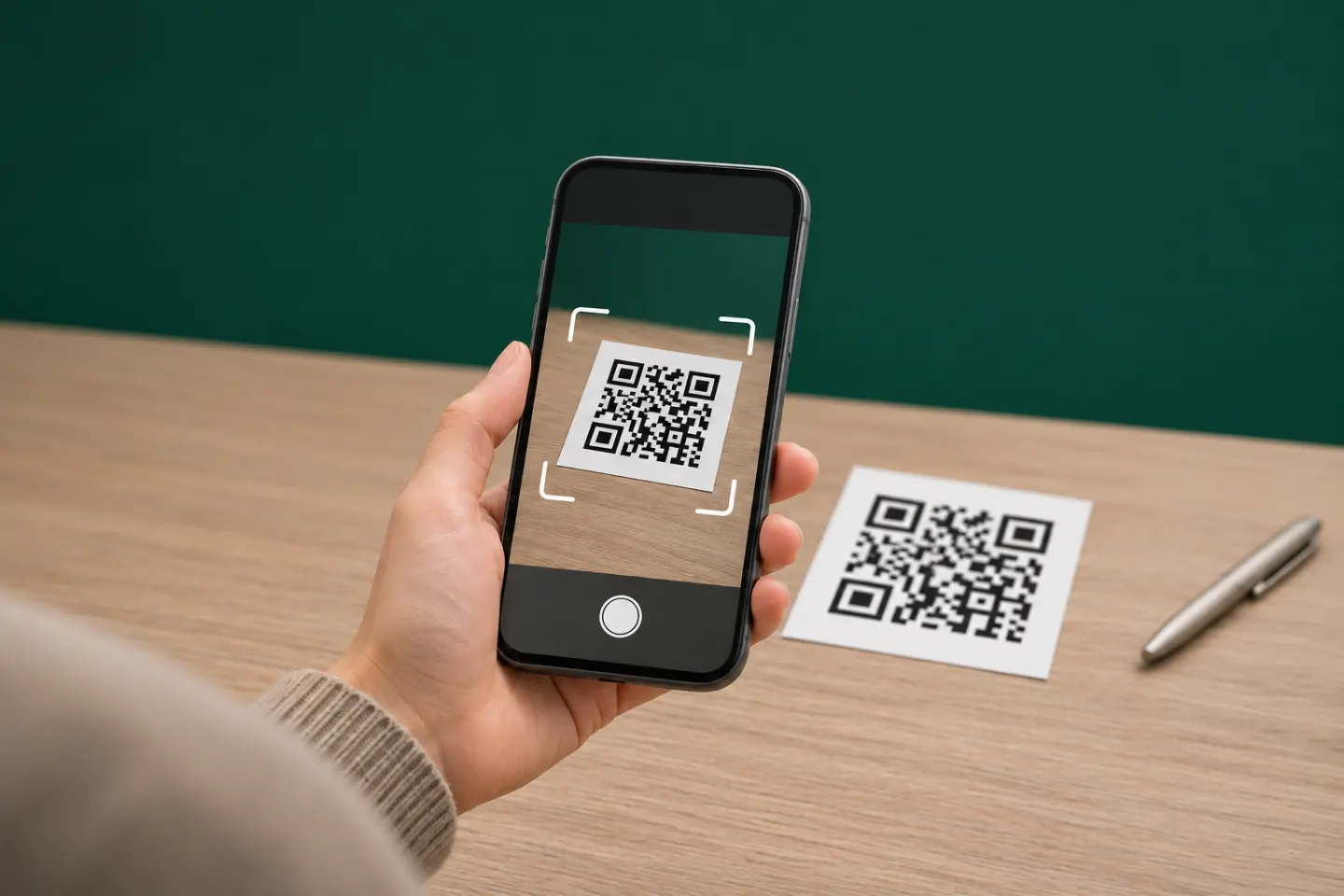
Scan a QR code with the iPhone Camera
- Open Camera from the Home Screen, Lock Screen, or Control Center.
- Use the rear-facing camera and hold the iPhone so the entire QR code is visible in the viewfinder.
- Wait for a notification or link to appear. You do not need to take a photo.
- Check the preview, then tap it only if it is the destination or action you expected.
The camera can scan a code printed on paper or displayed on another device, such as a laptop or tablet. If the code is on the iPhone you are holding, the Camera cannot point at its own screen; that is a different task from scanning a code in front of you. This guide focuses on external codes. For a QR code saved as a photo or screenshot, use an image-based method covered by a separate photo-scanning guide.
Use Code Scanner in Control Center
Code Scanner opens a dedicated scanning view. It is useful when you want a direct scanner rather than the regular Camera interface.
- Open Control Center. On iPhones with Face ID, swipe down from the top-right corner. On iPhones with a Home button, swipe up from the bottom edge.
- Tap Scan Code (Code Scanner) if it is available.
- Hold the iPhone over the QR code until it is recognized, then review the result before opening it.
If you do not see the control, add it from Control Center:
- Open Control Center.
- Touch and hold the background, then tap Add a Control.
- Choose Scan Code from the controls gallery. Return to Control Center and tap it to scan.[1]
Control Center controls can look different across iOS versions. If the edit flow or control name on your iPhone differs, use Camera as the straightforward alternative and consult Apple’s current instructions for your software version.
What happens after the iPhone recognizes a QR code?
A QR code can contain a website address, contact details, or another action. The iPhone presents a notification, link, or action for you to review. Recognition does not mean you have opened the destination, and a displayed link is not a safety check. Read the preview before tapping. If the destination is unexpected, close or ignore it.
A code may open a web page, prompt an app action, or show another kind of content. The result depends on what the code contains and which apps or services are available on your iPhone. Do not assume every QR code leads to a website.
If your iPhone does not scan the code
Try these checks in order:
- Show the full code. Keep all four corners and the clear border around the code inside the viewfinder. Move the phone back if the code is too close to fit.
- Hold still and let the camera focus. Avoid moving while the phone reads the code. Wipe a smudged camera lens with a soft, clean cloth.
- Improve the lighting. Reduce glare and shadows. If the code is on a screen, adjust its brightness or angle to remove reflections.
- Try Code Scanner. If Camera does not show a result, open Code Scanner in Control Center. This helps distinguish a Camera interaction issue from a code or image issue.
- Check the code itself. A cropped, very small, blurred, scratched, folded, or covered code may not be readable. Ask the person or business that supplied it for a fresh code or the direct destination.
- Separate scanning from loading. If a link appears but the page will not load, the code was recognized. Check your connection or try again later; rescanning will not fix a destination website that is unavailable.
If neither Camera nor Code Scanner recognizes a clear code, test a different known QR code. If that also fails, restart the iPhone and check for available iOS updates. Menu names and controls can vary by iOS version; use Apple Support for version-specific troubleshooting.
Check the link before opening it
A QR code can send you to a website without showing whether the person who placed it is trustworthy. Before tapping, check that the address preview matches what you expected. Be cautious with unexpected payment, login, or account-verification requests. If a code is posted in a public place and appears covered by another sticker, ask the business for the correct code or website instead.
Never enter a password or payment details just because a QR code opened a page. If the request seems unusual, leave the page and reach the business through a contact method you already trust.
Quick method picker
| Situation | Start here | Next step |
|---|---|---|
| Code on a sign, package, or printed page | iPhone Camera | Open Code Scanner in Control Center |
| Code displayed on another screen | iPhone Camera | Increase the code size and reduce screen glare |
| Camera shows no result | Code Scanner in Control Center | Check framing, focus, light, and code condition |
| Link appears but does not load | Review the link and connection | Try again later or contact the destination’s owner |
| Code is saved on this iPhone as a photo/screenshot | Use an image-based workflow | Follow a photo-specific QR scanning guide |
Frequently asked questions
Do I need to install a QR scanner app on iPhone?
Usually, no. Apple’s built-in Camera and Code Scanner can scan QR codes. Try those first. A separate app is only relevant if you need a specific feature that the built-in options do not provide.
Where is Code Scanner on iPhone?
Open Control Center and look for Scan Code. If it is missing, touch and hold the Control Center background, tap Add a Control, and choose Scan Code from the gallery.[1]
Why does my iPhone recognize a QR code but not open the website?
Recognition and loading are separate. If a link preview appears, the code has been read. Check the internet connection, try again, or contact the site owner if the destination remains unavailable.
References
[1] Apple Support. Scan a QR code with your iPhone or iPad. https://support.apple.com/en-us/102680




