



Start with the right location
If you manage several locations, open the profile for the specific branch where customers will see the sign. Save the image with a recognizable name, such as oak-street-google-review.png. Keep the review link alongside it so a colleague can check the destination when reordering signs.
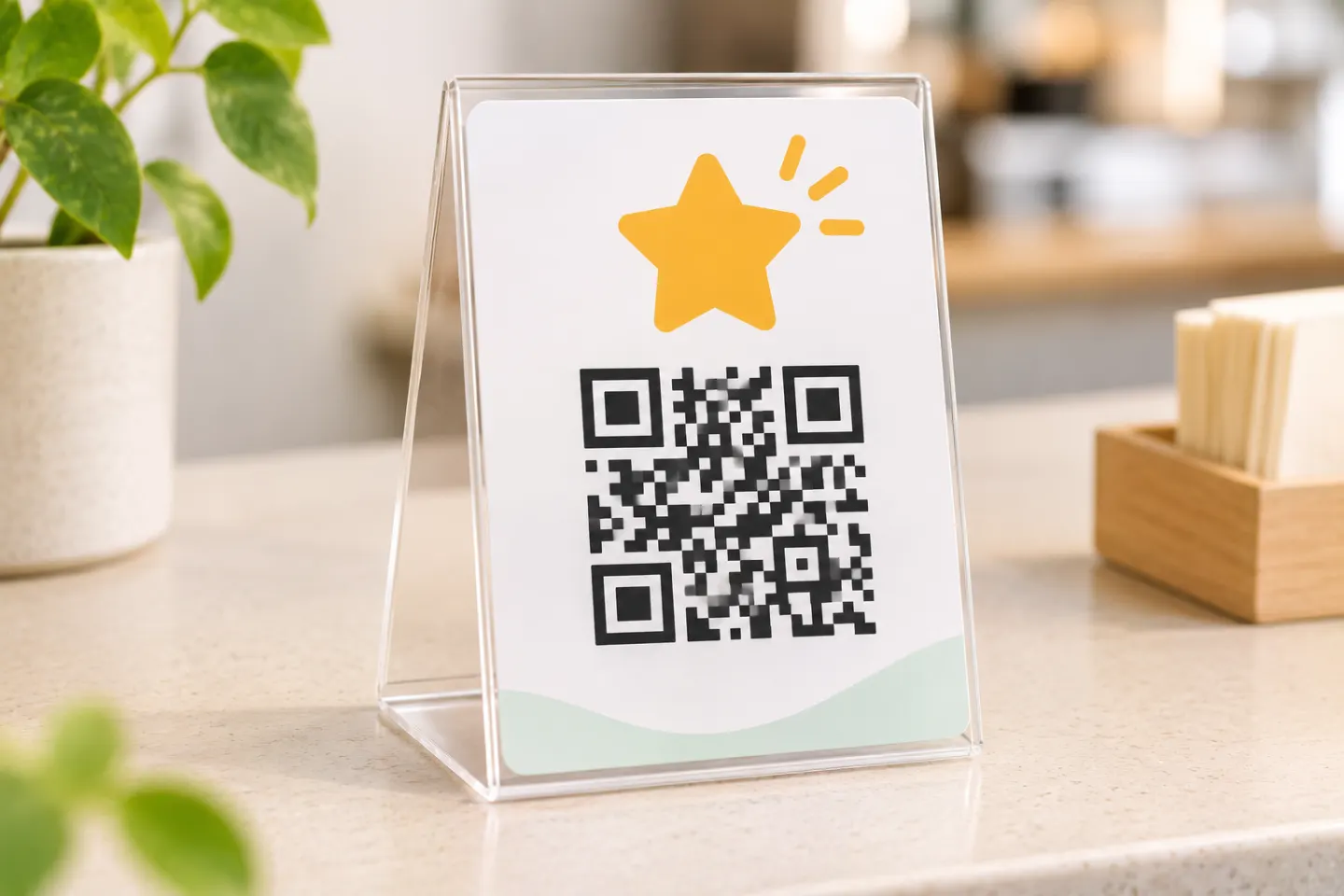
Scan the image from a second device. Check the business name, location and review prompt before sending the artwork to print. If the wrong branch appears, go back to that branch’s profile and download its own code.
Put the invitation where a customer can use it
On a receipt, try “How was your visit to our Oak Street location? Scan to leave a Google review.” On a counter sign, leave room for someone to point a phone at the code without having to move the sign. For a thank-you email, make “Review our Oak Street location on Google” a clickable link so a customer reading on a phone can open it directly.
Google suggests including review invitations on receipts, in thank-you emails and at the end of chat interactions. Ask for feedback on the customer’s experience. Offering a discount, free item or other incentive in return for a review violates Google’s policy. [1]
Check the printed version
Leave an empty border around the QR code. For a standard QR Code, DENSO WAVE specifies a margin four modules wide on each side. One module is one small square in the pattern, so keep the full border when cropping or placing the image. [2]
Print one copy at the intended size. Try scanning it under the lighting at the counter, then confirm that Google shows the right business. If the phone recognizes the code but opens the wrong location, replace the image. If it struggles to recognize the pattern at all, try a larger image with a clear border and test the new proof.
References
[1] Google Business Profile Help. Create a Google link or QR code to request reviews. https://support.google.com/business/answer/16816815?hl=en
[2] DENSO WAVE. Point for determining the code area. https://www.qrcode.com/en/howto/code.html




