



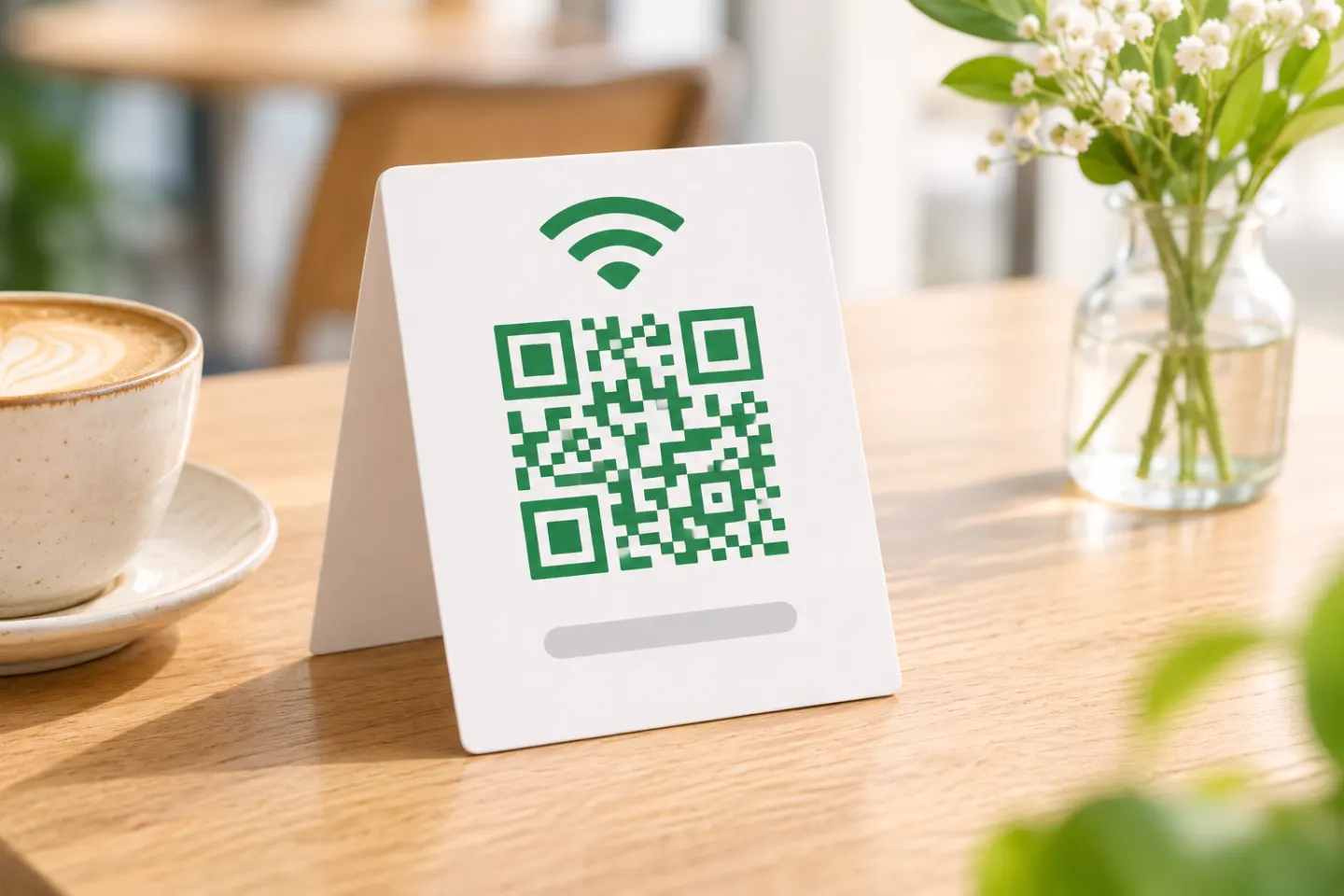
For a printed guest sign, you can instead use a generator that supports Wi-Fi connection data. Before sharing, follow the workflow below: check the credentials, test a fresh connection, and treat the finished code like the password it contains.
Create a WiFi QR code on your phone
On Android
Google’s documented instructions are:
- Open Settings.
- Tap Network & internet, then Internet.
- Select your Wi-Fi network and tap Share.
- Show the QR code to your guest so they can scan it with another device. [1]
Google notes that some instructions on this help page apply only to Android 12 and later; that is not a stated minimum version for every sharing feature. If your menus differ, consult your phone manufacturer’s instructions rather than assuming the option is unavailable. [1]
On iPhone
Apple’s iPhone guide documents this route:
- Open the Passwords app.
- Tap Wi-Fi. Use the back or sidebar button if the categories are not visible.
- Select the saved network.
- Tap Show Network QR Code and let your guest scan it. [2]
Do not confuse QR sharing with Apple’s nearby Share Password prompt. The nearby method has separate requirements, including Wi-Fi and Bluetooth being on, Personal Hotspot being off, and each person having the other’s Apple Account contact details saved. Those are not presented as prerequisites for scanning the network QR code. [3]
Create a WiFi QR code for a guest sign
Gather the network details
For the common WIFI: payload documented by ZXing, collect:
- SSID: the exact network name.
- Authentication type: the connection’s security setting.
- Password: the current network password, if required.
- Hidden-network status: whether the network name is hidden. [4]
A basic example with fictional credentials is:
WIFI:T:WPA;S:StudioGuest;P:ExamplePass123;;
This is connection data, not a website address. ZXing documents T, S, P, and H as authentication, SSID, password, and hidden-network fields. It also specifies escaping certain punctuation with a backslash. When using a generator’s dedicated Wi-Fi form, enter the actual credentials; do not manually escape them unless the tool requests raw payload text. [4]
The WPA text in this example is a payload value—not advice to select legacy WPA on your router. The FTC recommends WPA3 Personal or WPA2 Personal and warns that older WPA and WEP are insecure. Do not weaken router security to make a code work. [5]
Generate, label, and test
Use this as a prepublication checklist, not as a claim that every generator has the same interface:
- Choose a Wi-Fi connection-code option rather than a website-link option.
- Enter the network details and generate the code.
- Add a clear label, such as Guest Wi-Fi — scan to connect, plus the network name.
- Preserve the blank border around the code. DENSO WAVE specifies a quiet zone at least four modules—the small squares in the symbol—wide on every side. [6]
- Scan the final exported image and the actual printed sign before distributing copies.
For a useful connection test, use a device that is not already connected through saved credentials. Confirm that it joins the intended guest network and can access the internet. This is an editorial testing recommendation; no phone or print testing was performed for this article.
Share the code without exposing your main network
For visitor access, use a separate guest network where your router supports one. The FTC recommends guest networks because they give visitors a separate login and reduce sharing of your primary Wi-Fi password. Consult your router’s documentation for setup and isolation controls. [5]
Treat a credential-bearing QR image as a copy of the password: the documented payload includes the password as readable data, so hiding the typed password on a sign does not make the credentials secret. Share or display it only where you intend to grant access. [4]
How guests scan it
On iPhone, open Camera or Code Scanner, frame the code, and tap the detected action. Apple also documents scanning a network QR code to join Wi-Fi. [7][2]
Google documents scanning the shared code with another device but does not establish one universal camera workflow for every Android manufacturer. Ask Android guests to use their device’s supported QR scanner; keep manual network details available as a fallback. [1]
Troubleshooting checklist
These checks are recommended diagnostics, not a ranking of the most common failures.
| What happens | What to check next |
|---|---|
| The scanner shows text instead of a join action | Try the device’s supported network-sharing scanner, or enter the details manually. |
| The phone recognizes the network but cannot join | Compare the SSID, password, authentication, and hidden-network setting with the actual network. |
| A printed code is not detected | Check that the entire symbol and blank border are intact; test a larger print at the intended viewing distance. |
| The sharing button is missing | Check the manufacturer’s instructions and your OS version; do not assume every phone follows Google’s menu path. |
If you change the guest-network password, generate a code with the updated credentials and replace the old sign. [4]
References
[1] Google Android Help, “Connect to Wi-Fi networks on your Android device” — https://support.google.com/android/answer/9075847?hl=en
[2] Apple iPhone User Guide, “Find and share your Wi-Fi password on iPhone” — https://support.apple.com/en-euro/guide/iphone/iph96e6aa9bb/ios
[3] Apple Support, “How to share your Wi-Fi password from your iPhone or iPad” — https://support.apple.com/en-us/102635
[4] ZXing project wiki, “Barcode Contents,” Wi-Fi network configuration — https://github.com/zxing/zxing/wiki/Barcode-Contents
[5] Federal Trade Commission, “How To Secure Your Home Wi-Fi Network” — https://consumer.ftc.gov/articles/how-secure-your-home-wi-fi-network
[6] DENSO WAVE, “Point for determining the code area” — https://www.qrcode.com/en/howto/code.html
[7] Apple Support, “Scan a QR code with your iPhone or iPad” — https://support.apple.com/en-us/102680




