



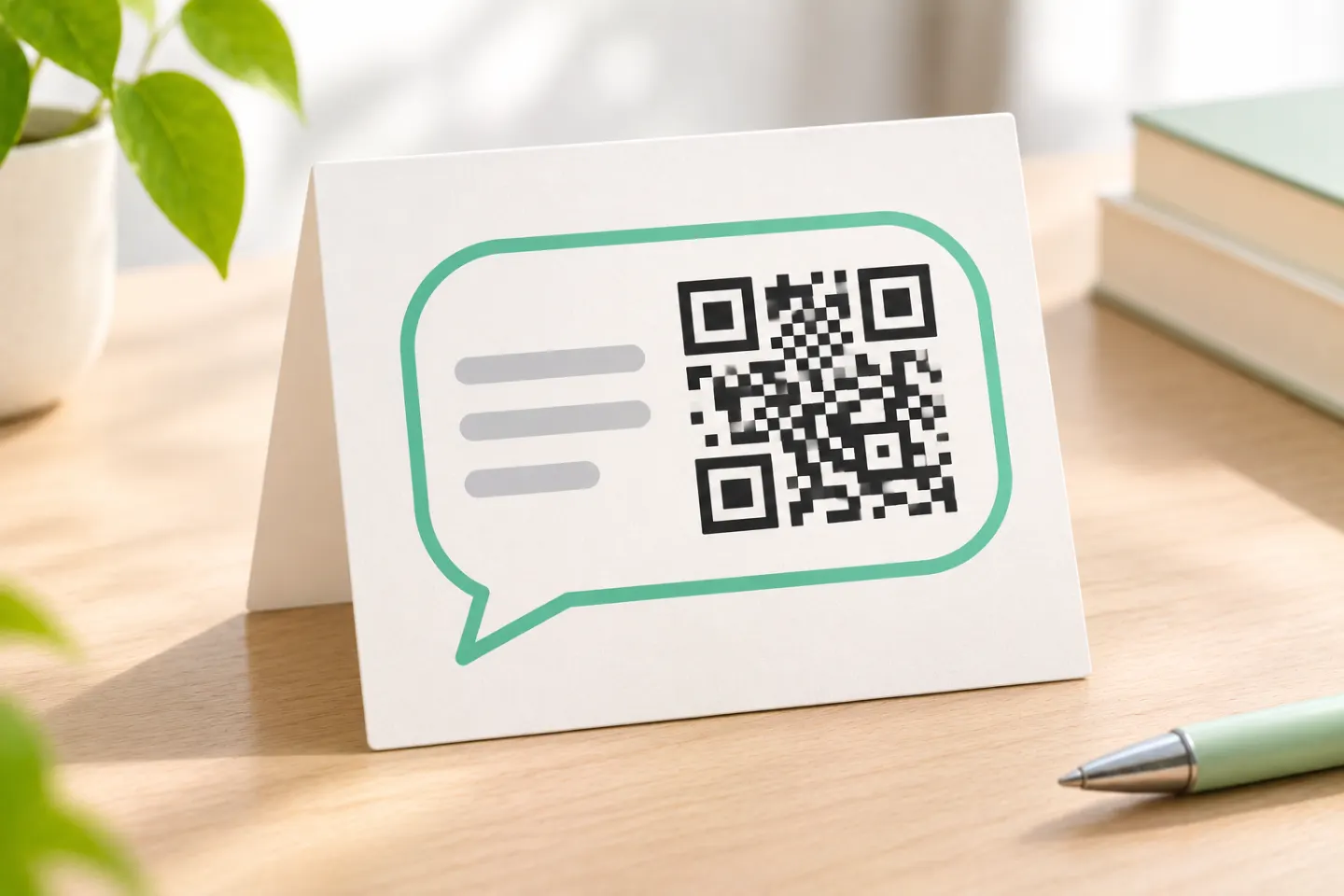
Use the link method for a custom message on a flyer or contact page, or the built-in Business option for a native sharing flow. Neither should be confused with a device-linking QR code, which connects another device to your account. [3]
Method 1: Turn a WhatsApp chat link into a QR code
1. Format your destination number
Use the full international number, with country code and digits only—no +, spaces, parentheses, or hyphens. For a US number, that means 1 followed by the ten-digit number. Keep zeros that are part of the actual number; do not indiscriminately delete them. [1]
2. Build the link and optional message
Use this template, replacing the placeholder with your number:
https://wa.me/1XXXXXXXXXX
To include a message, append ?text= and URL-encoded text:
https://wa.me/1XXXXXXXXXX?text=Hi%20I%20have%20a%20question
These are templates, not working contact links. The message appears in the chat’s text field; opening the link does not itself send it. [1]
3. Generate the QR image
Recommended workflow:
- Open your chosen QR tool and select its URL or website-link option.
- Paste the complete chat link—not just the phone number.
- Generate and download the image.
- Decode the downloaded image and check that its destination matches your intended link.
This is a generic workflow, not a description of a verified QRHyper interface. Start with a plain design and postpone decorative changes until you have checked the final image.
4. Test before distributing it
First open the link directly. Then scan the downloaded QR image from another screen or a printed proof. Confirm the correct recipient and message before approving the design. These are recommended checks, not tests performed for this article.
Method 2: Share the built-in WhatsApp Business QR code
WhatsApp Business provides a QR code that customers can scan to open a conversation, optionally with a message supplied by the business. Meta documents uses including storefronts, product packaging, and receipts. [2]
The official Android sharing instructions reviewed for this article specify:
- Open the Tools tab.
- Tap More options → Short link.
- Tap View QR Code → Share code.
- Choose the contact or app to share it with and finish sending it.
WhatsApp also documents printing this code for a physical storefront. These are documented Android steps, not independently tested instructions or a verified iPhone path. [4]
Add a default business message
In Tools → More options → Short link, use the message option to set a template customers can send when they open the chat. Try the resulting chat as a customer before printing. [5]
Which WhatsApp QR code do you need?
| Your goal | Suitable route |
|---|---|
| Open a chat through a link, with optional pre-filled text | Encode a wa.me URL. |
| Share a business conversation entry point from the app | Use the WhatsApp Business QR code. |
| Share your personal contact details | Use your personal WhatsApp contact QR code. |
| Connect your computer or another device | Follow the separate Linked devices flow—not this tutorial. |
WhatsApp documents these as different features. A personal contact QR code is a legitimate option for contact sharing, not a login code. [1]
Before you print or publish
- Keep a clear border. DENSO WAVE specifies a quiet zone at least four modules wide on all sides of a standard QR code. A module is one small square in the pattern. Keep text and artwork outside that margin. [6]
- Use the appropriate scanner. WhatsApp says its camera scans only official WhatsApp QR codes. For a generic QR image containing a chat URL, use a phone camera or scanner that supports URL QR codes; do not judge it solely by WhatsApp’s in-app scanner. [4]
- Treat contact information as shareable. WhatsApp warns that personal QR codes can be forwarded and scanned by others to add you as a contact. Share personal codes only with trusted people. [7]
- Keep device authorization separate. Never use the Linked devices QR flow as a public “message us” code; its purpose is to link a device to the account. [3]
As a final editorial check, scan the finished artwork at its intended display size, verify the recipient, and add a clear label such as “Scan to chat on WhatsApp.” For digital placements, provide a tappable chat link alongside the image so readers have an alternative to scanning.
Troubleshooting
The QR scans, but the destination is wrong. Recheck the complete encoded URL and country code. The destination number must have an active WhatsApp account. [1]
The message text is garbled. Rebuild the text value using URL encoding, then check the finished link before regenerating the QR image. [1]
The QR image is not recognized. Check the clear border first. If you are using WhatsApp’s camera on a generic URL QR code, try a URL-capable scanner instead. [6]
References
[1] WhatsApp Help Center — How to use click to chat — https://faq.whatsapp.com/5913398998672934
[2] Meta — New Ways to Connect With Businesses on WhatsApp, July 9, 2020 — https://about.fb.com/news/2020/07/connect-with-businesses-on-whatsapp/
[3] WhatsApp Help Center — How to link a device with QR code on the WhatsApp Business app, Android — https://faq.whatsapp.com/878854700132604/?cms_platform=android
[4] WhatsApp Help Center — How to share your WhatsApp Business QR code, Android — https://faq.whatsapp.com/5146068842165793/?cms_platform=android
[5] WhatsApp Help Center. How to create short links. https://faq.whatsapp.com/502291734918768
[6] DENSO WAVE — Point for determining the code area — https://www.qrcode.com/en/howto/code.html
[7] WhatsApp Help Center — How to share your WhatsApp QR code, Android — https://faq.whatsapp.com/1097692684282332/?cms_platform=android




