



What you need first
Use the official Steam Mobile App, signed in to the account you want to use, with the Steam Guard Mobile Authenticator set up. Valve’s setup guide lists QR sign-in as an option available after the authenticator is enabled. Installing the app alone is not the complete setup. [2]
Download the app through Valve’s Steam Mobile page. Steam Mobile is listed separately from Steam Chat and Steam Link; its Steam Guard features include QR sign-in. [3]
If you are setting up the authenticator for the first time, save the recovery code privately when prompted. Valve’s setup guide says to write it down and keep it somewhere safe in case you lose your phone or authenticator. [2]
How to scan a Steam QR code and sign in
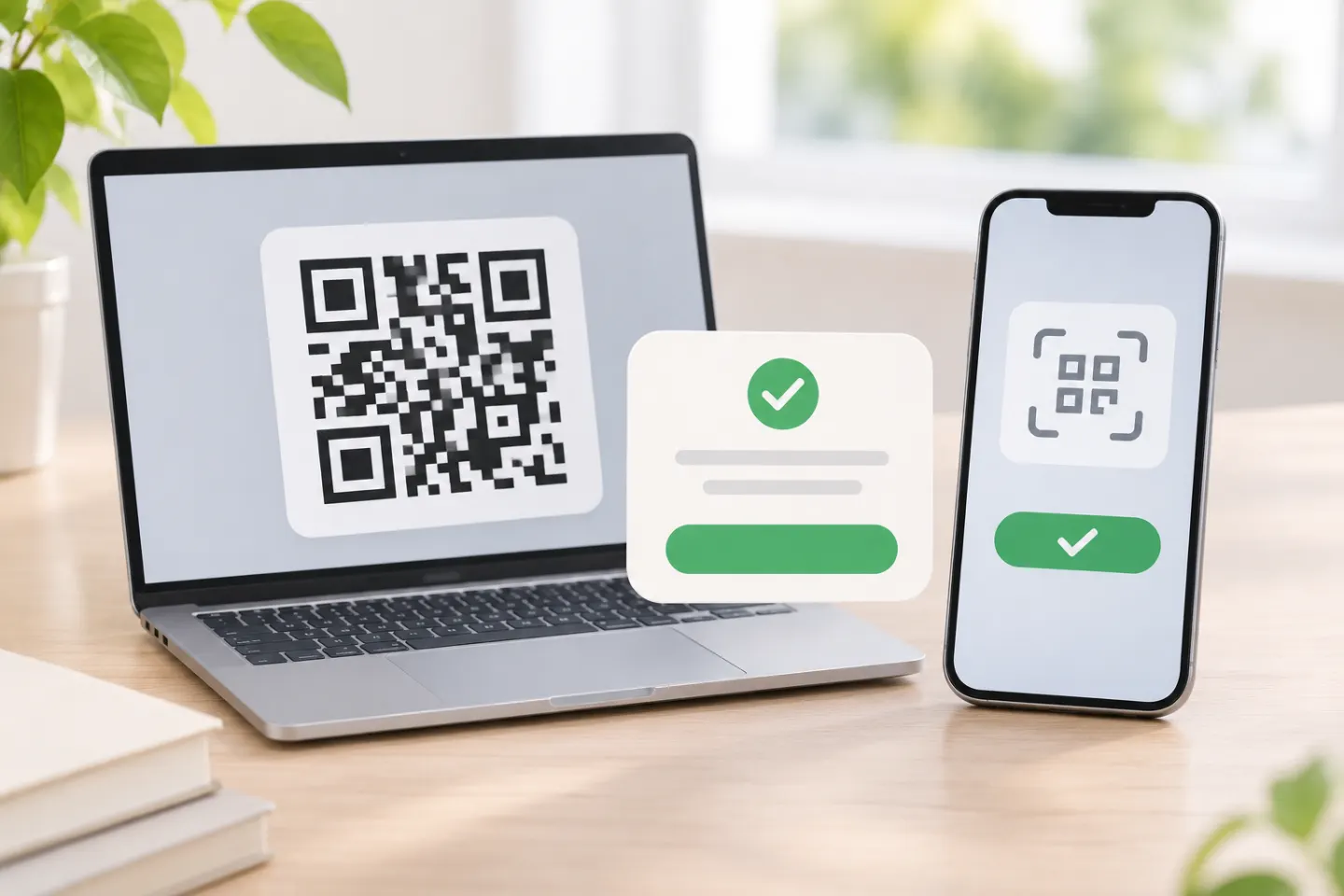
- Open Steam’s sign-in screen on your computer. You can use the Steam client or Steam’s website. The official store sign-in page includes an “Or sign in with QR” section. [4]
- Open Steam Mobile on your phone. Go to Steam Guard, identified by the shield icon, and find the “Scan a QR code” prompt. These labels follow Valve’s published instructions; the exact layout may vary by app version. [5]
- Point the app’s scanner at the code on the computer. Scan the code presented on the Steam sign-in panel—not an unrelated QR code sent to you in a message. [5]
- Review the request before approving. Valve says the confirmation includes sign-in details, a map, and the device’s approximate location. Approve only a login you initiated and recognize. [1]
The direction matters: the computer displays the login code, and the phone scans it. Valve’s mobile-app materials show the scanner within Steam Guard and a separate approval screen. [5]
If Steam QR sign-in is not working
You cannot find the QR code
Look on the sign-in screen, rather than your account profile or Library. Steam’s official browser login page places the QR option alongside the account-name and password form. [4]
If that section does not load, try reloading the page or reopening the sign-in window. If the code still fails to appear, try the password and mobile confirmation method below.
The scanner will not read the code
First, use the scanner inside Steam Mobile → Steam Guard, as Valve instructs. [5]
Then try these general checks—not Steam-specific fixes verified through device testing:
- If the camera view is blocked, check whether Steam Mobile has camera permission in your phone’s settings.
- Keep the entire QR code visible and reduce glare on the computer screen.
- Adjust the distance between the phone and screen so the camera can focus.
- Reload the sign-in page and try its currently displayed code.
You cannot use the camera
With the mobile authenticator enabled, Valve documents two alternatives: enter your account name and password, then either confirm the notification in Steam Mobile or enter the Steam Guard code from the app. [2]
For a browser login on the same phone, consider one of those alternatives rather than trying to photograph that phone’s own display.
You lost access to your phone
Use Steam Support’s account-recovery process. Valve directs users who cannot log in with the mobile authenticator to its help site. Do not remove account protection merely as a routine scanning fix. [5]
Safety checks before you approve
Not typing a password does not make an unfamiliar computer trustworthy. As an editorial security precaution, avoid signing in on public or untrusted computers, and approve only requests you deliberately started.
Open Steam yourself rather than following an unexpected login link. Check the request details in the app; treat the location as approximate, not as proof by itself that the request is legitimate. Valve explicitly describes it as an approximate geolocation intended to help you evaluate the attempt. [1]
Never share authenticator codes. Valve says Steam Support will never ask for them and warns against entering credentials or codes on sites not operated by Valve. [5]
If you forgot to sign out on another device, Valve documents an Authorized Devices page in Steam Mobile where you can review sessions and revoke access. [1]
References
[1] Valve: “The updated Steam Mobile App is now available,” October 12, 2022, within the official news archive — https://store.steampowered.com/news/posts/?enddate=1669850713&feed=steam_blog
[2] Steam Support: Steam Guard: How to set up my mobile authenticator — https://help.steampowered.com/en/faqs/view/6891-E071-C9D9-0134
[3] Steam: Mobile apps — https://store.steampowered.com/mobile
[4] Steam: Official sign-in page — https://store.steampowered.com/login/
[5] Steam Support: Steam Guard Mobile Authenticator — https://help.steampowered.com/en/faqs/view/7EFD-3CAE-64D3-1C31




