



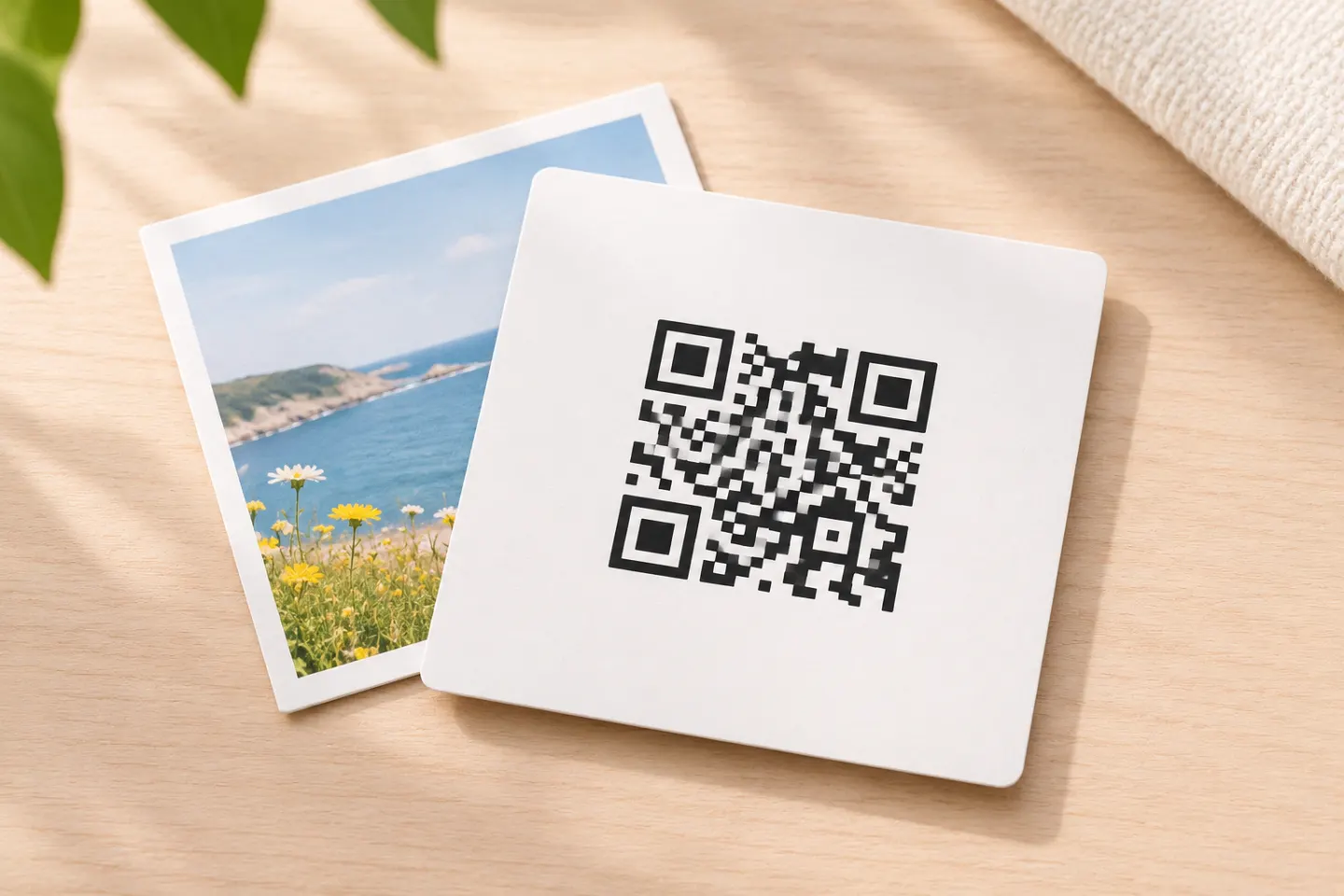
This tutorial covers opening a photo, poster, diagram, or other image after a scan. It does not cover adding a logo inside a QR code or scanning a QR code already present in a photo.
Choose what the QR code should open
Before generating anything, decide which destination you want readers to reach:
| Destination | Choose it when | Check before publishing |
|---|---|---|
| Direct image-file URL | You want a simple image view | Does it display the image rather than trigger a download? |
| Webpage containing the image | You want a caption, context, or several images | Is the image easy to find and read on a phone? |
| Hosted file-sharing page | You already use a file-sharing service | Can a signed-out visitor view it without requesting access? |
A direct file link does not guarantee an inline image view. For example, an HTTP response with Content-Disposition: attachment tells the browser to prompt for saving rather than process the file normally. Test the actual destination instead of relying on the filename. [3]
Editorial recommendation: For printed materials you expect to keep using, favor a page URL you control and can maintain. W3C’s URI guidance emphasizes keeping addresses stable even when the underlying files or website implementation change. [4]
How to turn an image into a QR code
1. Upload the image and set the intended access
Put the picture on your website or a hosting service that provides a viewer-facing link. For an unrestricted public handout, aim for a destination that opens without a login or access request. If the image is intended only for authorized viewers, keep its access controls and test with an authorized account instead.
Copy the published page or sharing link—not the address of an editing dashboard. Then open it in a signed-out browser or private window as an initial access check. Treat this as a check to perform, not proof that it works on every device.
The reason for checking the destination separately is straightforward: the documented phone workflow opens the linked content; scanning is not a substitute for checking whether the viewer can access it. [2]
2. Choose a URL you can keep working
Use the published HTTPS address that you want viewers to visit. Avoid choosing a temporary preview or expiring sharing link for long-lived printed material.
Our recommendation is to select a durable address before generating the code, consistent with W3C’s guidance on persistent URIs. A short address is useful, but ongoing control of the destination matters more than shaving off a few characters. [4]
3. Generate a URL QR code
In a QR generator, choose the option for a website or URL if the tool offers different content types. Paste the destination, generate the code, and save the output. These are generic workflow steps, not instructions for a particular product interface.
Keep the payload focused on the destination URL. DENSO WAVE explains that larger amounts of encoded data require more modules—the small squares that make up the symbol. That supports using a concise URL rather than attempting to encode an entire image. [5]
4. Keep the QR code’s clear border
For a straightforward design, use dark modules on a plain light background and keep nearby text or artwork outside the code’s border. Standard QR Code requires a clear quiet zone at least four modules wide on every side. Do not crop that space away when placing the code in your layout. [6]
Add a plain-language label such as “Scan to view the diagram.” Our recommendation is to start with an unembellished code and test the final layout before adding decorative elements.
5. Test both the scan and the image
Use this acceptance checklist before publishing:
- Open the destination while signed out, if public access is intended.
- Scan the exported code from another screen.
- If possible, repeat with an iPhone and an Android phone.
- Tap the detected link and check the entire journey—not just QR recognition.
- Confirm that the picture is readable and that the host does not require an unexpected login or app installation.
- For print, test a proof at the intended size and in the intended placement.
On iPhone, Apple documents opening Camera or Code Scanner, framing the QR code, and tapping the link. On Android, use the QR scanner available on your device and check whether it opens the link. [2]
These are recommended checks. No physical-device or print testing was performed for this article.
Can you change the image without reprinting the QR code?
Yes—if you can update what the encoded URL serves while keeping that URL working. For example, you could replace the picture on a webpage whose address stays the same. This is a practical consequence of separating a stable URI from the file or implementation behind it, as described in W3C’s guidance. [4]
Do not confuse updating the destination with editing the printed QR pattern. Plan to maintain the encoded address. Update the image on the page you control, then check the original QR code again. [4]
Why not embed the image directly?
DENSO WAVE puts the maximum binary capacity of a conventional QR code at about 3 KB, using Version 40 and error-correction level L. That leaves very limited room for image data. Its FAQ specifies that the reader needs to reproduce the binary data as an image. [5][1]
A data: URL is a different approach: it includes the content itself in the URL rather than pointing to a hosted file. RFC 2397 defines that mechanism for small data items. It does not make the QR symbol’s capacity limit disappear, so it is not the recommended workflow here. [7]
References
[1] DENSO WAVE, “FAQ,” including “Can an image or sound be stored in a QR Code?” — https://www.qrcode.com/en/faq.html
[2] Apple Support, “Scan a QR code with your iPhone or iPad” — https://support.apple.com/en-us/102680
[3] IETF, RFC 6266, “Use of the Content-Disposition Header Field in the Hypertext Transfer Protocol (HTTP),” Section 4.2 — https://www.rfc-editor.org/rfc/rfc6266.html
[4] W3C, “Cool URIs don’t change” — https://www.w3.org/Provider/Style/URI
[5] DENSO WAVE, “Information capacity and versions of the QR Code” — https://www.qrcode.com/en/about/version.html
[6] DENSO WAVE, “Point for determining the code area” — https://www.qrcode.com/en/howto/code.html
[7] IETF, RFC 2397, “The ‘data’ URL scheme” — https://www.rfc-editor.org/info/rfc2397/




