



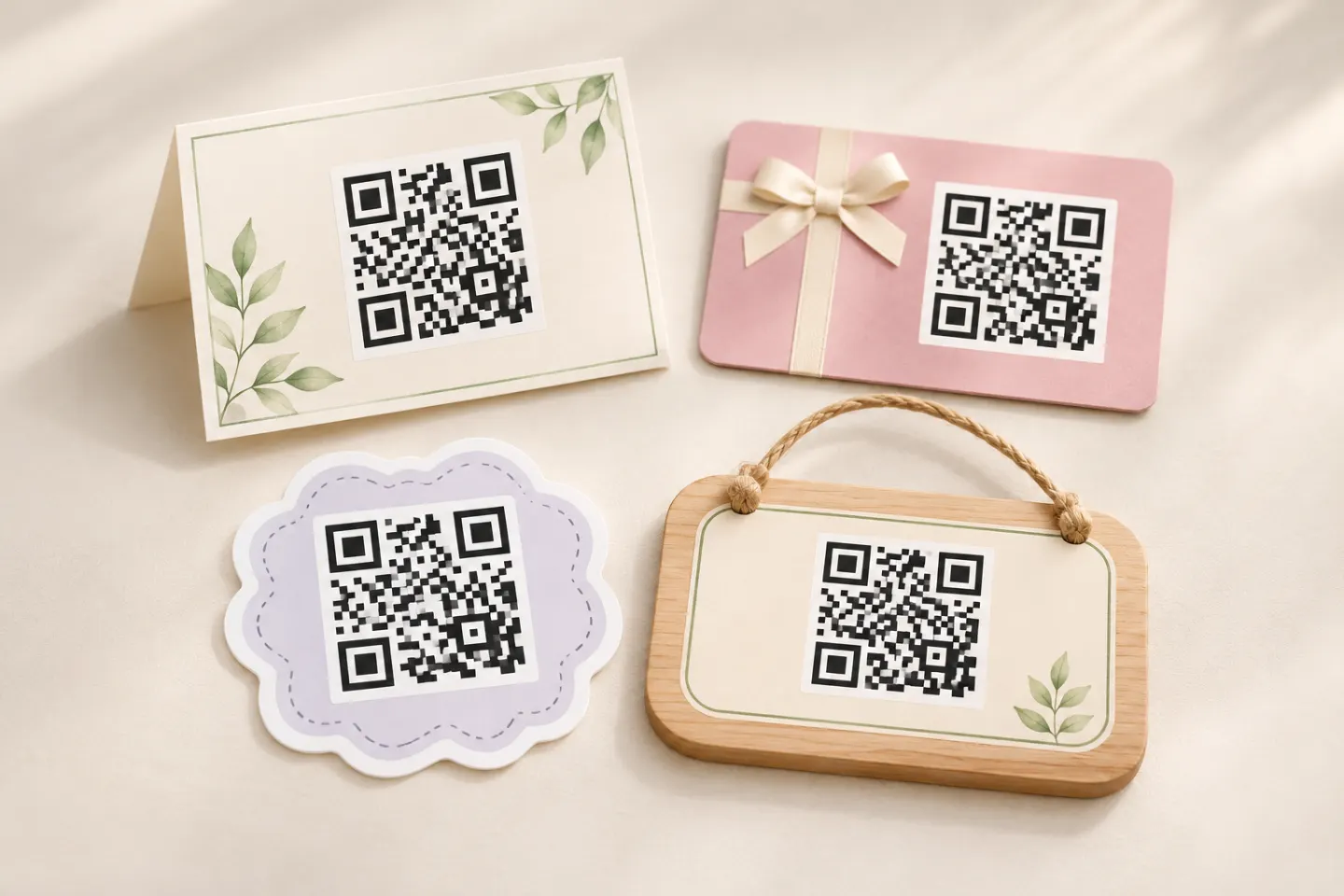
Start with one task and one destination. The ideas below are suggested projects—not claims that a particular generator supports a feature or that every phone will handle the result identically.
10 creative QR code ideas worth trying
1. Turn an invitation into an RSVP shortcut
Set it up: Create an event-specific RSVP form, then make a URL QR code for its public link. Put it on a printed invitation or community notice.
Suggested label: “RSVP for Saturday’s workshop.”
Test before sharing: Open the link while signed out of the form owner’s account. Submit a sample response and verify that it reaches the organizer.
For arrivals, you could use a separate self-check-in form. Do not treat a shared public form as proof that someone owns a ticket; use your ticketing system’s admission process when entry must be controlled.
2. Make an event agenda or room-map station
Set it up: Publish a mobile-friendly page with the schedule, room names, and an accessible text description of key locations. Place its code near entrances and information desks.
Suggested label: “Open today’s schedule and room map.”
Test before sharing: Ask someone unfamiliar with the venue to find a session and its room using only the page.
For updates, keep the page at the same URL and edit its contents. That does not require changing the encoded address. If you move the page, preserve the old address with a redirect or replace the printed code. A URL QR code carries an address, rather than a copy of the web page. [1]
3. Share a speaker resource kit
Set it up: Build a page containing slides, a worksheet, and a few supporting links. Put its code on the closing slide and printed handout.
Suggested label: “Get the slides and practice worksheet.”
Test before sharing: Check public permissions and open every file without the presenter’s account. Try the worksheet on a small screen.
For an email or online presentation, include a clickable text link too. Provide an alternative route rather than making the QR image the only way to reach the material. [2]
4. Collect focused feedback
Set it up: Create a short survey about one experience—a workshop, exhibit, volunteer shift, or service visit. Place the code where people finish that activity.
Suggested label: “Tell us what to improve—three questions.”
Test before sharing: Complete the survey from beginning to end. Check required fields, submission confirmation, and where responses are stored.
Ask only for information you need. If feedback should be anonymous, review the form’s actual settings before labeling it anonymous.
5. Create a guest Wi-Fi welcome card
Set it up: Use a guest network and a compatible Wi-Fi-sharing QR code. Google documents QR-based Wi-Fi sharing on Pixel phones; that is evidence for that implementation, not a guarantee for every phone or network. [3]
Suggested label: “Join the guest Wi-Fi.”
Test before sharing: Try joining from devices that are not already connected. Confirm that guests reach the intended network and can complete any additional sign-in step.
Treat the card as sharing network access. Provide the guest network name and an appropriate manual-access fallback. Replace the code if the encoded credentials change.
6. Add a recipe or product-care guide
Set it up: Link a recipe card to preparation photos, a plant tag to care instructions, or handmade packaging to cleaning guidance. Keep the destination specific to that item.
Suggested label: “See care instructions for this planter.”
Test before sharing: Have someone identify the right product and follow the instructions without searching your website.
Digital.gov specifically identifies equipment manuals and how-to videos as useful QR destinations. For your own guide, consider a short text version alongside any video. [1]
7. Offer a clearly identified donation page
Set it up: Link to the organization’s approved donation page. Print the organization name and recognizable website address beside the code.
Suggested label: “Support the community garden.”
Test before sharing: Confirm the recipient, campaign name, and whether the page offers one-time or recurring contributions. Check the flow without submitting a real payment unless you have an authorized test procedure.
Inspect public signs for replacement stickers. The FTC reports scammers covering legitimate codes and advises checking the destination URL for impersonation or misspellings. A familiar-looking page alone is not enough reason to trust it. [4]
8. Make a networking resource card
Set it up: Point a business-card QR code to a concise professional profile with your name, role, contact details, and selected work. If you offer a downloadable contact file, make it optional.
Suggested label: “View my contact details and portfolio.”
Test before sharing: Check phone numbers, email links, and public visibility. If you include a contact download, test the import separately on the devices your audience uses.
Publish only the details you intend strangers to have. Keep essential contact information readable on the card as well.
9. Put a help guide beside equipment
Set it up: Link a printer, rental appliance, or workshop station to its model-specific setup guide or troubleshooting page. Name the model prominently on the destination.
Suggested label: “Open setup help for this projector.”
Test before sharing: Confirm that the guide matches the equipment and is reachable where the label will be installed. This is a direct application of Digital.gov’s equipment-reference example. [1]
Use this as supplemental help—not as a reason to remove physical warnings or make urgent instructions dependent on a phone and internet connection. Keep essential instructions available at the point of use.
10. Build a self-guided discovery trail
Set it up: Create a short sequence of pages for a garden walk, local-history display, art show, or family scavenger hunt. Give each stop its own code and numbered label.
Suggested label: “Stop 3: Discover the story behind this mural.”
Test before sharing: Walk the route, confirm each code matches its stop, and check that participants can continue if one code is damaged. Digital.gov lists supplemental learning at museums and historic sites as a suitable use. [1]
Provide a printed or text-based route alternative, and get permission before placing signs.
How to set up a URL-based QR project
For the webpage-based ideas above:
- Publish the destination first. Confirm its content, owner, public permissions, and intended action.
- Choose the address carefully. Prefer an address you can maintain. Decide who will keep it working after the event or campaign.
- Generate a URL QR code. Use an approved tool and inspect the decoded address before distributing it. If it uses an intermediary redirect, check who controls that service and what happens if access ends.
- Add a specific label and backup route. Include a readable short address; in digital materials, provide a clickable link. University accessibility guidance recommends an alternative access method and checking the destination itself for accessibility. [2]
- Test the final artwork before ordering a print run. Use the checklist below, then repeat the checks after changes.
These steps describe a URL project. A Wi-Fi credential code requires a different payload and its own connection test.
A practical prelaunch testing checklist
Check the code in its final layout
Use a plain, high-contrast design. Preserve the blank border: DENSO WAVE specifies a quiet zone four modules wide on every side of a standard QR code. A module is one small square in the symbol—not a printer pixel. [5]
Print a proof at the intended size and try it at the actual placement, distance, and lighting. Readability depends on the printed symbol and reader, and DENSO WAVE warns that adding illustrations or deforming the pattern can impair reading. [6]
Test more than recognition
On available iPhone and Android devices, try the readers your audience is likely to use. Record the device, reader, result, and any failure; testing across devices and scanning applications is recommended in South Dakota State University’s guidance. [2]
Then complete the task: submit the form, open the map, or reach the resource. Check signed-out access and the network conditions expected at the venue. If distribution involves an app’s embedded browser, test that browser separately rather than assuming a normal-browser result applies.
Check accessibility and alternatives
Review headings, contrast, text resizing, keyboard access, form labels, and media alternatives. W3C’s Easy Checks covers these starting points but explicitly says that passing a quick review does not establish comprehensive accessibility. [7]
Use a combination of manual, automated, and user testing, including people with disabilities where possible. USAGov describes this mixed approach. Keep a non-scan route available, such as a readable address, printed copy, or staff assistance. [8]
Assign someone to maintain it
Record the destination, sign locations, content owner, and review date. Recheck after changing forms, credentials, files, or website structure. For public placements, include a visual inspection for tampering; replacement QR stickers are a documented scam tactic. [4]
Choose the simplest useful idea
Start with one project whose success you can observe: an RSVP submitted, a resource opened, or a visitor finding the right room. Keep the action clear, offer an alternative to scanning, and test the entire journey—not just whether the camera recognizes the square.
References
[1] Digital.gov — Introduction to QR codes — https://digital.gov/resources/introduction-to-qr-codes/
[2] South Dakota State University — Accessibility: QR Codes — https://www.sdstate.edu/digital-accessibility-hub/accessibility-qr-codes
[3] Google Pixel Phone Help — Connect to Wi-Fi networks on your Pixel phone — https://support.google.com/pixelphone/answer/2819519?hl=en
[4] FTC — Scammers hide harmful links in QR codes to steal your information — https://consumer.ftc.gov/consumer-alerts/2023/12/scammers-hide-harmful-links-qr-codes-steal-your-information
[5] DENSO WAVE — Point for determining the code area — https://www.qrcode.com/en/howto/code.html
[6] DENSO WAVE — FAQ — https://www.qrcode.com/en/faq.html
[7] W3C WAI — Easy Checks: A First Review of Web Accessibility — https://www.w3.org/WAI/test-evaluate/preliminary/
[8] USAGov — Accessibility testing: creating digital services everyone can use — https://www.usa.gov/blog/2024/01/accessibility-testing-creating-digital-services-everyone-can-use




