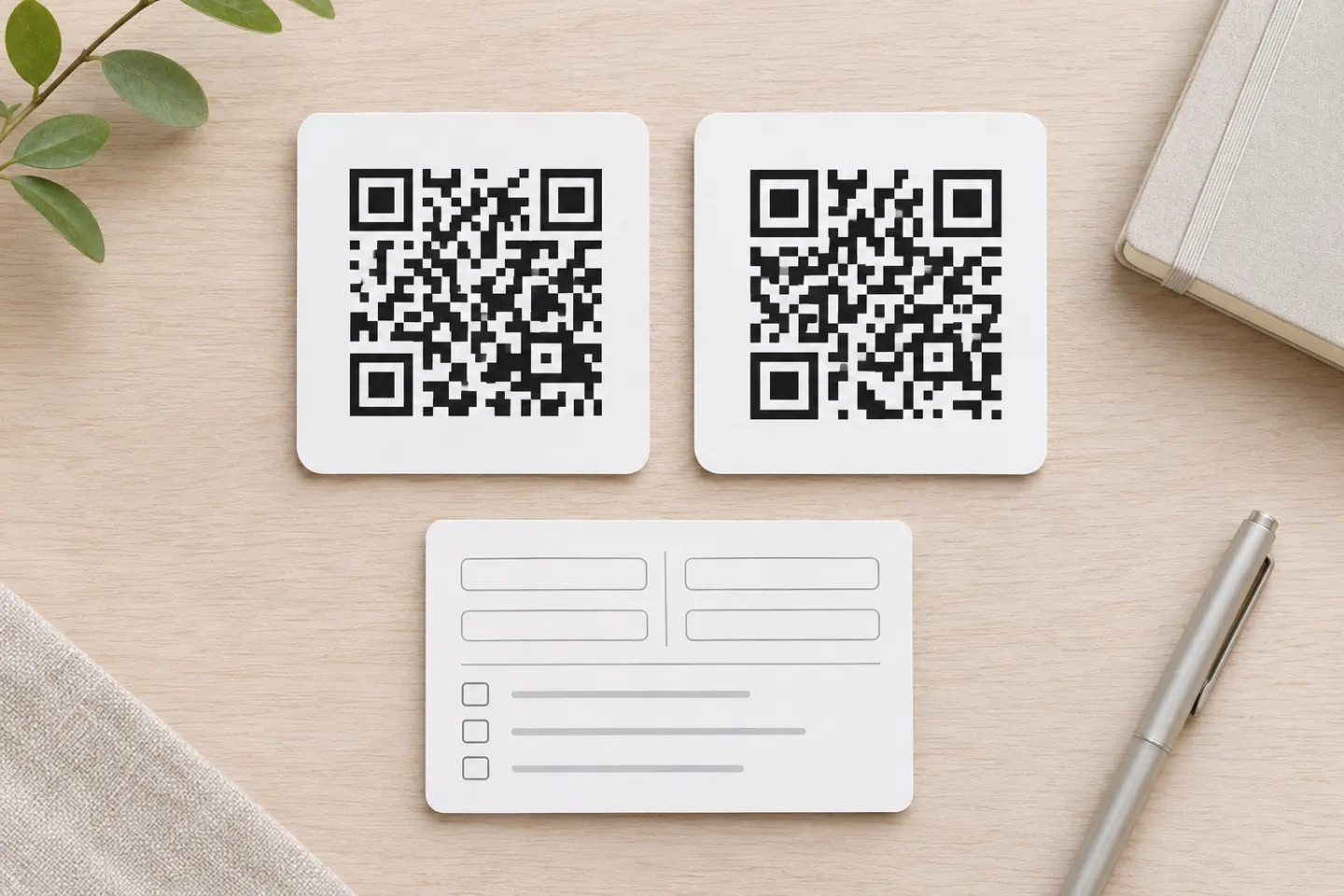
What does “edit a QR code” mean?
There are three different changes to consider:
- Change the encoded data: A new URL, Wi-Fi password, or other directly encoded payload requires a newly generated symbol.
- Change the online experience: The encoded URL can stay the same while its page content or redirect destination changes.
- Change the artwork: You can prepare a revised design, but existing printed copies will not acquire the new appearance. [1][2][4]
ISO/IEC 18004 specifies the QR barcode’s encoding and symbol structure. An editable web destination is a separate layer, not a way to rewrite the ink already on paper. [1][4]
Static vs. dynamic: what can actually change?
Static QR codes: fixed data, potentially editable web content
A static code contains fixed information. If that information is plain text or a Wi-Fi credential, changing it requires a new symbol. [2]
A website link is different: the address stays fixed, but the website can change. For example, a printed code containing https://example.com/menu can continue opening an updated menu at that same address. If the menu moves, whoever administers the original URL may be able to redirect it to the new location. That changes the website’s response, not the QR code. [3][5]
Dynamic QR codes: an editable destination behind a fixed link
A dynamic QR service typically encodes a managed URL that redirects visitors. The service can update where that URL leads while the printed pattern stays the same. [1][2]
For this to help, you need access to the system managing that link. Do not assume that another generator account can take control of an existing provider’s URL: the redirect must be changed where that URL is administered. [3]
How to update a QR code after printing
1. Identify the information actually encoded
Use a QR reader that displays the decoded payload, and record it before following the link. Also check the original creation account or project records. Treat the browser’s final address as a separate observation: a redirect can take you somewhere other than the address encoded in the symbol. [2][3]
Then choose the relevant route below.
2. If a service manages the redirect, edit it there
Sign in to the original service, locate the matching code or link, and check whether its destination can be changed. If supported, enter the replacement address and save it. These are general steps—not instructions for a particular provider’s current interface. The mechanism is the same: update the destination behind the unchanged encoded URL. [2]
3. If the code links to your website, update that exact address
Ask your website administrator to either:
- Update the content served at the existing URL; or
- Configure a redirect from that exact URL to the replacement destination.
For a destination expected to change repeatedly, ask the administrator to choose appropriate temporary-redirect and caching behavior rather than automatically treating every change as a permanent move. HTTP distinguishes temporary and permanent redirects. [3][6]
4. If neither route is available, replace the code
If you cannot control the encoded URL or its redirect, you cannot reroute those existing scans yourself. Likewise, a directly encoded wrong phone number, text entry, or Wi-Fi password needs a replacement symbol. [2][3]
A replacement label may be a practical alternative to reprinting the entire item. If you use one, fully cover the old symbol and leave a clear margin around the new one. DENSO WAVE specifies a quiet zone four modules wide on every side of a standard QR Code. Test the finished label on the actual material before distributing it. [7]
5. Check the original printed copy again
After making a change, scan an existing printed copy—not just a new preview. Confirm the expected destination and content. For public material, include a check while signed out of the management account. These are recommended acceptance checks; no device or print testing was performed for this article.
Can you convert a static QR code to dynamic?
Not by changing the payload of the existing printed symbol. However, if it contains a URL you administer, you may be able to add a redirect at that URL after printing. This provides destination flexibility without replacing the code. It does not automatically add a commercial service’s dashboard or other features. [1][3]
Plan the next print run around a stable address
For material that may need updates, consider a stable URL on a domain your organization controls, with either an editable page or a managed redirect. GS1 uses this separation between a persistent identifying address and changing online content in its Digital Link guidance. [5]
Before committing to a third-party service, check its current editing permissions, continued-service requirements, and options for retaining control of the printed address. Keep a record of the encoded URL and who administers it.
References
[1] GS1, Redirection: from scan to content — https://ref.gs1.org/docs/2024/redirection-from-scan-to-content
[2] OASIS, Secure QR Code Authentication Version 1.0, Appendix D, QR Code background — https://docs.oasis-open.org/esat/sqrap/v1.0/sqrap-v1.0.html
[3] MDN, Redirections in HTTP — https://developer.mozilla.org/en-US/docs/Web/HTTP/Guides/Redirections
[4] ISO, ISO/IEC 18004:2024 — QR code bar code symbology specification (public abstract) — https://www.iso.org/standard/83389.html
[5] GS1, Why put a Digital Link URI in a QR code on pack today? — https://support.gs1.org/support/solutions/articles/43000734143-why-put-a-digital-link-uri-in-a-qr-code-on-pack-today-
[6] IETF, RFC 9110: HTTP Semantics, Sections 15.4 — https://www.rfc-editor.org/rfc/rfc9110.html
[7] DENSO WAVE, Point for determining the code area — https://www.qrcode.com/en/howto/code.html