



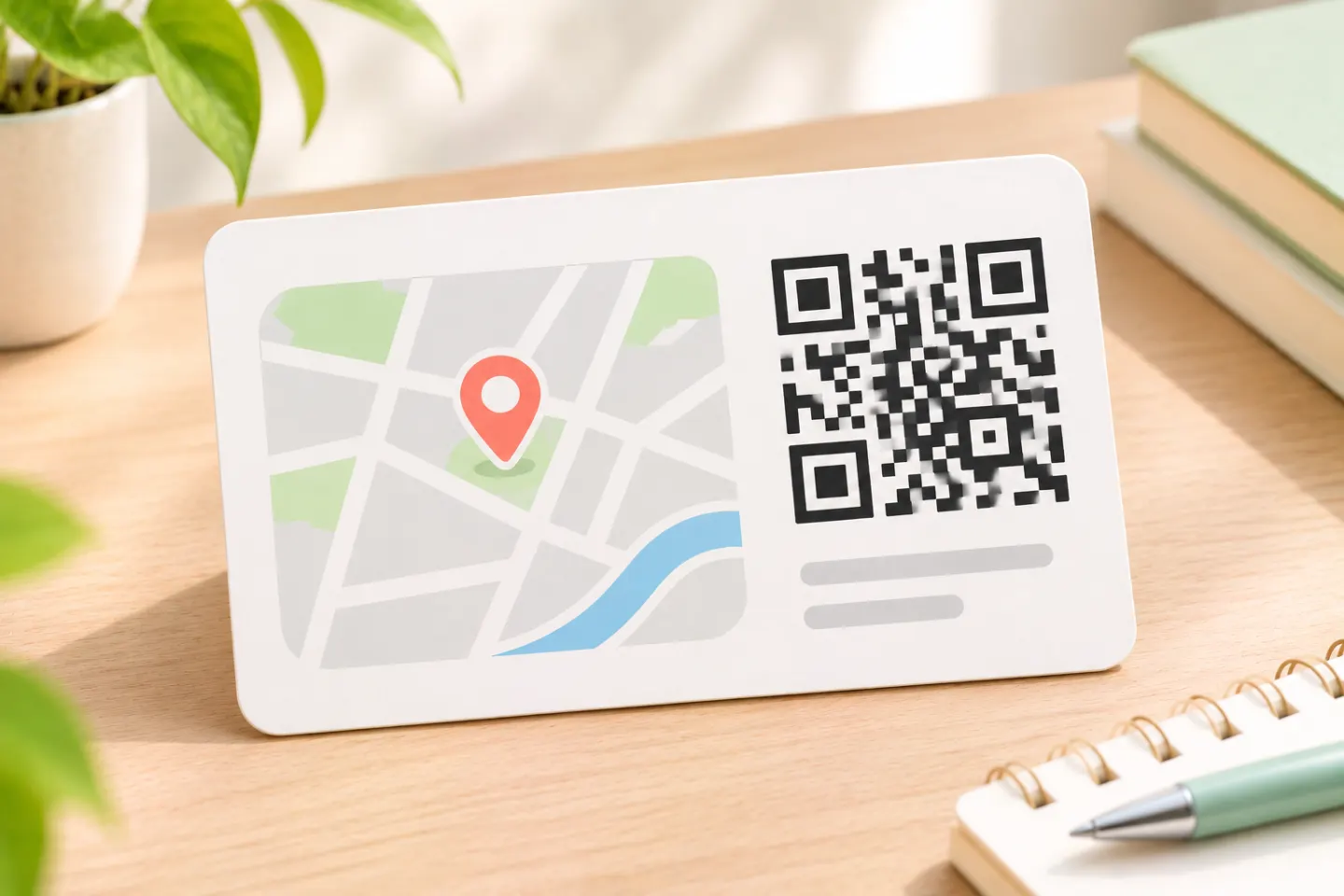
Copy a Maps link when you already have the right pin. Use latitude and longitude when you need to pinpoint an entrance or a spot without a street address.
1. Get a link to the right location
Easiest option: Copy a Google Maps share link
On a computer, Google’s documented map-sharing workflow is:
- Open Google Maps and find the location you want to share.
- Open Menu → Share or embed map.
- Choose Send a link → Copy link.
For an existing route, Google documents Directions → enter locations → choose a route → Share → Send a link → Copy link. Copy the link, not the Embed a map HTML. These are help-document instructions, not a report of hands-on UI testing. [1]
Before generating the code, open the copied link separately. Check the street address, city, and branch—not just the business name.
Alternative: Build an address-search link
For a manually constructed location link, use this pattern:
https://www.google.com/maps/search/?api=1&query=City+Hall%2C+New+York%2C+NY
Replace the example query with your destination. The query parameter accepts an address, place name, or latitude/longitude. Encode parameter values: spaces can be + or %20, and commas should be %2C. Google limits constructed Maps URLs to 2,048 characters. [2]
Keep these two workflows separate: api=1 is required for Google’s documented Maps URLs syntax above. That does not mean you should edit a link copied from Google Maps sharing tools to add it. Use the copied share link as supplied, and check its destination. [2]
2. Choose place details or directions
Use a search link for an address or business listing
For a named business, use its name plus full address rather than a chain name alone. Google recommends either query=PLACE_NAME,ADDRESS or query=PLACE_NAME&query_place_id=PLACE_ID for specific place details. [3]
If you already have the correct Google Place ID, add it as query_place_id, but keep query too. For directions, the corresponding parameter is destination_place_id, paired with destination. Place ID parameters do not replace their base parameters. [4]
A Place ID identifies a listing; do not assume that selecting the listing verifies the visitor entrance. For a campus, stadium, or large venue, separately check the intended arrival point and print any necessary entrance instructions.
Use a directions link for visitors traveling to you
For a public flyer or business card, consider a destination-only link:
https://www.google.com/maps/dir/?api=1&destination=City+Hall%2C+New+York%2C+NY
Leaving out origin lets Google Maps use a relevant starting location, such as the device’s location when available. Otherwise, the visitor may need to enter a starting point. A fixed origin is more appropriate for instructions such as “from the parking lot to reception.” [3]
A directions link does not guarantee immediate turn-by-turn navigation. The optional dir_action=navigate depends on location availability and product support; Google may show a route preview or ignore the parameter where navigation is unavailable. [2]
3. Generate the QR code
Use this tool-neutral workflow; labels and export options vary by generator:
- Choose a generator that accepts a website URL.
- Paste the complete Maps link into its URL input.
- Generate the code and download the image using an available export option.
- Place it in your layout without stretching or cropping it.
- Add a caption such as “Open our location in Google Maps” or “Scan for directions.”
Use a map link rather than only plain address text when your goal is to launch Google Maps. QR codes can represent text characters, while Google’s documented URL format specifies the map action to perform. [5][2]
For the layout, use a simple dark-on-white design and print the destination address alongside the code as an editorial precaution. Keep captions outside the blank margin described below.
4. Preserve the margin and test the final layout
A standard QR Code needs a clear quiet zone at least four modules wide on all four sides. A module is one small square in the code. Keep text, borders, and artwork out of that margin. [6]
Avoid choosing a universal minimum width for every application. DENSO WAVE explains that readability depends on module size, printing, and scanner capability; larger modules generally make reading more stable. [7]
Before approving production, perform these checks:
- Open the destination URL before encoding it.
- Scan the downloaded QR image, then the code inside the finished layout.
- Try an iPhone and an Android phone if available.
- Print a proof at the actual production size and test at the intended viewing distance and lighting.
- Confirm the correct branch, address, pin, and intended arrival point.
- For directions, check what happens when a starting location is unavailable.
These are recommended acceptance checks, not tests performed for this article.
Troubleshooting
| Problem | What to check |
|---|---|
| A list of similar businesses appears | Use a more precise name-and-address query or the correct Place ID. |
| The pin appears without business details | Coordinates alone can produce that result; use a place-specific search if details are needed. |
| A hand-built URL opens a generic map | Check for api=1 and the required action parameters. |
| Directions start from the wrong place | Remove an unintended fixed origin and retest. |
Google’s Maps URLs documentation supports these link-level checks. A readable code is not enough: approve the destination behavior as well as the scan. [4]
References
[1] Google Maps Help, “Share, send, or print directions from Google Maps” — https://support.google.com/maps/answer/7101463?hl=en
[2] Google for Developers, “Get Started | Maps URLs” — https://developers.google.com/maps/documentation/urls/get-started
[3] Google Maps Platform, “Google Maps URL referral” — https://developers.google.com/maps/architecture/maps-url
[4] Google for Developers, “Maps URLs quick reference” — https://developers.google.com/maps/documentation/urls/quick-reference
[5] DENSO WAVE, “What is a QR Code?” — https://www.denso-wave.com/en/system/qr/fundamental/qrcode/qrc/
[6] DENSO WAVE, “Point for determining the code area” — https://www.qrcode.com/en/howto/code.html
[7] DENSO WAVE, “Point for setting the module size” — https://www.qrcode.com/en/howto/cell.html




