



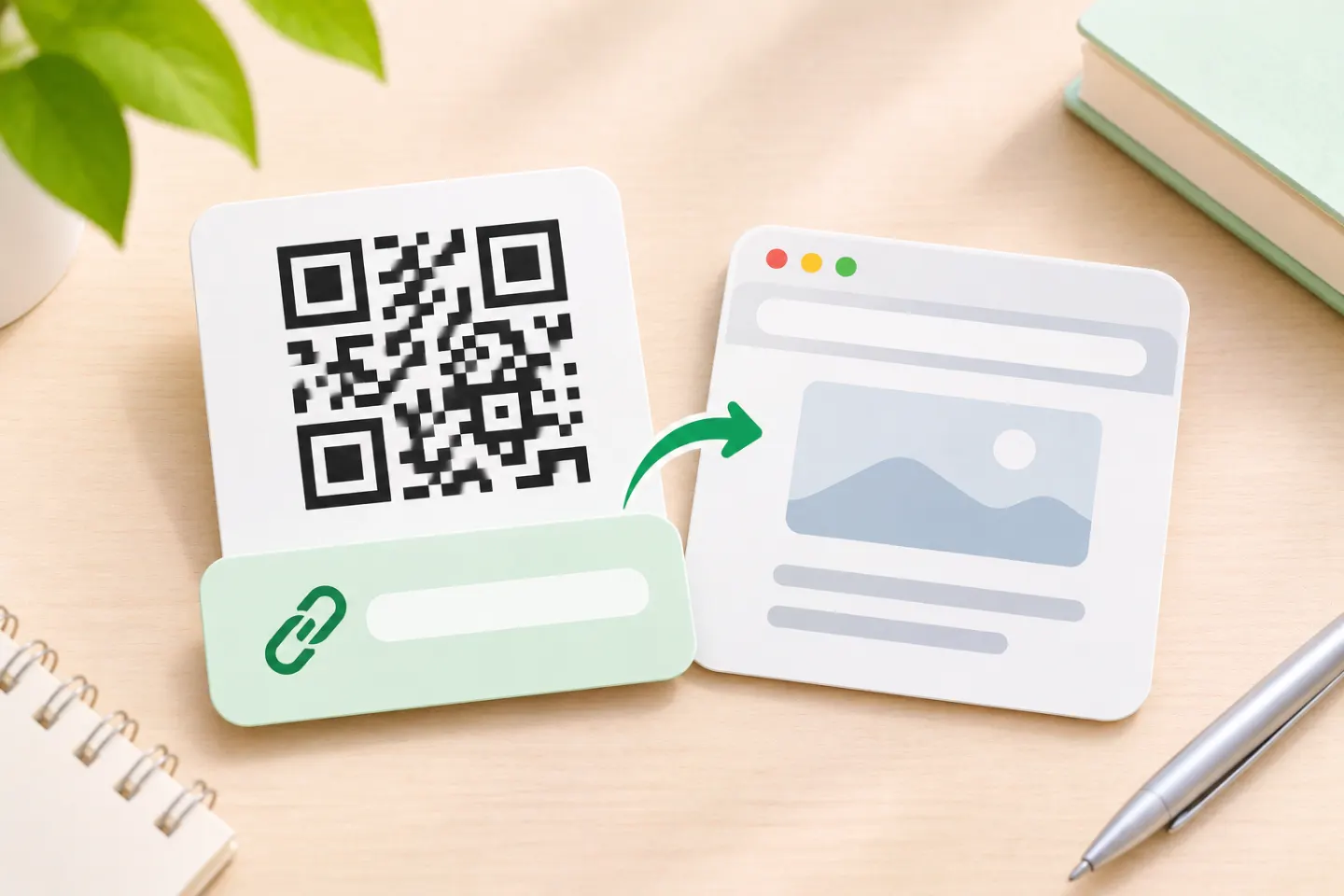
A website QR code contains a web address, not a copy of the website. A compatible scanner reads that address so the user can open it. Do not assume scanning always opens the page automatically: Apple’s Camera instructions, for example, tell users to tap the detected link. [2][3]
1. Choose the right website link
Start with the page that completes the reader’s task. For event registration, use the registration form rather than a homepage or calendar listing. Illinois Extension specifically recommends linking directly to the intended content. [4]
Before generating the code, make these editorial checks:
- Use the audience-facing page. For a form, choose the respondent link, not your editing screen.
- Check access as a visitor. Open the link while signed out. If access is intentionally restricted, explain the sign-in requirement beside the code.
- Use the intended HTTPS address. Avoid encoding an outdated address when you already know the current one.
- Consider how long you need the link. For lasting print materials, choose an address your organization can maintain.
These are recommended preflight checks, not guarantees supplied by a QR generator.
2. Create and download the QR code in Chrome
Google’s current instructions for Chrome on a computer are:
- Open Chrome and visit the page you want to share.
- Select More, the three-dot menu.
- Choose Cast, save, and share → Create QR code.
- Select Download to save the QR code image.
Google also lists options to copy the QR link or scan the displayed code with another device. These steps are based on its documentation, not a hands-on test of your browser installation. [1]
3. Decide whether the destination may change
Choose the URL before printing, not after. A printed QR image contains fixed data. Changing the website content at that address is different from changing the address encoded in the image. This distinction follows from how QR codes store embedded data. [2]
For a short-lived handout, linking directly to the final page may be enough. For a long-lived sign, consider an organization-controlled landing page or redirect address that you can maintain. This is an implementation recommendation based on HTTP redirection—not a special capability of the printed code. [5]
Use the right kind of redirect
If your web team maintains a redirect, distinguish these situations:
- A page has moved permanently: HTTP
301and308describe permanent moves. - A stable entry address will point to changing destinations:
302or307describe temporary redirects; the standard says clients should continue using the original address for future requests.
Ask your web team to configure caching appropriately. Permanent redirects can be cached, so they should not be the automatic choice for a destination you expect to rotate regularly. [5]
The practical recommendation is to maintain the encoded address, its hosting, and any redirect for as long as the printed material remains in use.
4. Make the code readable—and provide another way in
For an uncomplicated design, use black modules on a solid white background and avoid stretching or skewing the image. Illinois Extension recommends these choices for its communications materials. [4]
Preserve the empty border around the code. DENSO WAVE specifies a four-module quiet zone on all four sides of a standard QR symbol. A module is one small square in the pattern; keep text, borders, and artwork out of that margin. [6]
Do not treat a single physical size as a universal scanning guarantee. Illinois Extension suggests at least one inch wide for its materials, while DENSO’s sizing guidance calculates the area from the symbol version, module size, and margin. Treat one inch as that guide’s recommendation—not proof that every code will scan at every distance. [4]
Beside the code, include:
- A specific call to action, such as “Scan to register for the workshop.”
- A readable web address people can type.
- A clickable text link when the material is distributed digitally.
Illinois Extension recommends a call to action and short URL; UCSF also recommends a clickable link or full URL for people using a computer. [4][2]
QR codes are particularly useful for moving readers from print to a webpage. In an email or on a webpage, make the ordinary clickable link the primary route; a QR code can remain optional for cross-device use. This adapts Illinois Extension’s print-first guidance without treating digital QR codes as universally inappropriate. [4]
5. Test the finished material before publishing
Use this recommended acceptance checklist. These are checks for you to perform; no device or print testing is claimed here.
- Scan the code after placing it in the final layout, not only in the creation window.
- Confirm the detected address and final page are the ones you intended.
- Test visitor access without your own signed-in session.
- Complete the intended action, such as opening the menu or submitting the form.
- For print, scan a proof at the planned size, distance, and lighting.
- Check that the visible text address works too.
- Retest after changing the destination, redirect, or layout.
References
[1] Google Chrome Help, Share tabs in Chrome — https://support.google.com/chrome/answer/10051760?co=GENIE.Platform%3DDesktop&hl=en
[2] UCSF School of Medicine, Faculty Guide for Creating QR Codes (used only for embedded-URL and alternative-link guidance) — https://meded.ucsf.edu/sites/meded.ucsf.edu/files/2025-09/Faculty Guide for Creating QR Codes.pdf
[3] Apple Support. Scan a QR code with your iPhone or iPad. https://support.apple.com/en-us/102680
[4] University of Illinois Extension, QR Codes: Communications Best Practices — https://extension.illinois.edu/sites/default/files/qr_code_guidelines.pdf
[5] IETF / RFC Editor, RFC 9110: HTTP Semantics, Sections 15.4.2–15.4.9 — https://www.rfc-editor.org/rfc/rfc9110.html
[6] DENSO WAVE, Point for determining the code area — https://www.qrcode.com/en/howto/code.html




