



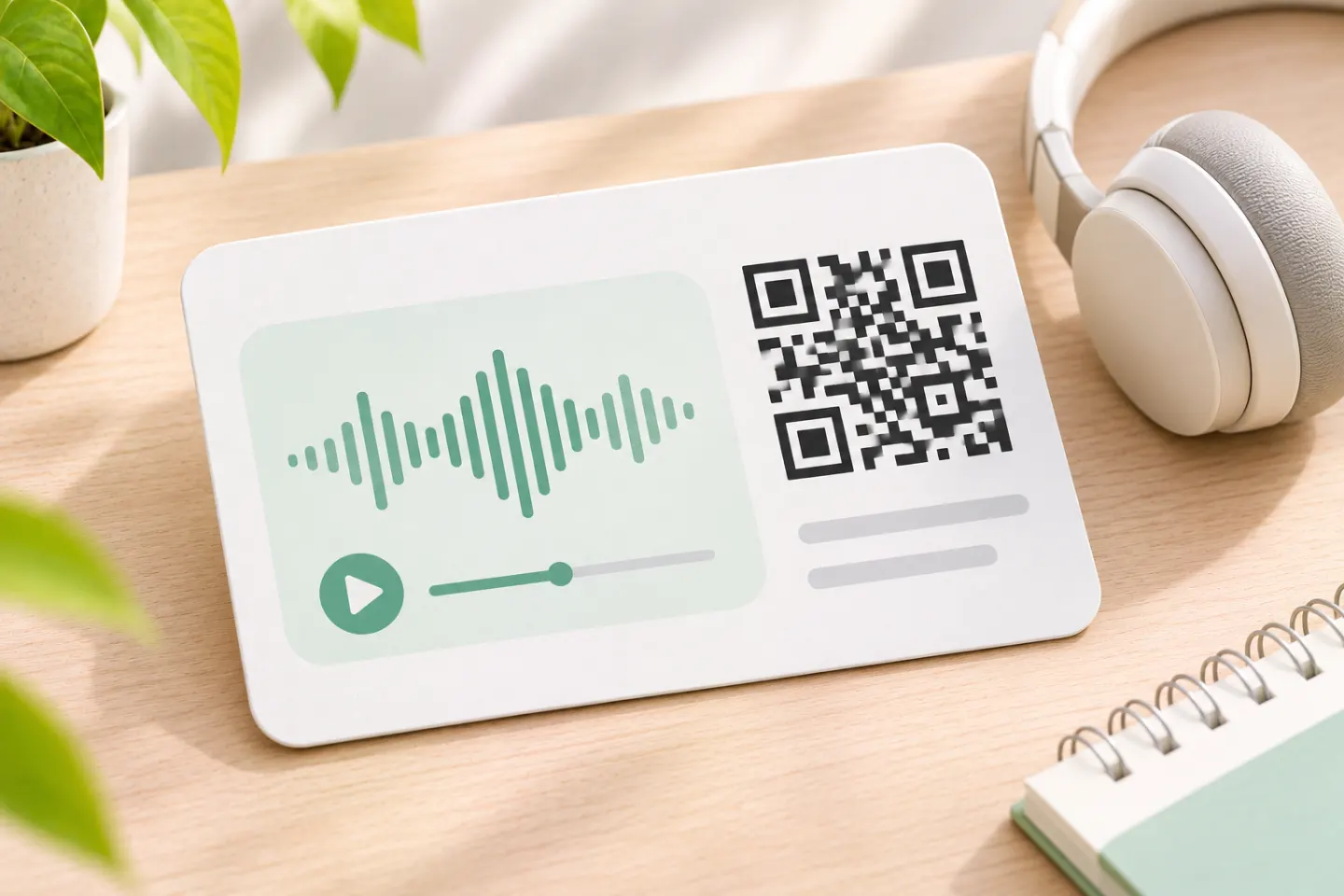
Why use a link? DENSO WAVE lists a maximum binary capacity of 2,953 bytes for a standard QR Code. The often-quoted 7,089-character maximum applies to numeric data, not arbitrary files or URLs. Those limits make a link the practical choice for sharing a normal song or recording. [1]
Plan for scan → open the link → tap Play, rather than promising instant sound. Browsers commonly restrict audible autoplay. [2]
Choose what the audio QR code should open
Choose the destination before generating the image:
| Your goal | Suggested destination | What to check |
|---|---|---|
| Share an existing song or album | Its official streaming-service share link | Can your intended listeners reach and play it? |
| Promote a podcast episode | The episode’s public listening page | Does it open the correct episode rather than the show homepage? |
| Share your own recording | A hosted audio page or shared file | Can someone outside your account access and play it? |
| Offer several listening options | A page you control with clearly labeled links | Are the choices easy to find on a phone? |
For example, Spotify documents sharing songs, albums, playlists, and podcasts by copying a link. Use that web link as the QR destination; you do not need to reproduce the platform’s separate branded-code format. [3]
Our recommendation: For long-lived printed material, consider a page at a URL you control. Keep that address unchanged and edit the page’s audio or listening links when needed. This is a publishing strategy, not a special capability of the QR image.
How to make a QR code for audio in five steps
1. Publish the audio or copy its share link
For an existing song or podcast, obtain the link from the service’s sharing options. On Spotify, its documented desktop process is to open the item’s menu, choose Share, and then Copy Link. [3]
For your own recording, upload it to your chosen host or website. If you manage a website, an HTML audio player can provide browser playback controls; actual format support depends on the browser and media format. Do not assume that every file ending in MP3, WAV, or M4A will behave identically everywhere. [4]
Before continuing, open the link directly and check the title, recording, and playback controls.
2. Set access for the intended audience
A public handout should not accidentally lead to a file that only its owner can open. Conversely, do not make a private classroom or personal recording public merely to simplify scanning.
For a public Google Drive file, Google’s documented desktop sharing process is:
- Select the file and open Share.
- Under General access, choose Anyone with the link, if available.
- Select Viewer, then copy the link and finish sharing.
Google says anyone with that link can open the file without signing into a Google Account. Work or school administrators may restrict external sharing. This setting establishes access; it is not a guarantee of seamless audio playback on every device. [5]
Test the link while signed out or in a private browsing window. For restricted content, test with an intended recipient’s account instead.
3. Generate a URL QR code
In your chosen generator:
- Select its URL or website-link option.
- Paste the tested destination link.
- Generate the code.
- Export the image in a format your layout or printer accepts.
These are generic steps, not a description of a verified QRHyper interface. For the link-based method, supply the destination URL rather than your local audio filename.
Prefer a concise, stable URL when you have a choice. DENSO WAVE explains that more encoded data requires more modules—the small squares making up the symbol. A shorter payload can therefore reduce symbol complexity, but it does not guarantee faster scanning. [1]
4. Keep the design readable
Use a simple dark-on-white design as your starting point. Avoid stretching the image, covering its patterns, or crowding it with text. DENSO WAVE cautions that distorted or decorated codes may not be readable. [6]
Leave a clear quiet zone at least four modules wide on every side. A module is one small square in the QR grid; the quiet zone is not merely an arbitrary decorative border. [7]
Do not rely on a universal minimum print size. DENSO WAVE ties readable module size to the printer and reading device, and total code size to the version, module size, and margin. Test your actual layout at its intended size. [7][8]
Add a useful label outside the quiet zone, such as “Scan to hear the 60-second audio guide.”
5. Test the complete listening experience
Use this preflight checklist before distribution:
- Scan the exported code, not only the generator preview.
- Confirm that the exact recording or song opens.
- Test while signed out of the hosting account.
- Try an iPhone and an Android phone if available.
- Check the path both with and without the destination app installed, where relevant.
- Tap Play and listen beyond the first few seconds.
- For print, scan a proof at final size on the intended material, under realistic lighting and distance.
These are recommended checks—not tests performed for this article.
Can you change the audio without reprinting?
Yes, if the URL encoded in the code stays the same and you can change what that address serves. For example, you could retain a listening-page address while replacing the recording on that page. The printed symbol still contains its original data; the content behind the address changes. This follows from treating the QR payload as a fixed URL rather than the recording itself. [9]
For this tutorial, you do not need a generator-managed redirect if you can maintain your own stable page. If you choose a redirect service, check its editing, renewal, and availability terms before committing the address to print. No provider’s current terms or features were tested here.
Troubleshooting common problems
The code opens a permission request
Recheck sharing permissions and try the link outside the owner’s account. For Google Drive, Restricted access and Anyone with the link are different settings; organizational policy can also affect access. [5]
The page opens, but the audio does not start
Try the visible Play control before assuming the QR code is broken. Audible autoplay can be blocked by browser policy. Design the page for deliberate playback, not automatic sound. [2]
The audio file does not play as expected
Check the file and player separately from the QR image. Browser support varies by media format; a filename extension alone does not establish compatibility. [4]
The printed code will not scan
Return to the original export, restore the four-module quiet zone, and remove distortion or decoration. Then retest a final-size proof. Retest under the lighting and distance your audience will use. [7][6]
References
[1] DENSO WAVE, “Information capacity and versions of the QR Code.” — https://www.qrcode.com/en/about/version.html
[2] MDN Web Docs, “Autoplay guide for media and Web Audio APIs.” — https://developer.mozilla.org/en-US/docs/Web/Media/Guides/Autoplay
[3] Spotify Support, “Share from Spotify.” — https://support.spotify.com/us/article/share-from-spotify/
[4] MDN Web Docs, “<audio>: The Embed Audio element.” — https://developer.mozilla.org/en-US/docs/Web/HTML/Reference/Elements/audio
[5] Google Drive Help, “Share and manage access to files and folders.” — https://support.google.com/drive/answer/7166529?co=GENIE.Platform%3Ddesktop&hl=en
[6] DENSO WAVE, “Generating a QR Code.” — https://www.qrcode.com/en/howto/generate.html
[7] DENSO WAVE, “Point for determining the code area.” — https://www.qrcode.com/en/howto/code.html
[8] DENSO WAVE. Point for setting the module size. https://www.qrcode.com/en/howto/cell.html
[9] DENSO WAVE, “QR Code Standardization.” — https://www.qrcode.com/en/about/standards.html




