



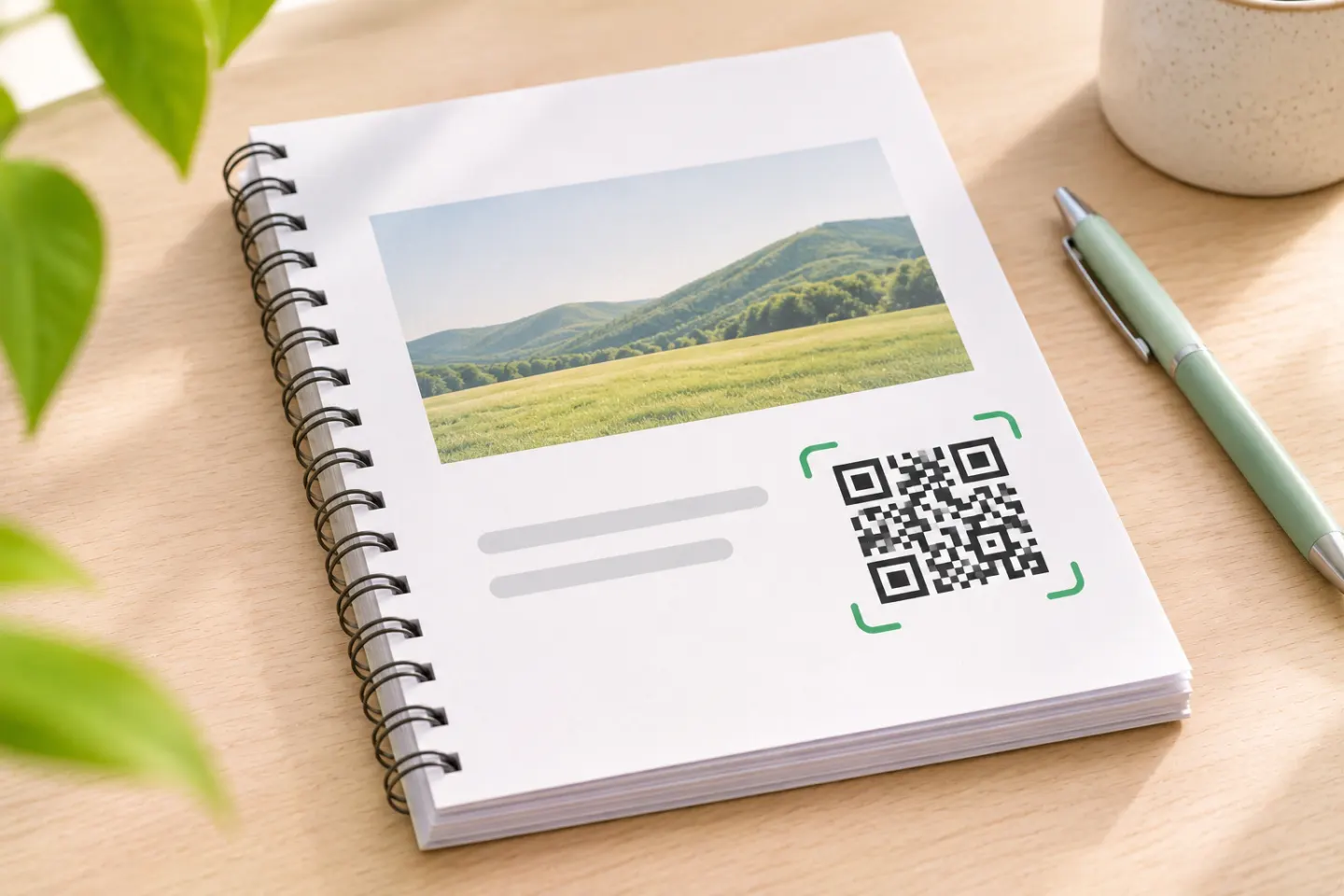
The important decisions are who can open the file and how you will maintain its link. A QR code does not override the destination’s access permissions. [2]
1. Put the PDF online and set access
Use a file host or website you can maintain. For a straightforward Google Drive example on a computer:
- Upload your PDF to Drive, then select the file.
- Click Share.
- Under General access, choose Anyone with the link if the document is intended for unrestricted distribution.
- Select Viewer, then click Copy link and Done. Google documents these sharing controls in its desktop instructions. [2]
With that link setting, people can open the file without signing in to a Google Account. Work or school administrators may restrict external sharing. For confidential PDFs, keep access restricted and authorize the intended readers instead; scanning will not bypass those restrictions. [2]
Recommended check: Open the copied link in a signed-out or private browser window before creating the code. Confirm that it behaves as intended for your audience—not merely for you as the owner.
2. Generate a QR code for the link
Option A: Use Chrome on a computer
Google currently documents this desktop workflow:
- Open the intended web destination in Chrome.
- Select More → Cast, save, and share → Create QR code.
- Select Download to save the QR image. Google also describes scanning it with another device’s camera. [3]
These are documented instructions, not a report of hands-on testing. Google’s help covers sharing browser tabs; it does not specifically guarantee the QR menu in every PDF-viewing context. If that option is unavailable, use the URL method below.
Option B: Paste the link into a URL QR generator
Recommended workflow:
- Choose the generator’s URL or website input.
- Paste the share link you checked—not a local file path on your computer.
- Generate and download the QR image.
- Scan the downloaded image to confirm its destination.
This applies the same embedded-web-link approach described by UCSF. No PDF-upload feature is necessary when the document already has a suitable online link. [1]
3. Test access and the finished design
Before publishing, use this checklist. These are recommended acceptance tests, not tests performed for this article:
- Correct document: Scan the downloaded QR image and check the PDF’s title and contents.
- Audience access: For public distribution, test without the owner’s signed-in account. For restricted distribution, use an intended reader’s authorized account.
- Phone usability: Check whether the document is readable and loads acceptably on a phone.
- Final artwork: Test the code after placing it in your flyer, slide, label, or page—not only in the generator’s preview.
- Print proof: Before a large print run, scan an actual-size proof under the expected lighting and viewing conditions.
For printed codes, preserve the quiet zone: a clear border at least four modules wide on every side. A module is one small square in the QR pattern; it is not necessarily one image pixel. DENSO WAVE specifies the four-module margin and explains that module size must account for the printer and reading device. [4][5]
Do not stretch or heavily decorate the code. DENSO WAVE warns that distorted or decorated symbols may become unreadable. There is no single physical size that this guide can guarantee for every placement. [6]
4. Add a label and an alternative link
Use a clear label, such as “Scan to read the event program (PDF).”
Also provide a clickable text link in digital materials, or a readable URL in print when practical. UCSF recommends a clickable link and/or full URL alongside the QR code for people using laptops or desktop computers. [1]
Can you update the PDF without reprinting the code?
Yes, if the URL encoded in the printed code still leads to the intended document. Changing the document is different from changing the encoded address.
- Keep the same destination: Maintain the PDF at the existing address. In Drive, Google documents replacing a non-Google file through More → File information → Manage versions → Upload new version. Use that replacement workflow rather than assuming a separate upload will preserve your old link, then retest the published link. [7]
- Use a managed redirect: A redirect can send a stable URL to another destination. Applied to a PDF QR code, this lets you change the forwarding destination without changing the address encoded in the image, provided you control and maintain the redirect. This is an application of HTTP redirection, not a feature verified for any particular QR service. [8]
You therefore do not automatically need a paid “dynamic PDF QR code” merely to update document contents. First determine whether maintaining the same file address or an existing redirect meets your needs.
Troubleshooting
The scan opens a permission request. Check the file’s sharing settings. If the PDF is intentionally restricted, confirm that the reader has access rather than making it public. [2]
The camera does not recognize the code. Restore its clear border, remove distortion, and test a larger version in the final layout. Border, module size, printer capability, and symbol clarity all matter. [4]
The QR code works, but readers see the wrong PDF. Recheck the encoded destination and your replacement or redirect workflow. Retest after every document update.
References
[1] UCSF School of Medicine — Faculty Guide for Creating QR Codes — https://meded.ucsf.edu/sites/meded.ucsf.edu/files/2025-09/Faculty Guide for Creating QR Codes.pdf
[2] Google Drive Help — Share and manage access to files and folders — https://support.google.com/drive/answer/7166529?co=GENIE.Platform%3DDesktop&hl=en
[3] Google Chrome Help — Share tabs in Chrome — https://support.google.com/chrome/answer/10051760?hl=en
[4] DENSO WAVE — Point for determining the code area — https://www.qrcode.com/en/howto/code.html
[5] DENSO WAVE. Point for setting the module size. https://www.qrcode.com/en/howto/cell.html
[6] DENSO WAVE — Generating a QR Code — https://www.qrcode.com/en/howto/generate.html
[7] Google Drive Help — Check activity & file versions — https://support.google.com/drive/answer/2409045?hl=en
[8] MDN Web Docs — Redirections in HTTP — https://developer.mozilla.org/en-US/docs/Web/HTTP/Guides/Redirections




