



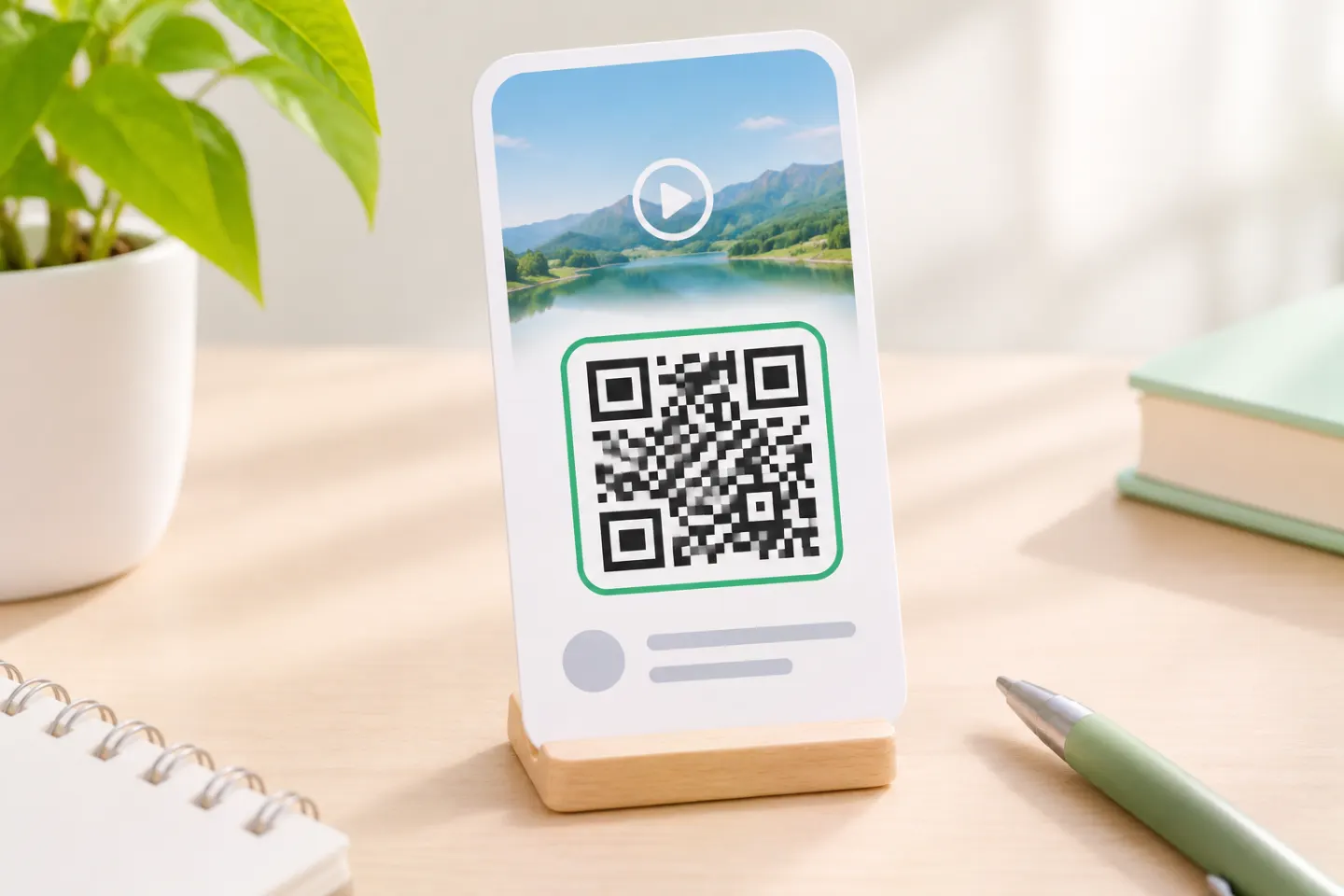
For a business card, consider linking to your profile. For a product demonstration, consider linking directly to the video. These are destination choices—not different QR code technologies.
Option 1: Find TikTok’s built-in profile QR code
Start with the route TikTok documents:
- Open the TikTok mobile app and go to Profile.
- Tap the three-line menu in the upper-right corner.
- Tap Your QR code. [1]
TikTok documents this route while explaining how to reach its scanner for Business Center authorization. That confirms the menu entry, but it is not a complete consumer guide to saving or printing your profile code. If your screen offers a save or share control, use the option available there; do not assume a particular download button will appear.
If you cannot find the QR menu, use your profile’s webpage address instead. TikTok’s developer documentation confirms that creator profiles have individual webpage URLs, including addresses in the form https://www.tiktok.com/@username. Copy your actual profile address rather than substituting your display name. [3]
Option 2: Make a QR code from a profile or video link
This method gives you a consistent workflow for either destination without depending on a TikTok QR-sharing button.
Step 1: Copy the correct destination
For a profile: Open the intended profile on TikTok’s website and copy its address from the browser’s address bar. TikTok documents individual creator profile pages and profile URLs. [3]
For a video: Open the individual video webpage and copy its address. TikTok’s developer documentation identifies video webpages and provides an example URL containing both an account name and a video ID. [4]
If you start in the mobile app, look in the video’s sharing options for Copy link, if available. If you cannot find that control, use the browser method above rather than following an assumed app-menu path.
Before generating anything, paste the copied address into a separate browser tab. Check the creator and the exact destination. Do not proceed if it opens a feed, search result, login page, or different post instead of the content you intend to share.
Step 2: Generate and download the code
You can paste the verified address into a QR generator that accepts website URLs. Because generator interfaces differ, follow that tool’s own instructions rather than looking for a TikTok-specific template.
For a documented desktop alternative, use Chrome:
- Open the intended TikTok profile or video webpage in Chrome on a computer.
- Select More → Cast, save, and share → Create QR code.
- Select Download to save the QR image. Google also documents scanning the displayed code with another device’s camera. [2]
This applies Chrome’s webpage-sharing feature to a TikTok destination; it is not a native TikTok video-QR feature.
Step 3: Check the downloaded image
Before adding the code to your design:
- Scan the downloaded image, not just the generator’s preview.
- Confirm the correct profile or video opens.
- Try the link while signed out of your creator account.
- Ask someone who does not follow you to check access.
- Record any login, app-install, or other prompts instead of assuming every viewer will have the same experience.
These are recommended checks, not tests performed for this article.
Which destination should you choose?
| Your goal | Suggested destination | Check before publishing |
|---|---|---|
| Help people find your account | Profile | Correct account and username |
| Show one demonstration or announcement | Individual video | Correct post and audience access |
| Share several videos | Profile or a page you maintain | Clear links to the intended videos |
| Reuse printed materials | A destination you plan to maintain | Continued availability over time |
Choose according to the action you want readers to take—not simply whether the code will appear on packaging, a poster, or a business card.
Privacy and availability still matter
A QR code is not permission to view private content. TikTok explains that a private account limits video viewing to people the account owner approves. Treat the QR image as a way to distribute a link, not a way around that restriction. [5]
Also check the destination throughout your campaign. TikTok’s developer documentation notes that removed videos become unavailable in embedded web content as well as in the app. The practical implication: generating a QR image does not preserve a copy of your video. [4]
Prepare the code for print
Keep a clear border around a standard QR symbol. DENSO WAVE specifies a four-module quiet zone on every side; a module is one small square in the code. Do not crop that border or place text inside it. [6]
For your production check, print a sample at the intended size and scan it from the expected viewing position. Add a useful label such as “Watch the product demo on TikTok” and include your handle as a fallback. Do not commit to a large print run until the actual layout has been checked.
Troubleshooting
The code scans, but the video will not play
Open the original URL directly under the same viewing conditions. If it also fails, investigate the destination or access issue before generating another QR image. Do not assume a successful scan guarantees successful playback.
The camera cannot recognize the printed code
Check the quiet zone first, then try a larger, sharper version without decorative changes. Repeat the scan on the actual printed layout. The required clear border still applies. [6]
I want one code for several videos
Consider linking to your profile or to a page you maintain with links to those videos. Label the code accordingly: “See our TikTok videos” sets a different expectation from “Watch this demo.”
References
[1] TikTok Business Help Center, “How to link an existing TikTok account in Business Center for account management” — https://ads.tiktok.com/resources/help/article/how-to-integrate-your-business-account-with-business-center
[2] Google Chrome Help — Share tabs in Chrome — https://support.google.com/chrome/answer/10051760?hl=en
[3] TikTok for Developers — Embed Creator Profiles — https://developers.tiktok.com/docs/en/embed-creator-profiles
[4] TikTok for Developers — Embed Videos — https://developers.tiktok.com/docs/en/embed-videos
[5] TikTok Newsroom, “Strengthening privacy and safety for youth on TikTok,” January 13, 2021 — https://newsroom.tiktok.com/strengthening-privacy-and-safety-for-youth-on-tiktok-sg?lang=en-SG
[6] DENSO WAVE, “Point for determining the code area” — https://www.qrcode.com/en/howto/code.html




