



Find your Instagram profile QR code
Start with this path:
- Open Instagram and go to your own profile.
- Check that you are viewing the account you want to share.
- Look for Share profile, documented beside Edit profile.
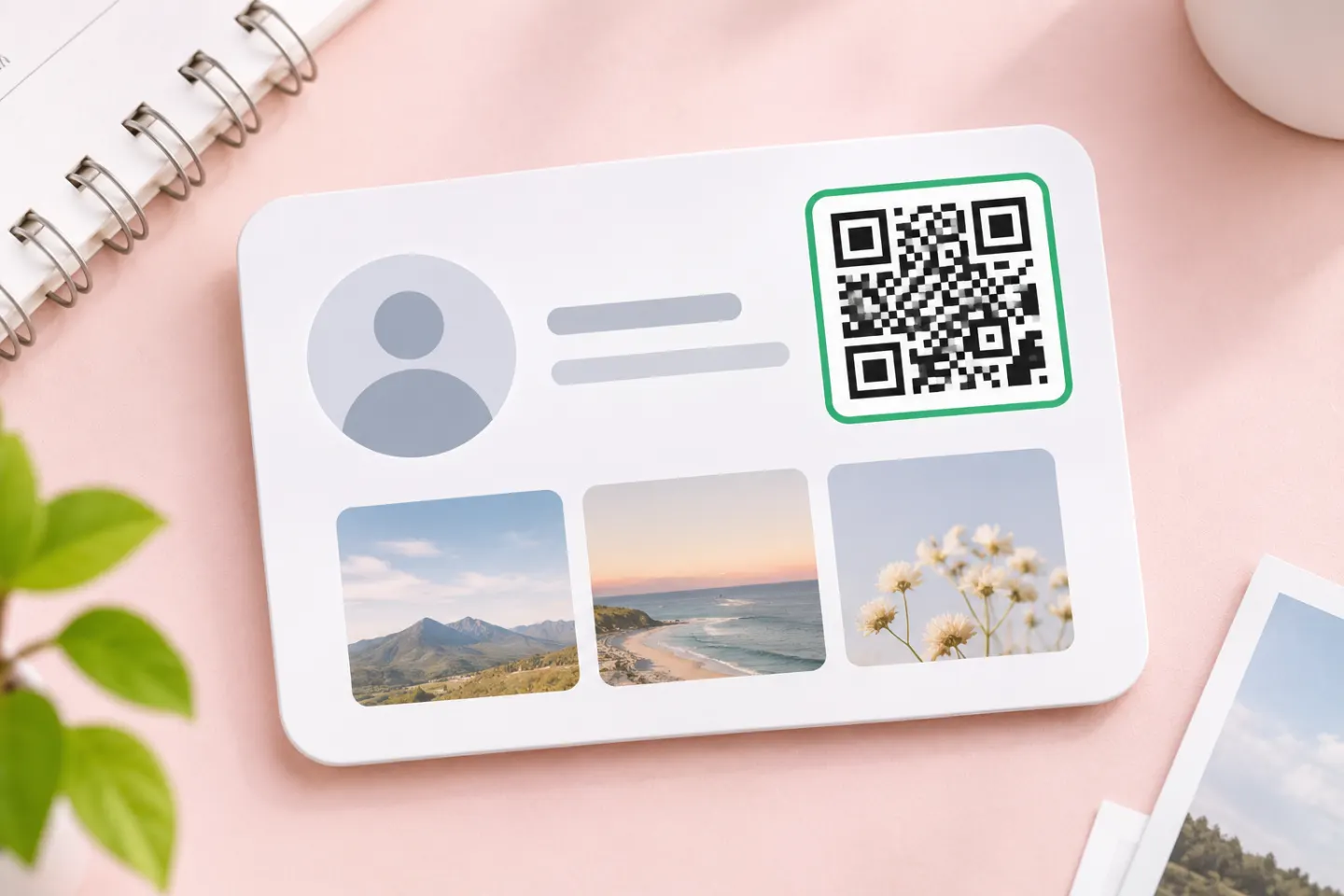
- Open the card and, if necessary, swipe to reveal its QR-code side. [1]
A profile card and its QR code serve related purposes: the card presents account details, while its QR side helps someone reach that account. When you test the scan, check that the card or destination shows the account you intended. [1]
If Share profile is missing
As a troubleshooting step, check for an Instagram update, reopen the app, and look again on your own profile. Do not assume a missing button proves anything about your account type or eligibility.
Older instructions may tell you to open the three-line profile menu and select QR code. Meta documented that route for its Japan-only launch in December 2019; it is historical guidance, not evidence of today’s universal menu path. [2]
If you still cannot find the code, copy the URL of the profile you want to share. Open that address on another device and check the account name. Paste the checked URL into a website QR generator, download the image, and test the scan before you print it.
Save or share the code
Choose the method that fits the situation:
- In person: Leave the QR-code side visible and ask the other person to scan it.
- In a message: Use the card’s available sharing controls. Firsthand launch coverage documented link-sharing options and sharing to other apps. [1]
- For a flyer or sign: Look for a save or download control and check that the resulting file includes the QR code—not only the profile-information side.
Do not assume the old announcement proves there is a download button in your current mobile app. Meta’s 2019 instructions specifically described downloading a QR code from a webpage for printed materials. [2]
If no image-saving option appears, a screenshot is a practical fallback to try. Keep the entire code and its surrounding margin, then scan the saved image from another device before distributing it.
Scan an Instagram QR code
For a code displayed on another screen or printed on paper, start with your phone’s supported QR scanner. On an iPhone or iPad, Apple documents opening Camera or Code Scanner, placing the code in view, and tapping the detected link. [3]
Check that the destination is the account you expected. Meta’s original profile-QR announcement described finding an account and then choosing whether to follow it or view its profile; scanning is not an automatic follow. [2]
Check it before printing
Use this preflight checklist rather than assuming an exported image is print-ready:
- Confirm the account. Scan the exact saved file you plan to use.
- Preserve the border. Do not crop tightly against the pattern. DENSO WAVE specifies a clear margin, called a quiet zone, four modules wide on every side; a module is one small square in the code. [4]
- Keep artwork outside that margin. Put your handle and a label such as “Find us on Instagram” beyond the clear area. The quiet zone should contain no printing. [4]
- Try a physical proof. Before ordering a batch, scan a sample at its intended size and viewing distance.
After changing your username, save a fresh card and retest it before reprinting. This guide does not establish whether an older exported code will keep working after a rename.
Profile QR codes are not group-chat invitations
Use the profile-sharing area when you want people to find your account. Instagram also has a separate QR invitation feature inside group chats. Meta’s February 19, 2025 announcement describes those codes as invitations to join a conversation—not as profile-sharing codes. [5]
References
[1] TechRadar — firsthand profile-card launch coverage, October 15, 2024 — https://www.techradar.com/computing/social-media/instagram-is-making-a-big-change-in-how-it-lets-you-share-information-about-yourself
[2] Meta Newsroom, Japanese — original Japan launch instructions, December 17, 2019 — https://about.fb.com/ja/news/2019/12/qrcode/
[3] Apple Support — Scan a QR code with your iPhone or iPad — https://support.apple.com/en-us/102680
[4] DENSO WAVE — Point for determining the code area — https://www.qrcode.com/en/howto/code.html
[5] Meta Newsroom — New Instagram DM Features to Help You Stay Connected, February 19, 2025 — https://about.fb.com/news/2025/02/new-instagram-dm-features-stay-connected/




