



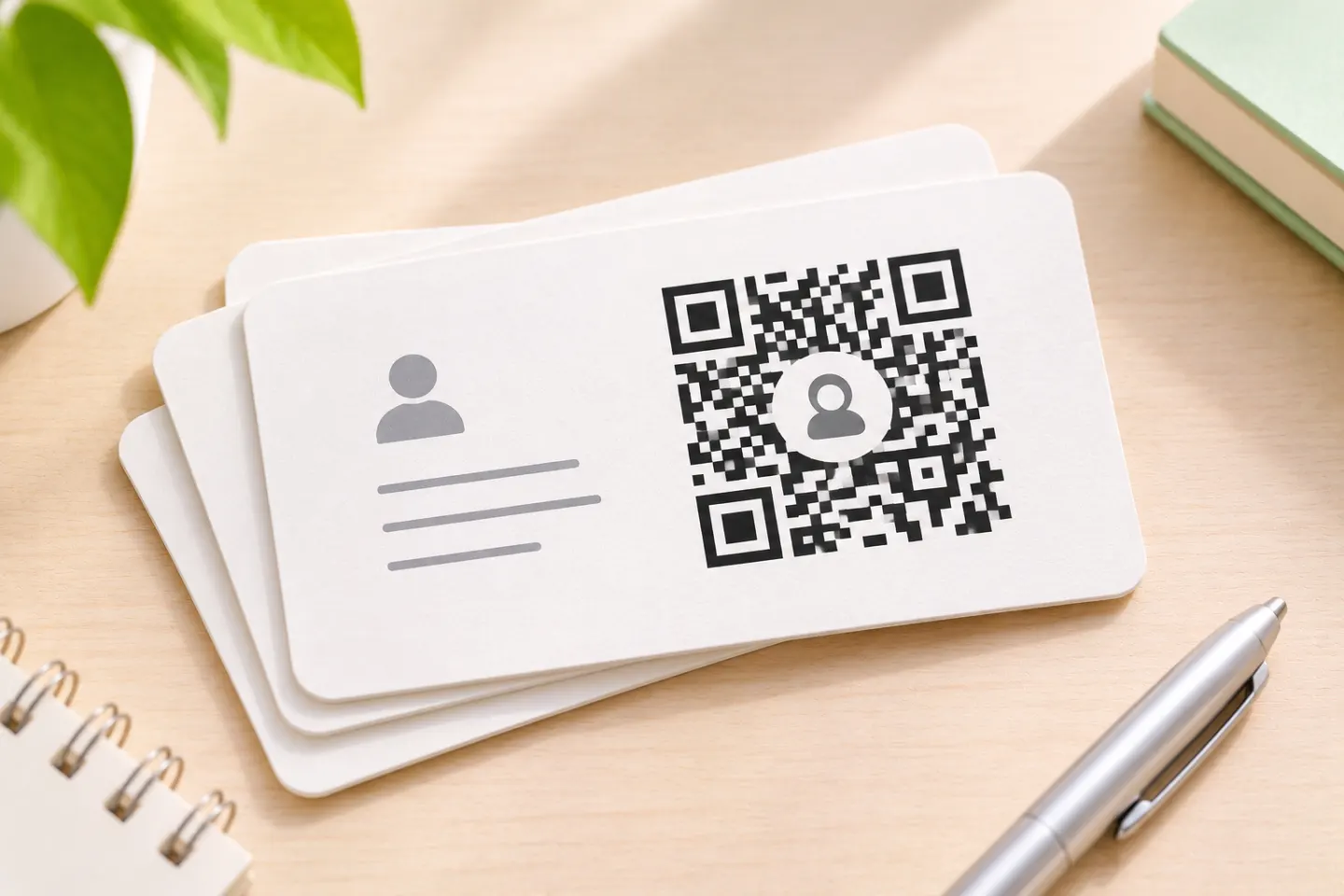
First, decide whether the QR code should contain the contact details themselves or a link to a contact page. That choice determines how you will maintain it.
Choose embedded contact data or a contact link
These are two different implementations—not interchangeable descriptions of the same payload. QR symbols can encode data, including the text and URL patterns documented by ZXing. [3]
| Approach | What you encode | Maintenance implication |
|---|---|---|
| Embedded vCard | Contact text beginning with BEGIN:VCARD |
Changing the embedded details requires a new QR image and replacement of published copies. |
| Contact link | A URL for a page or downloadable .vcf file you maintain |
You can change the destination content while keeping the encoded URL unchanged, provided that URL remains available. |
These maintenance differences follow from what each symbol contains: either the record itself or its location. A URL-based contact code is not necessarily a paid “dynamic QR” service; an ordinary QR code can encode a URL. [1]
Editorial recommendation: Choose embedded data for a short, stable record. Choose a maintained contact page when details change frequently or you want to provide explanatory text and a visible download option. Test the complete saving workflow either way.
Step 1: Select the details people need
Start with your full name, one phone number, and one email address. Add your organization, title, website, or business address only when useful. These correspond to properties supported by the vCard standard. [2]
For a public-facing code, use information you intend to distribute publicly. Avoid including a home address, private notes, or someone else’s details without permission. As a practical precaution, review a generator’s privacy practices before submitting personal information.
Keep the record compact. DENSO WAVE explains that increasing the data generally requires more QR modules. At the same overall printed width, more modules mean smaller individual squares—an important reason to avoid unnecessary content. [4]
Step 2: Prepare the vCard
Use a contact application’s vCard export option if available, or write a short record in a plain-text editor. Microsoft documents saving contacts as .vcf files in the Outlook versions listed on its support page; that is a file-export capability, not evidence of universal QR-camera support. [5]
Example vCard 4.0 payload
The following is an illustrative record, not a device-tested template. Replace the example details before use.
BEGIN:VCARD
VERSION:4.0
FN:Jordan Smith
N:Smith;Jordan;;;
ORG:Example Consulting
TITLE:Sales Director
TEL;VALUE=uri;TYPE=cell:tel:+1-202-555-0147
EMAIL:jordan@example.com
URL:https://example.com
END:VCARD
RFC 6350 requires VERSION:4.0 immediately after BEGIN:VCARD, and requires FN, the formatted name. N contains structured name components; the example places family name before given name. The telephone line uses the standard’s recommended URI form. [2]
Preserve the formatting
For vCard 4.0, use UTF-8 and CRLF line endings, including after END:VCARD. Long content lines should be folded at 75 octets without splitting a multibyte character. In text values, escape literal commas and backslashes; represent an embedded newline as \n. Literal semicolons within structured components also need escaping. A vCard-aware exporter can help handle these rules. [2]
Keep records short to limit the number of modules. Capacity also depends on the data type and error-correction level. [4]
Step 3: Generate the QR code
Use this workflow as a checklist rather than a description of any particular product’s interface:
- Choose a generator that accepts contact records or raw text.
- For an embedded code, enter the complete vCard text—not merely a local filename such as
contact.vcf. - Generate the symbol and inspect its decoded contents using a reader that exposes the payload, if available.
- Confirm that the decoded record matches your intended data, including accented characters and line breaks.
- If using the link approach instead, encode the public URL and verify the destination separately.
These steps implement the distinction between vCard text and a URL payload documented by ZXing. No QRHyper feature or current interface is assumed here. [1]
Step 4: Preserve readable squares and margins
Keep a clear quiet zone at least four modules wide on every side. A module is one of the symbol’s small squares. Do not crop that border or place nearby text inside it. DENSO WAVE specifies this margin for standard QR Code symbols. [6]
For the initial design, favor an unmodified code rather than decorative treatments. Export without stretching or blurring it, and check the final placement—not just the generator preview. There is no single physical size established here for all contact codes: module size, symbol version, and the intended application must be considered together. [7]
Step 5: Test scanning and saving separately
A successful scan is only the first checkpoint. Apple’s Camera and Code Scanner instructions cover scanning. On Android, Google Contacts documents importing a saved VCF file. Try the save step with the intended phone and reader before printing the QR code. [8][9]
Before publishing, run this acceptance test on at least one iPhone and one Android phone if those are your target audiences:
- Detect: Can the intended scanning app recognize the final code?
- Interpret: Does it show a contact action, raw text, or a website?
- Save: Can the recipient complete the import or save step?
- Inspect: Are the name, country code, email, organization, and any accented characters correct in the saved contact?
- Repeat: Test the final printed proof or deployed digital asset at its intended size and distance.
This is a recommended test plan, not a report of completed testing.
Troubleshooting and maintenance
The code scans, but only displays text. Treat this as a payload-interpretation issue. Check the vCard syntax and target reader, then test a contact-page or VCF-download fallback. You can import a downloaded VCF file in Google Contacts on Android. [9]
The code is difficult to detect. Restore the quiet zone, remove unnecessary fields, and try a larger final symbol. These checks address the margin, data-density, and module-size factors described by DENSO WAVE. [6]
Your details changed. Replace an embedded-data QR code. For a URL-based code, update the maintained destination and retest it. Neither approach should be presented as automatically updating contacts that recipients already saved; ordinary vCard import is a contact-exchange workflow, not a promised subscription service. [1]
Keep a readable phone number, email address, or contact URL beside the code as a fallback. Publish only after checking both the scan and the saved result.
References
[1] ZXing project — Barcode Contents — https://github.com/zxing/zxing/wiki/Barcode-Contents
[2] IETF — RFC 6350, vCard Format Specification — https://datatracker.ietf.org/doc/html/rfc6350
[3] ISO — ISO/IEC 18004:2024, QR code bar code symbology specification — https://www.iso.org/standard/83389.html
[4] DENSO WAVE — Information capacity and versions of QR Code — https://www.qrcode.com/en/about/version.html
[5] Microsoft Support — Send and save contacts as vCards (.vcf files) — https://support.microsoft.com/en-us/outlook/send-and-save-contacts-as-vcards-vcf-files
[6] DENSO WAVE — Point for determining the code area — https://www.qrcode.com/en/howto/code.html
[7] DENSO WAVE — Point for setting the module size — https://www.qrcode.com/en/howto/cell.html
[8] Apple Support — Scan a QR code with your iPhone or iPad — https://support.apple.com/en-us/102680
[9] Google Contacts Help. Add, move, or import contacts. https://support.google.com/contacts/answer/1069522?hl=en




