



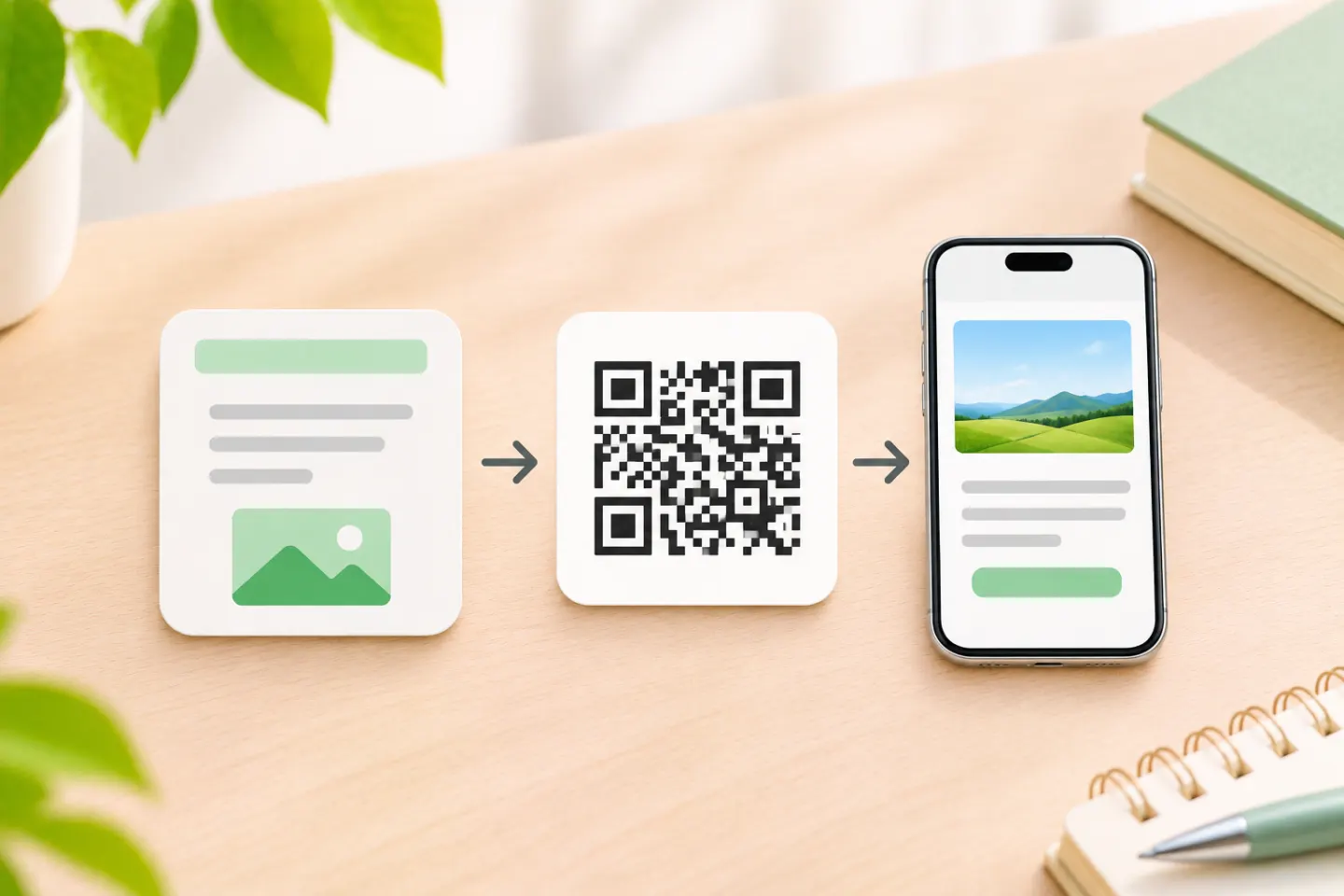
If you’re printing a code, decide who will maintain the link before ordering copies.
1. Prepare what the QR code will open
Start with what someone should be able to do after scanning. If your flyer says “Scan to register,” link directly to the registration page so visitors can start there.
- Website or event page. Open the exact page, copy its full URL, and check it on a phone.
- PDF, image, or video. Copy a shareable link from the service hosting the file. For a public handout in Google Drive, check General access and use Anyone with the link if that matches the intended audience and your organization allows it. For a restricted handout, give the intended recipients access and test with an account that has their permissions.[2]
- Online form. Copy the link people will use to fill it out. In Google Forms, publish the form and check who can respond. Then choose Published and Copy responder link.[3]
- Short text, contact details, or Wi-Fi. If your generator offers a matching content type, fill in its fields. Scan the result on the intended device to check what action it offers.
For a public link, open it in a private browser window before generating the code. Seeing a sign-in or access request at this stage gives you time to fix the link or its permissions.
2. Choose a link you can maintain
For web links, check who controls the address in the code.
- Use a direct URL if the address will stay in use. You can update the page at that same URL without replacing the code. If the page moves and you still control the old URL, you can have it redirect to the new page.[1][4]
- Use a managed redirect if you need to change the destination through a provider. Look for a service with an editable redirect, sometimes called a dynamic QR code. The QR code points to a stable URL, and the server can redirect that URL to another address.[4] Before printing, confirm that your plan lets you change the target and check what happens to the link if the plan ends or you switch providers.
For example, if you print a flyer for a workshop, point the code at an event page you maintain. You can change the time or swap out the registration form on that page while keeping the printed code. If the code goes straight to an old form URL and you can’t update the form or redirect that address, you’ll need to replace the code to send visitors somewhere else.[1][4]
3. Generate and download the QR code
If you need a free option, confirm that the tool offers a free download in the format you need before you customize it.
- Select the type and enter the content. For a webpage, choose the website link option and paste the full URL. Check for typos, then generate the code and preview it if the tool has a preview.
- Start with a dark code on a light background. Leave the blank border on all four sides. For a standard QR code, that border is called the quiet zone and should be at least four times the width of one small square in the code, measured outward from each edge.[5][6] If you change the colors or add a logo, test the new version.[6]
- Download the image for its intended use. A PNG works for many digital placements. For print, ask your printer what format they accept. If your generator exports the QR pattern as vector shapes in an SVG and your layout tool accepts it, you can resize the vector shapes for print.[7] Keep the code square when placing it in your layout.[6]
Keep a copy of the downloaded image and the URL you used. That gives you something to compare against if a design changes or the link later stops working.
4. Scan the version people will actually see
Use the exported image or layout for a digital code. For print, scan a proof at the intended size, from the expected distance, and under similar lighting.[6] On an iPhone, you can point the Camera app at the code and tap the link it shows.[8]
Check three things before you share or print in volume.
- The phone recognizes the code. Try the final layout and check that text, borders, and images stay clear of the blank margin.
- The link opens the right destination. Open the link on the phone. Check the page or file itself, especially if the address shown by the camera is a redirect.[4][8]
- A recipient can finish the task. Test outside the owner’s account. For a file, make sure it opens. For a form, make sure the intended audience can reach and fill it out.[2][3] If it’s appropriate to submit a test response, verify that it arrives before distributing the code.
If something fails
- The phone shows no scan prompt. Try the original download and a QR code you already know works. If the original scans and the placed version doesn’t, check for cropping, stretching, or low contrast in the layout. On a print proof, check glare and try a larger code if it has to be read from farther away.[5][6]
- The phone shows a link, but it won’t open. Try the same link directly in the phone browser. Check for a wrong address, removed content, or a permission prompt.[2][3][4]
- The link opens the wrong page. Check the address you encoded and, if you use one, the redirect destination. If you can’t update the destination through that address, correct the input and generate a replacement. Scan the replacement in the final layout before sending it out.[1][4]
References
[1] DENSO WAVE. What is a QR Code? https://www.qrcode.com/en/about/
[2] Google Drive Help. Share and manage access to files and folders in Google Drive. https://support.google.com/drive/answer/7166529?hl=en
[3] Google Docs Editors Help. Publish & share your form with responders. https://support.google.com/docs/answer/2839588?hl=en
[4] IETF. RFC 9110: HTTP Semantics. https://www.rfc-editor.org/rfc/rfc9110.html#name-redirection-3xx
[5] DENSO WAVE. Point for determining the code area. https://www.qrcode.com/en/howto/code.html
[6] GS1. 2D Barcodes at Retail Point-of-Sale Implementation Guideline. https://ref.gs1.org/guidelines/2d-in-retail/
[7] World Wide Web Consortium (W3C). Scalable Vector Graphics (SVG) 2, §1.1 About SVG. https://www.w3.org/TR/SVG2/intro.html#AboutSVG
[8] Apple Support. Scan a QR code with your iPhone or iPad. https://support.apple.com/en-us/102680




