



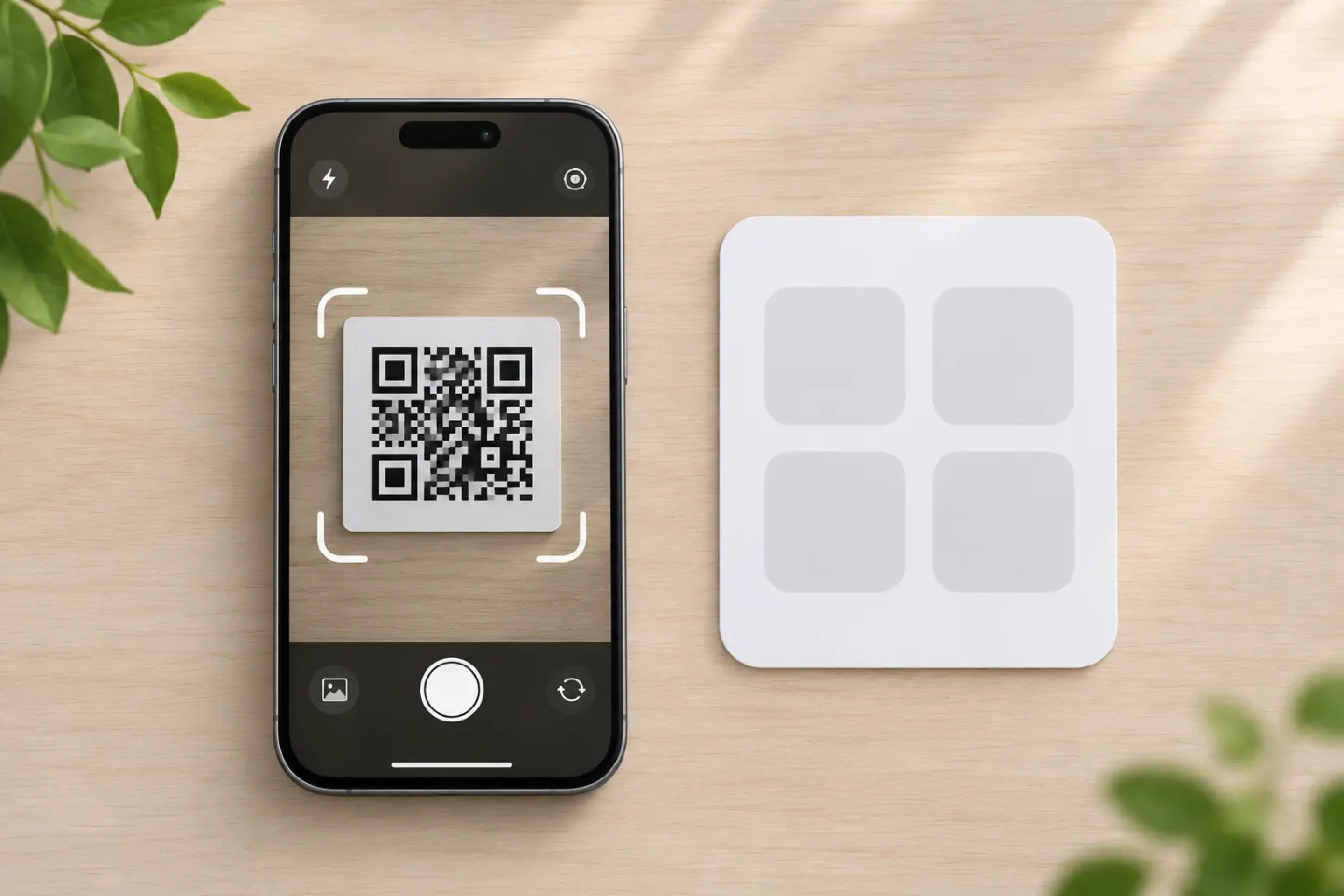
The important distinction is device support, not simply whether you have a “modern phone.” For example, Google limits QR scanning in Camera from Google to selected devices. Do not assume every Android camera has the same capabilities or settings. [2]
Try these built-in options first
iPhone and iPad: Camera or Code Scanner
Apple’s documented Camera method is straightforward:
- Open Camera.
- Hold the device so the QR code appears in the camera view.
- Tap the link that appears to open the content.
Alternatively, open Control Center and tap Scan Code. If that control is missing, Apple’s current instructions say to touch and hold the Control Center background, choose Add a Control, and add Scan Code. These are documentation-based steps, not results from an independent device test. [1]
Pixel: Camera, Quick Settings, or Google Lens
On a Pixel phone:
- Open Camera and point it at the entire code.
- Wait for a link or bubble; you do not need to take a photo.
- Review the result before tapping it.
If recognition is disabled, Google directs users to Settings → More settings → Camera scan suggestions. Pixel also offers Scan QR code in Quick Settings, and Google lists Lens as another option. [3]
Other Android phones: check your camera’s support
Try the camera’s regular photo mode or a labeled QR mode, where available. Google’s separate Camera from Google documentation supports both methods on selected devices, but not portrait or video mode. Those instructions are not a universal menu path for every Android manufacturer. [2]
If your maker’s camera lacks a QR feature, try the maker’s suggested scanner or a trusted QR reader.
Windows: look for barcode mode in Camera
Microsoft documents this method for Windows Camera:
- Open Camera.
- Select the Barcode button on the right.
- Hold the code in front of the camera until it is in focus.
- For a website QR code, select the link shown at the bottom of the app.
Check that this mode is actually available in your installation before relying on it. The documented procedure uses a camera pointed at a code; it is not an image-file import procedure. [4]
If the camera does not recognize the code
Before installing another app, try the basic fixes Google recommends: hold steady, improve lighting, avoid glare, clean the lens, and adjust the distance while keeping the entire code visible. On Pixel, also check that Camera scan suggestions is enabled. [3]
Use this decision rule: first rule out settings and capture problems; then decide whether you need another tool.
When a separate scanner app is worth considering
Use a separate app when the built-in camera cannot read the format or handle the file you need.
You might also have a specific workflow requirement. Before shopping for an app, write down what you need—for example:
- Importing a saved image or screenshot
- Keeping, searching, or exporting scan history
- Scanning several codes in succession
- Reading particular non-QR barcode formats
These are features to verify, not promises about dedicated scanner apps. Check the exact app’s documentation and limits rather than assuming that an extra download includes them. This guide does not rank or endorse third-party scanners.
What to check before installing
Our recommendation is to check the developer’s identity, required features, pricing or trial terms, privacy policy, and requested permissions before committing.
On Android, review both the app’s Data safety section and its permissions. Google explains that Data safety contains developer-declared information about data handling, while the permissions list describes access the app may request. They answer different questions; reviewing only one is not enough for an informed choice. [5]
A built-in scanner does not make the destination trustworthy
The scanner choice and the destination’s safety are separate decisions. The FTC reports that scammers replace legitimate QR codes and send unexpected codes that lead to convincing fake websites designed to steal information. [6]
Before following a QR link:
- Inspect the URL for misspellings or substituted letters.
- Avoid unexpected QR codes in texts or emails, especially urgent messages.
- If a message claims to come from a company, contact it through a website or phone number you already know is genuine.
- Keep your phone’s operating system updated and protect accounts with strong passwords and multifactor authentication.
These precautions follow FTC guidance and apply regardless of which scanner you use. [6]
References
[1] Apple Support, “Scan a QR code with your iPhone or iPad” — https://support.apple.com/en-us/102680
[2] Google Camera from Google Help, “Scan QR codes on Camera from Google” — https://support.google.com/camerafromgoogle/answer/12033278?hl=en
[3] Google Pixel Camera Help, “Scan QR codes with your Pixel phone” — https://support.google.com/pixelcamera/answer/16561572?hl=en
[4] Microsoft Support, “How to use the Windows Camera app” — https://support.microsoft.com/en-us/windows/hardware/camera/how-to-use-the-windows-camera-app
[5] Google Play Help, “Understand app privacy & security practices with Google Play’s Data safety section” — https://support.google.com/googleplay/answer/11416267?hl=en
[6] FTC Consumer Advice, “Scammers hide harmful links in QR codes to steal your information” — https://consumer.ftc.gov/consumer-alerts/2023/12/scammers-hide-harmful-links-qr-codes-steal-your-information




